> ## Documentation Index
> Fetch the complete documentation index at: https://docs.markifact.com/llms.txt
> Use this file to discover all available pages before exploring further.
# Bring Your Own API Keys
> Learn how to connect your own AI provider API keys to Markifact and reduce credit costs.
Markifact allows you to use your own API keys from leading AI providers. This gives you more control over your AI usage and significantly reduces your Markifact credit consumption.
***
## Supported AI Providers
We currently support three AI providers:
* **OpenAI**
* **Google Gemini**
* **Anthropic**
***
## How to Add Your API Keys
Navigate to the **Connections** page from the sidebar in your Markifact dashboard.
Scroll to find **OpenAI**, **Google Gemini**, or **Anthropic** in the list of available connections.
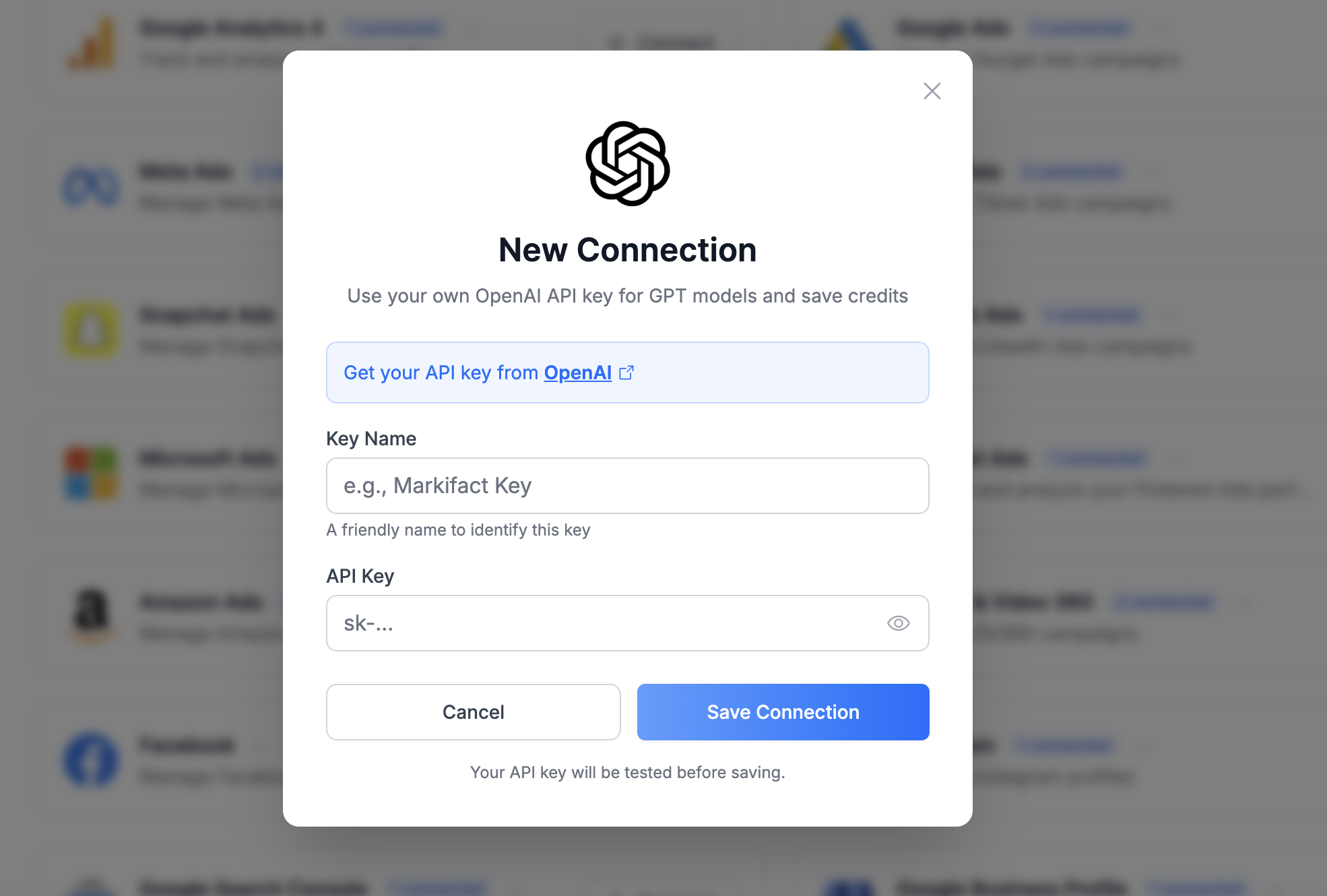
Click the **"+ Connect"** button next to your chosen provider. A connection dialog will open.
Give your API key a friendly name to identify it later (e.g., "My OpenAI Key" or "Production Key").
Enter your API key from the provider's dashboard. You can click the eye icon to verify your key.
Click **Save Connection**. Your API key will be tested before saving to ensure it's valid.
 ***
## Where to Get API Keys
1. Go to [platform.openai.com/api-keys](https://platform.openai.com/api-keys)
2. Sign in or create an account
3. Click **Create new secret key**
4. Copy the key and paste it into Markifact
> ⚠️ Make sure you have billing set up on your OpenAI account to use the API.
1. Go to [aistudio.google.com/app/apikey](https://aistudio.google.com/app/apikey)
2. Sign in with your Google account
3. Click **Create API Key**
4. Copy the key and paste it into Markifact
1. Go to [console.anthropic.com/settings/keys](https://console.anthropic.com/settings/keys)
2. Sign in or create an account
3. Click **Create Key**
4. Copy the key and paste it into Markifact
> ⚠️ Make sure you have billing set up on your Anthropic account to use the API.
***
## How It Works
When you configure your own API key:
1. **AI requests go through your account** — Markifact sends AI requests using your API key, and usage is billed directly by the provider to your account.
2. **You control the models** — Use any model available from your provider, including the latest releases.
3. **Your data, your terms** — Requests are subject to your agreement with the AI provider, not Markifact's.
Markifact securely stores your API keys using encryption. We never log or store the content of your AI requests.
***
## Credit Savings
Using your own API keys significantly reduces Markifact credit costs:
### AI Nodes (0 Credits)
When using your own API keys, all standard AI nodes consume **0 credits**:
* **AI Ask** — 0 credits
* **AI Structure** — 0 credits
* **AI Analyze Data** — 0 credits
* **AI Analyze Image** — 0 credits
* **AI Generate Image** — 0 credits
* **AI Edit Image** — 0 credits
### AI Agents (1 Credit Flat)
Agent nodes have a flat credit cost regardless of complexity:
| Node | Credit Cost |
| -------------- | ---------------- |
| **AI Agent** | 1 credit per run |
| **Task Agent** | 1 credit per run |
This flat rate applies no matter how many tools the agent uses or how long it takes to complete the task.
### Comparison Example
| Scenario | Without Own Keys | With Own Keys |
| ---------------------------- | ---------------- | ------------- |
| AI Ask (GPT-4o) | 5 credits | 0 credits |
| AI Structure (Claude Sonnet) | 10 credits | 0 credits |
| AI Agent (10 tool calls) | 5+ credits | 1 credit |
| Task Agent (complex task) | 10+ credits | 1 credit |
> 💡 **Tip:** If you run AI-heavy workflows frequently, using your own API keys can result in substantial credit savings.
***
## Switching Between Your Keys and Markifact
When you add your own API key for a provider, all AI nodes will automatically use your key instead of Markifact's built-in AI.
To switch back to using Markifact's AI:
1. Go to the **Connections** page
2. Find the API key connection you want to remove
3. **Delete the connection**
Once deleted, AI nodes will default back to Markifact's built-in AI (and credit costs will apply as normal).
> 💡 If you have multiple API keys for the same provider, Markifact will use the most recently added key.
***
## FAQ
Yes, but significantly fewer. You still need credits for:
* Workflow runs (1 credit per run)
* AI Agent and Task Agent nodes (1 credit flat each)
* Other non-AI nodes (Sheets, Slides, Google Ads, etc.)
The main savings come from AI nodes becoming free (0 credits).
Yes. Your API key is encrypted and stored securely. For security, API keys are never returned to the frontend after saving—they cannot be viewed or edited, only deleted. We never log the content of your AI requests.
Yes. You can add multiple API keys for the same provider. Markifact will automatically use the most recently added key for that provider.
Workflows using that key will fail on AI nodes. You'll need to delete the old connection and add a new one with a valid API key. Other nodes in the workflow will continue to work.
Rate limits are determined by your AI provider account, not Markifact. If you hit rate limits, you'll see errors from the provider. Consider upgrading your plan with the provider or spreading requests across time.
You can use any model supported by your provider and available in Markifact's AI nodes. We regularly update our model list to include the latest releases.
***
## Related
Learn more about how credits work and view full pricing tables.
Manage all your external connections including API keys.
***
## Where to Get API Keys
1. Go to [platform.openai.com/api-keys](https://platform.openai.com/api-keys)
2. Sign in or create an account
3. Click **Create new secret key**
4. Copy the key and paste it into Markifact
> ⚠️ Make sure you have billing set up on your OpenAI account to use the API.
1. Go to [aistudio.google.com/app/apikey](https://aistudio.google.com/app/apikey)
2. Sign in with your Google account
3. Click **Create API Key**
4. Copy the key and paste it into Markifact
1. Go to [console.anthropic.com/settings/keys](https://console.anthropic.com/settings/keys)
2. Sign in or create an account
3. Click **Create Key**
4. Copy the key and paste it into Markifact
> ⚠️ Make sure you have billing set up on your Anthropic account to use the API.
***
## How It Works
When you configure your own API key:
1. **AI requests go through your account** — Markifact sends AI requests using your API key, and usage is billed directly by the provider to your account.
2. **You control the models** — Use any model available from your provider, including the latest releases.
3. **Your data, your terms** — Requests are subject to your agreement with the AI provider, not Markifact's.
Markifact securely stores your API keys using encryption. We never log or store the content of your AI requests.
***
## Credit Savings
Using your own API keys significantly reduces Markifact credit costs:
### AI Nodes (0 Credits)
When using your own API keys, all standard AI nodes consume **0 credits**:
* **AI Ask** — 0 credits
* **AI Structure** — 0 credits
* **AI Analyze Data** — 0 credits
* **AI Analyze Image** — 0 credits
* **AI Generate Image** — 0 credits
* **AI Edit Image** — 0 credits
### AI Agents (1 Credit Flat)
Agent nodes have a flat credit cost regardless of complexity:
| Node | Credit Cost |
| -------------- | ---------------- |
| **AI Agent** | 1 credit per run |
| **Task Agent** | 1 credit per run |
This flat rate applies no matter how many tools the agent uses or how long it takes to complete the task.
### Comparison Example
| Scenario | Without Own Keys | With Own Keys |
| ---------------------------- | ---------------- | ------------- |
| AI Ask (GPT-4o) | 5 credits | 0 credits |
| AI Structure (Claude Sonnet) | 10 credits | 0 credits |
| AI Agent (10 tool calls) | 5+ credits | 1 credit |
| Task Agent (complex task) | 10+ credits | 1 credit |
> 💡 **Tip:** If you run AI-heavy workflows frequently, using your own API keys can result in substantial credit savings.
***
## Switching Between Your Keys and Markifact
When you add your own API key for a provider, all AI nodes will automatically use your key instead of Markifact's built-in AI.
To switch back to using Markifact's AI:
1. Go to the **Connections** page
2. Find the API key connection you want to remove
3. **Delete the connection**
Once deleted, AI nodes will default back to Markifact's built-in AI (and credit costs will apply as normal).
> 💡 If you have multiple API keys for the same provider, Markifact will use the most recently added key.
***
## FAQ
Yes, but significantly fewer. You still need credits for:
* Workflow runs (1 credit per run)
* AI Agent and Task Agent nodes (1 credit flat each)
* Other non-AI nodes (Sheets, Slides, Google Ads, etc.)
The main savings come from AI nodes becoming free (0 credits).
Yes. Your API key is encrypted and stored securely. For security, API keys are never returned to the frontend after saving—they cannot be viewed or edited, only deleted. We never log the content of your AI requests.
Yes. You can add multiple API keys for the same provider. Markifact will automatically use the most recently added key for that provider.
Workflows using that key will fail on AI nodes. You'll need to delete the old connection and add a new one with a valid API key. Other nodes in the workflow will continue to work.
Rate limits are determined by your AI provider account, not Markifact. If you hit rate limits, you'll see errors from the provider. Consider upgrading your plan with the provider or spreading requests across time.
You can use any model supported by your provider and available in Markifact's AI nodes. We regularly update our model list to include the latest releases.
***
## Related
Learn more about how credits work and view full pricing tables.
Manage all your external connections including API keys.