> ## Documentation Index
> Fetch the complete documentation index at: https://docs.markifact.com/llms.txt
> Use this file to discover all available pages before exploring further.
# Canvas Shortcuts
> Learn keyboard shortcuts and canvas interactions to build workflows faster in Markifact.
The Markifact canvas supports various keyboard shortcuts and interactions to help you build workflows more efficiently. Master these shortcuts to speed up your workflow development.
***
## All Keyboard Shortcuts
| Action | Shortcut | Category |
| ---------------------------- | -------------- | --------------- |
| **Save workflow** | `⌘ + S` | Workflow |
| **Undo canvas actions** | `⌘ + Z` | Workflow |
| **Redo canvas actions** | `⌘ + ⇧ + Z` | Workflow |
| **Auto layout nodes** | `Ctrl + L` | Canvas |
| **Copy selected nodes** | `⌘ + C` | Node Operations |
| **Paste nodes** | `⌘ + V` | Node Operations |
| **Duplicate selected nodes** | `⌘ + D` | Node Operations |
| **Delete selected nodes** | `Del` | Node Operations |
| **Multi-select (drag)** | `Shift + Drag` | Selection |
| **Multi-select individual** | `⌘ + Click` | Selection |
| **Zoom in canvas** | `Scroll Up` | Navigation |
| **Zoom out canvas** | `Scroll Down` | Navigation |
***
## Node Selection & Operations
### Multi-Select Nodes
There are two ways to select multiple nodes:
**Drag Selection:**
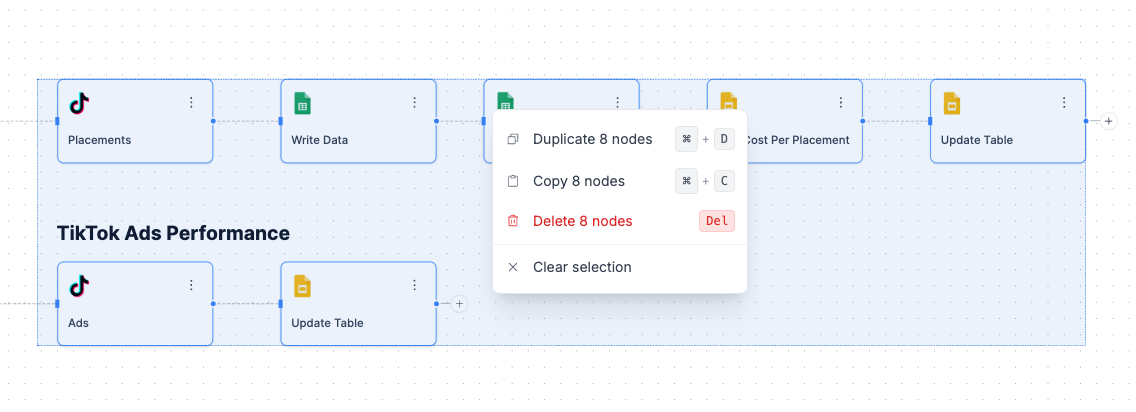
* Hold `Shift` and drag to create a selection box
* All nodes within the box will be selected, you can right-click to perform actions on them
 **Individual Selection:**
* Hold `⌘` (Mac) or `Ctrl` (Windows) and click individual nodes
* Each clicked node adds to your selection and gets a blue border
**Individual Selection:**
* Hold `⌘` (Mac) or `Ctrl` (Windows) and click individual nodes
* Each clicked node adds to your selection and gets a blue border
 ### Bulk Operations
Once you have multiple nodes selected, you can:
**Duplicate Multiple Nodes:**
* Select nodes using either method above
* Press `⌘ + D` or right-click and choose "Duplicate 4 nodes"
* All selected nodes and their connections will be duplicated
**Copy & Paste Nodes:**
* Select the nodes you want to copy
* Press `⌘ + C` or right-click and choose "Copy X nodes"
* Paste using `⌘ + V` or click the paste button in the canvas controls toolbar
* Works across the same workflow or different workflows
**Delete Multiple Nodes:**
* Select the nodes you want to remove
* Press `Del` or right-click and choose "Delete 4 nodes"
* All selected nodes will be removed from the canvas
**Clear Selection:**
* Click anywhere on empty canvas space
* Or right-click and choose "Clear selection"
***
## Auto Layout
**Auto Layout:** `Ctrl + L`
* Automatically organizes all nodes horizontally on the canvas
* Cleans up messy "spaghetti" layouts and crossed connections
* Maintains all existing connections between nodes
Use it when your canvas becomes cluttered or hard to follow.
***
## Canvas Navigation
### Zooming
* **Zoom in:** Scroll up or use zoom controls in bottom toolbar
* **Zoom out:** Scroll down or use zoom controls in bottom toolbar
* **Fit to screen:** Click the fit-to-screen button in bottom toolbar
### Panning
* **Drag canvas:** Click and drag on empty space to move around
* **Reset view:** Use the reset button in bottom toolbar
***
## Quick Actions Menu
Right-click on selected nodes to access:
* **Duplicate X nodes** - Duplicate selected nodes with `⌘ + D` shortcut
* **Copy X nodes** - Copy selected nodes to clipboard with `⌘ + C` shortcut
* **Delete X nodes** - Remove selected nodes with `Del` shortcut
* **Clear selection** - Deselect all nodes
The menu shows the exact number of selected nodes (e.g., "Duplicate 9 nodes", "Copy 9 nodes").
***
## Toolbar Controls
The bottom toolbar provides additional canvas controls:
| Icon | Function |
| --------- | -------------------------- |
| **+ / -** | Zoom in/out controls |
| **⌂** | Fit canvas to screen |
| **✂** | Disable/enable connections |
| **↻ / ↺** | Undo/Redo actions |
| **📋** | Paste copied nodes |
| **⌘** | View keyboard shortcuts |
These complement the keyboard shortcuts for complete canvas control.
***
## FAQ
There are two ways to select multiple nodes:
**Method 1: Drag Selection**
1. Hold `Shift`
2. Click and drag to create a selection box
3. All nodes within the box will be selected
**Method 2: Individual Selection**
1. Hold `⌘` (Mac) or `Ctrl` (Windows)
2. Click each node you want to select
3. Each clicked node adds to your selection
Both methods show a blue selection indicator around chosen nodes.
1. **Select multiple nodes** using either drag selection (`Shift + Drag`) or individual selection (`⌘ + Click`)
2. **Duplicate them** using either:
* Press `⌘ + D`
* Right-click and choose "Duplicate X nodes"
3. **All selected nodes and their connections** will be duplicated as a group
The duplicated nodes will appear slightly offset from the originals.
1. **Select the nodes** you want to remove using `Shift + Drag` or `⌘ + Click`
2. **Delete them** using either:
* Press `Del` key
* Right-click and choose "Delete X nodes"
3. **All selected nodes** will be removed from the canvas
Be careful - this action cannot be undone with `⌘ + Z` once you save the workflow.
1. **Select the nodes** you want to copy using `Shift + Drag` or `⌘ + Click`
2. **Copy them** using `⌘ + C` or right-click and choose "Copy X nodes"
3. **Navigate to the target workflow** (same or different)
4. **Paste the nodes** using `⌘ + V` or click the paste button in the canvas controls toolbar
This works across the same workflow or different workflows, preserving all connections between the copied nodes.
**Duplicate** (`⌘ + D`) instantly creates a copy of selected nodes in the same workflow, offset from the originals.
**Copy** (`⌘ + C`) saves nodes to clipboard, allowing you to paste them later using `⌘ + V` - either in the same workflow or a completely different workflow. Use Copy when you want to reuse node patterns across multiple workflows.
Make sure you're focused on the canvas area and not inside a text field or sidebar. Click on empty canvas space first, then try your shortcuts.
Yes! When you duplicate nodes using `⌘ + D`, Markifact preserves the connections between the duplicated nodes, creating an exact copy of the node group.
Use `⌘ + Click` to individually select nodes anywhere on the canvas. This is better than shift-drag when nodes aren't clustered together.
**Delete** (`Del` key) removes selected nodes permanently from your workflow. **Clear selection** just deselects nodes without removing them.
Auto Layout (`Ctrl + L`) automatically organizes all nodes horizontally on your canvas to clean up messy layouts. It maintains all existing connections between nodes without changing your workflow logic.
### Bulk Operations
Once you have multiple nodes selected, you can:
**Duplicate Multiple Nodes:**
* Select nodes using either method above
* Press `⌘ + D` or right-click and choose "Duplicate 4 nodes"
* All selected nodes and their connections will be duplicated
**Copy & Paste Nodes:**
* Select the nodes you want to copy
* Press `⌘ + C` or right-click and choose "Copy X nodes"
* Paste using `⌘ + V` or click the paste button in the canvas controls toolbar
* Works across the same workflow or different workflows
**Delete Multiple Nodes:**
* Select the nodes you want to remove
* Press `Del` or right-click and choose "Delete 4 nodes"
* All selected nodes will be removed from the canvas
**Clear Selection:**
* Click anywhere on empty canvas space
* Or right-click and choose "Clear selection"
***
## Auto Layout
**Auto Layout:** `Ctrl + L`
* Automatically organizes all nodes horizontally on the canvas
* Cleans up messy "spaghetti" layouts and crossed connections
* Maintains all existing connections between nodes
Use it when your canvas becomes cluttered or hard to follow.
***
## Canvas Navigation
### Zooming
* **Zoom in:** Scroll up or use zoom controls in bottom toolbar
* **Zoom out:** Scroll down or use zoom controls in bottom toolbar
* **Fit to screen:** Click the fit-to-screen button in bottom toolbar
### Panning
* **Drag canvas:** Click and drag on empty space to move around
* **Reset view:** Use the reset button in bottom toolbar
***
## Quick Actions Menu
Right-click on selected nodes to access:
* **Duplicate X nodes** - Duplicate selected nodes with `⌘ + D` shortcut
* **Copy X nodes** - Copy selected nodes to clipboard with `⌘ + C` shortcut
* **Delete X nodes** - Remove selected nodes with `Del` shortcut
* **Clear selection** - Deselect all nodes
The menu shows the exact number of selected nodes (e.g., "Duplicate 9 nodes", "Copy 9 nodes").
***
## Toolbar Controls
The bottom toolbar provides additional canvas controls:
| Icon | Function |
| --------- | -------------------------- |
| **+ / -** | Zoom in/out controls |
| **⌂** | Fit canvas to screen |
| **✂** | Disable/enable connections |
| **↻ / ↺** | Undo/Redo actions |
| **📋** | Paste copied nodes |
| **⌘** | View keyboard shortcuts |
These complement the keyboard shortcuts for complete canvas control.
***
## FAQ
There are two ways to select multiple nodes:
**Method 1: Drag Selection**
1. Hold `Shift`
2. Click and drag to create a selection box
3. All nodes within the box will be selected
**Method 2: Individual Selection**
1. Hold `⌘` (Mac) or `Ctrl` (Windows)
2. Click each node you want to select
3. Each clicked node adds to your selection
Both methods show a blue selection indicator around chosen nodes.
1. **Select multiple nodes** using either drag selection (`Shift + Drag`) or individual selection (`⌘ + Click`)
2. **Duplicate them** using either:
* Press `⌘ + D`
* Right-click and choose "Duplicate X nodes"
3. **All selected nodes and their connections** will be duplicated as a group
The duplicated nodes will appear slightly offset from the originals.
1. **Select the nodes** you want to remove using `Shift + Drag` or `⌘ + Click`
2. **Delete them** using either:
* Press `Del` key
* Right-click and choose "Delete X nodes"
3. **All selected nodes** will be removed from the canvas
Be careful - this action cannot be undone with `⌘ + Z` once you save the workflow.
1. **Select the nodes** you want to copy using `Shift + Drag` or `⌘ + Click`
2. **Copy them** using `⌘ + C` or right-click and choose "Copy X nodes"
3. **Navigate to the target workflow** (same or different)
4. **Paste the nodes** using `⌘ + V` or click the paste button in the canvas controls toolbar
This works across the same workflow or different workflows, preserving all connections between the copied nodes.
**Duplicate** (`⌘ + D`) instantly creates a copy of selected nodes in the same workflow, offset from the originals.
**Copy** (`⌘ + C`) saves nodes to clipboard, allowing you to paste them later using `⌘ + V` - either in the same workflow or a completely different workflow. Use Copy when you want to reuse node patterns across multiple workflows.
Make sure you're focused on the canvas area and not inside a text field or sidebar. Click on empty canvas space first, then try your shortcuts.
Yes! When you duplicate nodes using `⌘ + D`, Markifact preserves the connections between the duplicated nodes, creating an exact copy of the node group.
Use `⌘ + Click` to individually select nodes anywhere on the canvas. This is better than shift-drag when nodes aren't clustered together.
**Delete** (`Del` key) removes selected nodes permanently from your workflow. **Clear selection** just deselects nodes without removing them.
Auto Layout (`Ctrl + L`) automatically organizes all nodes horizontally on your canvas to clean up messy layouts. It maintains all existing connections between nodes without changing your workflow logic.