> ## Documentation Index
> Fetch the complete documentation index at: https://docs.markifact.com/llms.txt
> Use this file to discover all available pages before exploring further.
# Connections
> Learn how to connect external platforms to Markifact and manage your existing connections.
A **connection** is the secure link between Markifact and an external platform like Google Ads, Meta Ads, Slack, or BigQuery. Once connected, you can pull data, send reports, and automate actions across these platforms.
***
## How to Create New Connections
You can create connections in two ways: directly from the **Connections page** or when configuring nodes in your workflows.
### From the Connections Page:
1. **Go to the Connections page** from the sidebar
2. **Click "Add Connection"** or the **"+"** button
3. **Select the platform** you want to connect (Google Ads, Meta Ads, Slack, etc.)
4. **Follow the authentication process** - Log in and grant permissions
### From a Workflow Node:
1. **Go to the workflow editor**
2. **Click on an app node** in your workflow (like Google Ads or Slack)
3. **Follow the connection process** - A sidebar will open and guide you through authentication
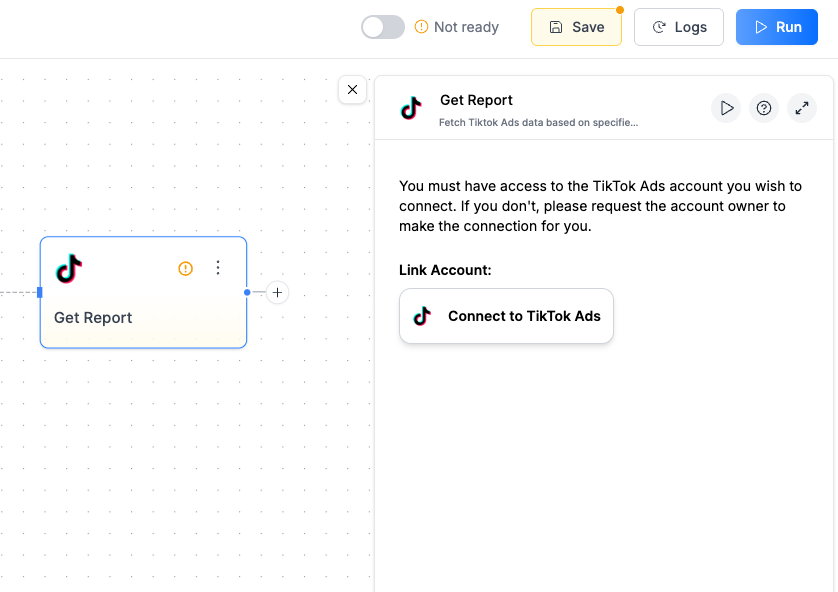 The connection process typically involves:
* Logging into your account (e.g., Google, Meta, Slack)
* Granting Markifact permission to access your data
* Selecting which accounts or properties to connect
***
## Managing Multiple Connections
You can connect multiple accounts for the same platform. For example, you might have separate Google Ads connections for different clients or business units.
### Adding Additional Connections
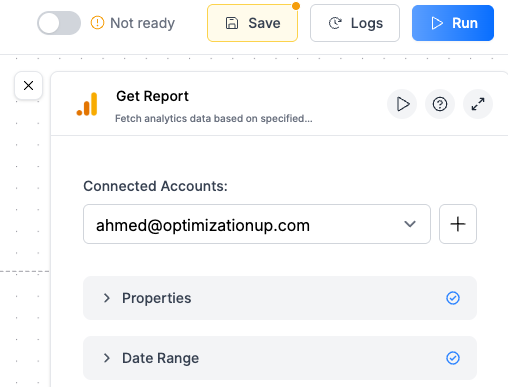
When configuring a node:
1. Click the **"+"** button next to your current connection dropdown
2. Follow the authentication flow for the new account
3. Your new connection will appear in the dropdown menu
This lets you work with multiple accounts within the same workflow or across different workflows.
The connection process typically involves:
* Logging into your account (e.g., Google, Meta, Slack)
* Granting Markifact permission to access your data
* Selecting which accounts or properties to connect
***
## Managing Multiple Connections
You can connect multiple accounts for the same platform. For example, you might have separate Google Ads connections for different clients or business units.
### Adding Additional Connections
When configuring a node:
1. Click the **"+"** button next to your current connection dropdown
2. Follow the authentication flow for the new account
3. Your new connection will appear in the dropdown menu
This lets you work with multiple accounts within the same workflow or across different workflows.
 ***
## The Connections Page
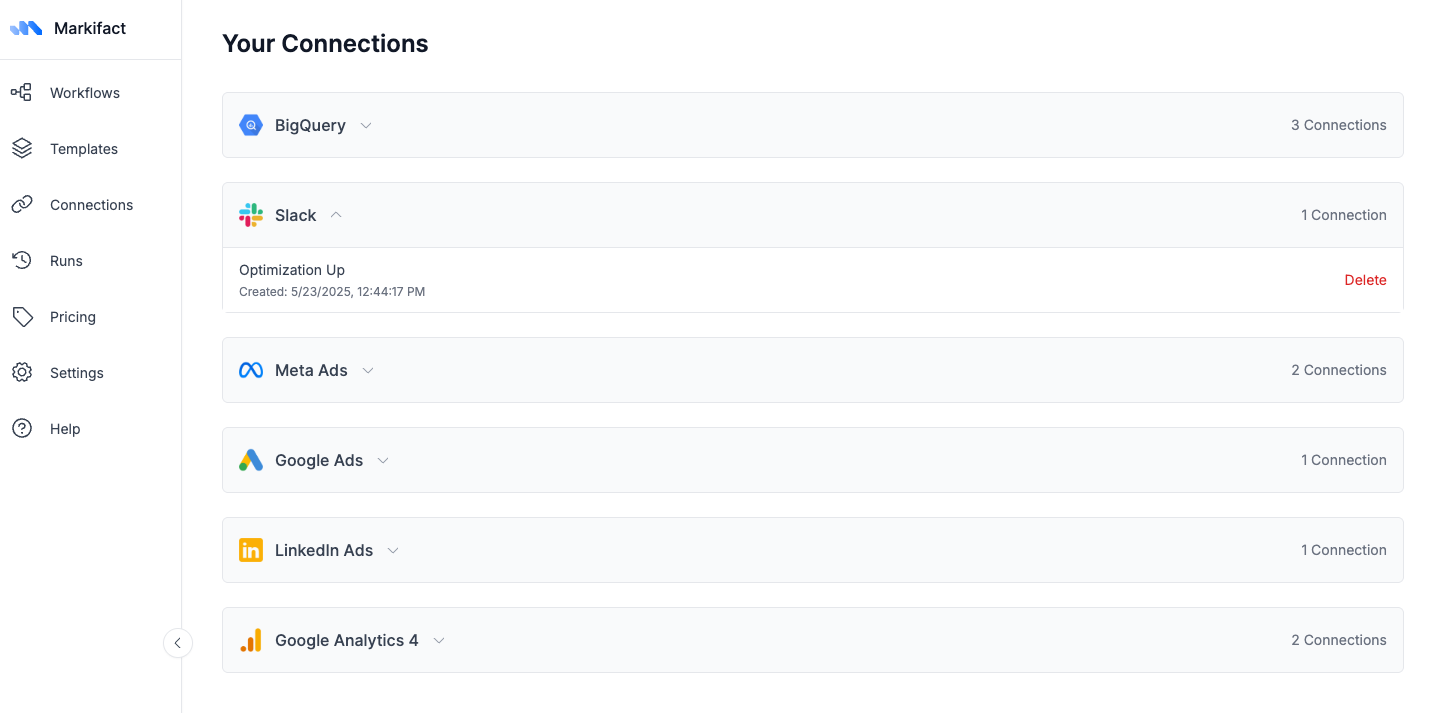
The Connections page is your central hub for managing all your connections. Here you can:
* **Create new connections** using the **"Add Connection"** or **"+"** button
* **View all connected platforms** and accounts
* **See connection details** like when they were created
* **Delete connections** you no longer need
* **Organize connections** by platform
***
## The Connections Page
The Connections page is your central hub for managing all your connections. Here you can:
* **Create new connections** using the **"Add Connection"** or **"+"** button
* **View all connected platforms** and accounts
* **See connection details** like when they were created
* **Delete connections** you no longer need
* **Organize connections** by platform
 ***
## Bring Your Own AI API Keys
You can connect your own API keys from **OpenAI**, **Google Gemini**, or **Anthropic** to use with AI nodes. This significantly reduces your Markifact credit costs—AI nodes become free, and agent nodes cost just 1 credit flat.
See how to add your API keys, where to get them, and how credits work.
***
## Deleting Connections
When you delete a connection:
> ⚠️ **Warning:** Any active workflows using this connection will be deactivated until you reconfigure them with a new connection.
### Before deleting:
* Check which workflows use this connection
* Make sure you have alternative connections set up if needed
* Consider if any scheduled workflows will be affected
### To delete a connection:
1. Go to the **Connections page**
2. Find the connection you want to remove
3. Click **Delete**
4. Confirm the deletion in the dialog
***
## Common Connection Issues
Some platforms require periodic re-authentication. Go to the node using that connection and follow the authentication flow again. Your existing workflows will continue working once re-authenticated.
Check that your connection has the right permissions and that you've selected the correct account in the node settings. Some platforms have multiple levels of access that affect what data you can pull.
Connection sharing depends on your Markifact plan. If you're on the team plan, connections are shared across the team. Individual users can only see and manage their own connections on personal plans.
Workflows using the deleted connection will be deactivated and show errors. You'll need to reconfigure those nodes with a different connection before the workflows can run again.
***
## Bring Your Own AI API Keys
You can connect your own API keys from **OpenAI**, **Google Gemini**, or **Anthropic** to use with AI nodes. This significantly reduces your Markifact credit costs—AI nodes become free, and agent nodes cost just 1 credit flat.
See how to add your API keys, where to get them, and how credits work.
***
## Deleting Connections
When you delete a connection:
> ⚠️ **Warning:** Any active workflows using this connection will be deactivated until you reconfigure them with a new connection.
### Before deleting:
* Check which workflows use this connection
* Make sure you have alternative connections set up if needed
* Consider if any scheduled workflows will be affected
### To delete a connection:
1. Go to the **Connections page**
2. Find the connection you want to remove
3. Click **Delete**
4. Confirm the deletion in the dialog
***
## Common Connection Issues
Some platforms require periodic re-authentication. Go to the node using that connection and follow the authentication flow again. Your existing workflows will continue working once re-authenticated.
Check that your connection has the right permissions and that you've selected the correct account in the node settings. Some platforms have multiple levels of access that affect what data you can pull.
Connection sharing depends on your Markifact plan. If you're on the team plan, connections are shared across the team. Individual users can only see and manage their own connections on personal plans.
Workflows using the deleted connection will be deactivated and show errors. You'll need to reconfigure those nodes with a different connection before the workflows can run again.