> ## Documentation Index
> Fetch the complete documentation index at: https://docs.markifact.com/llms.txt
> Use this file to discover all available pages before exploring further.
# Node
> Learn how nodes work in Markifact, how they pass data, and how to inspect inputs and outputs.
A **node** is a single step in a workflow. Nodes fetch data, process it, or send it to another destination. Every workflow is built by chaining multiple nodes together.
***
## Trigger vs Action Nodes
There are two types of nodes in Markifact:
* **Trigger Node** – Starts the workflow. This could be time-based (e.g., every Monday), event-based (e.g., new Slack message), or manual.
* **Action Node** – Performs a specific task. This includes pulling data, transforming it, sending it, or using AI to analyze it.
***
## Common Node Categories
While all action nodes technically follow the same structure, they fall into categories based on behavior:
| Category | Description | Examples |
| ------------- | ------------------------------------------- | -------------------------------- |
| **Pull Data** | Fetches data from a source | Google Ads, BigQuery, Meta Ads |
| **Transform** | Processes or reshapes the data | Filter Rows, Sort, Rename Fields |
| **AI** | Uses language models to analyze or generate | Ask AI, Analyze Data, Summarize |
| **Send** | Sends data to a destination | Google Sheets, Slides, Slack |
***
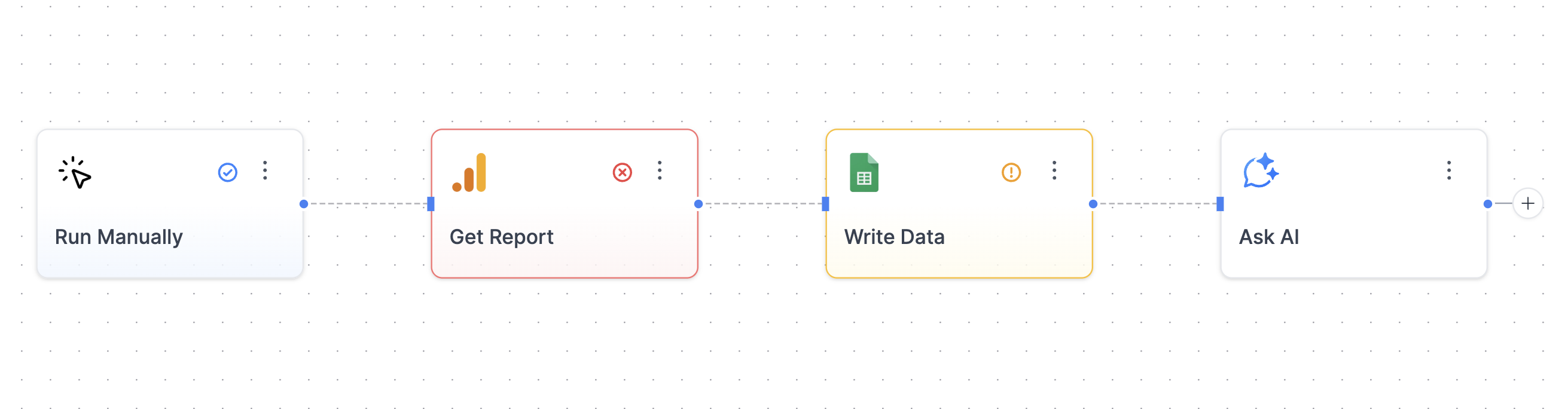
## Node Status Indicators
Nodes display visual indicators to show their current state:
| Status | Description |
| ------------------------------ | ----------------------------------------------------------------- |
| **No badge or icon** | Node is ready to run and properly configured |
| **⚠️ Warning (orange circle)** | Configuration is incomplete - missing required fields or settings |
| **❌ Error (red X)** | Last run failed - check the Logs panel for error details |
| **✅ Success (blue checkmark)** | Last run completed successfully |
These indicators help you quickly identify which nodes need attention before running your workflow.
 ***
## Inputs & Outputs
Each node receives **input** from the previous step and produces **output** for the next one.
### Where to View Inputs and Outputs
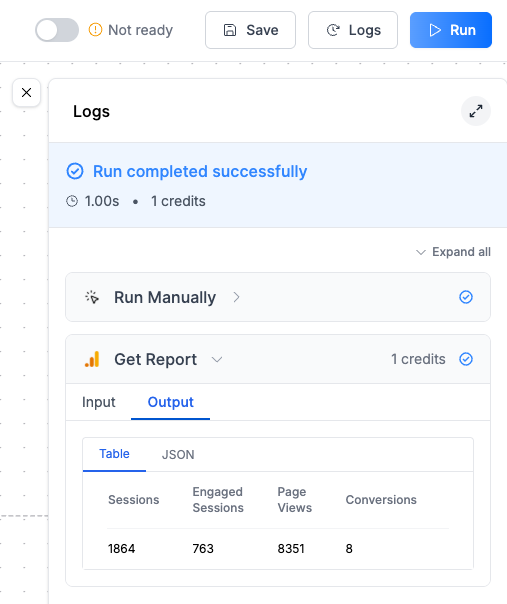
After running a workflow:
1. Open the **Logs panel**
2. Click any node to expand its details
3. Toggle between **Input** and **Output** tabs
4. You can view both **Table** and **JSON** formats
This helps you understand what’s flowing between nodes — especially when debugging.
***
## Inputs & Outputs
Each node receives **input** from the previous step and produces **output** for the next one.
### Where to View Inputs and Outputs
After running a workflow:
1. Open the **Logs panel**
2. Click any node to expand its details
3. Toggle between **Input** and **Output** tabs
4. You can view both **Table** and **JSON** formats
This helps you understand what’s flowing between nodes — especially when debugging.
 ***
## Passing Data Between Nodes
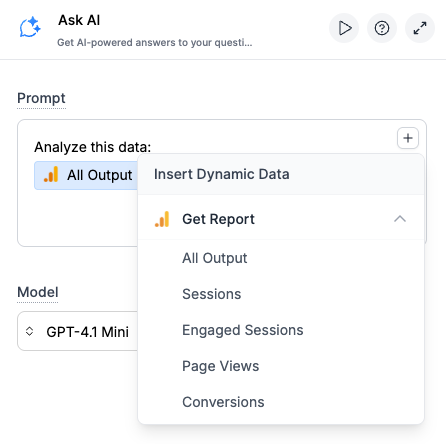
You can reference the output of any previous node using the **dynamic data picker**.
For example, when sending data to Google Sheets:
* Click on the **Data** field
* Choose **"Insert Dynamic Data"**
* Pick the output from a previous node (e.g., `Get Report`)
* You can insert the **entire output**, or **individual fields** like `Sessions`, `Page Views`, etc.
***
## Passing Data Between Nodes
You can reference the output of any previous node using the **dynamic data picker**.
For example, when sending data to Google Sheets:
* Click on the **Data** field
* Choose **"Insert Dynamic Data"**
* Pick the output from a previous node (e.g., `Get Report`)
* You can insert the **entire output**, or **individual fields** like `Sessions`, `Page Views`, etc.
 ***
## Common Issues: "I Don't See Any Output to Select"
If a node's output doesn't show up in the dynamic data picker, here are the most likely reasons:
### 1. Node isn't fully configured
* Some fields might be missing (e.g., missing credentials, dataset, or query).
* You'll usually see a **warning badge** around the node.
* Make sure all required fields are filled out and saved.
### 2. Node hasn't been run yet (for preview-only outputs)
* Some nodes like **BigQuery** or **Google Sheets** require an actual run to generate outputs.
* These nodes fetch **dynamic fields** (e.g., column names or schema) and can't predict output without executing.
> 🔍 **Important:** Even if the node technically works, its output might not be "discoverable" in downstream nodes until it's run.
### 3. You're referencing a node that produced no output
* If the node ran but returned nothing (e.g., an empty query result), the output might be technically "valid" but invisible.
* Check the Logs tab → Output to confirm there's data.
### 4. Node isn't connected or dependent on the target node
* The dynamic data picker only shows outputs from nodes that are **in the same execution path** as your current node.
* If nodes are in different branches or not connected through the workflow path, their outputs won't be available.
* Make sure there's a clear execution path from the source node to your current node.
***
## Best Practices
* Give your nodes clear labels (e.g. “Pull Meta Ads – Last 7 Days” instead of just “Get Report”)
* Always **run a node once** before using its output in another node (especially for BigQuery, Sheets, or Docs)
* Use the **Logs** tab to confirm output and test your logic
* Use **“Use All Data”** for tables and **field-level insertion** for messages and AI steps
***
## FAQ
This means a single node exceeded the 15 MB limit, or your total workflow exceeded 20 MB. Break your workflow into smaller pieces: split large data pulls across multiple workflows, use date ranges to get smaller chunks of data, and filter your reports to only essential metrics.
Some nodes (like BigQuery or Google Sheets) need to be run before their output becomes available. This is because they generate output dynamically based on actual query results or fetched data. Make sure the node has run successfully and returned valid data before using it in downstream nodes.
After running your workflow, open the Logs panel. Click on any node to inspect its input and output. You can switch between table view and raw JSON. This is helpful for debugging and validating your automation.
Yes! You can reference output from any node that's in the same execution path as your current node, even if they're not directly connected. The dynamic data picker shows all available outputs from nodes that will execute before your current node in the workflow path.
If you delete a node whose output is being used by other nodes, those dependent nodes will show errors and need to be reconfigured. You'll see "Missing Node Reference" errors in the UI where the deleted node's data was referenced. Always check for dependencies before deleting nodes.
This error appears when a node tries to reference data from another node that has been deleted or disconnected. To fix it:
1. Check if the referenced node was accidentally deleted and restore it if needed.
2. If the node was intentionally removed, update all fields that reference it by selecting a different data source from the dynamic data picker.
3. Remove any dynamic references that are no longer needed. The error will show exactly which field has the broken reference.
Warning badges appear when a node has missing required fields, invalid configurations, or authentication issues. Click on the node to see specific error messages and fix the configuration.
Yes, renaming a node won't break existing connections or references. The workflow uses internal IDs, not display names, to track node relationships.
Some nodes provide preview capabilities or validation feedback. Look for preview buttons or run individual nodes to test their configuration. You can also check for warning badges or error messages in the node settings.
'Use All Data' passes the entire output (all rows and columns) to the next node, while selecting individual fields lets you pick specific data points. Use 'Use All Data' for tables and data processing, and individual fields for messages, AI prompts, or specific values.
Workflows stop when a node encounters an error, fails authentication, or returns no data when data is expected. Check the Logs panel for specific error messages and ensure all nodes are properly configured with valid credentials.
***
## Common Issues: "I Don't See Any Output to Select"
If a node's output doesn't show up in the dynamic data picker, here are the most likely reasons:
### 1. Node isn't fully configured
* Some fields might be missing (e.g., missing credentials, dataset, or query).
* You'll usually see a **warning badge** around the node.
* Make sure all required fields are filled out and saved.
### 2. Node hasn't been run yet (for preview-only outputs)
* Some nodes like **BigQuery** or **Google Sheets** require an actual run to generate outputs.
* These nodes fetch **dynamic fields** (e.g., column names or schema) and can't predict output without executing.
> 🔍 **Important:** Even if the node technically works, its output might not be "discoverable" in downstream nodes until it's run.
### 3. You're referencing a node that produced no output
* If the node ran but returned nothing (e.g., an empty query result), the output might be technically "valid" but invisible.
* Check the Logs tab → Output to confirm there's data.
### 4. Node isn't connected or dependent on the target node
* The dynamic data picker only shows outputs from nodes that are **in the same execution path** as your current node.
* If nodes are in different branches or not connected through the workflow path, their outputs won't be available.
* Make sure there's a clear execution path from the source node to your current node.
***
## Best Practices
* Give your nodes clear labels (e.g. “Pull Meta Ads – Last 7 Days” instead of just “Get Report”)
* Always **run a node once** before using its output in another node (especially for BigQuery, Sheets, or Docs)
* Use the **Logs** tab to confirm output and test your logic
* Use **“Use All Data”** for tables and **field-level insertion** for messages and AI steps
***
## FAQ
This means a single node exceeded the 15 MB limit, or your total workflow exceeded 20 MB. Break your workflow into smaller pieces: split large data pulls across multiple workflows, use date ranges to get smaller chunks of data, and filter your reports to only essential metrics.
Some nodes (like BigQuery or Google Sheets) need to be run before their output becomes available. This is because they generate output dynamically based on actual query results or fetched data. Make sure the node has run successfully and returned valid data before using it in downstream nodes.
After running your workflow, open the Logs panel. Click on any node to inspect its input and output. You can switch between table view and raw JSON. This is helpful for debugging and validating your automation.
Yes! You can reference output from any node that's in the same execution path as your current node, even if they're not directly connected. The dynamic data picker shows all available outputs from nodes that will execute before your current node in the workflow path.
If you delete a node whose output is being used by other nodes, those dependent nodes will show errors and need to be reconfigured. You'll see "Missing Node Reference" errors in the UI where the deleted node's data was referenced. Always check for dependencies before deleting nodes.
This error appears when a node tries to reference data from another node that has been deleted or disconnected. To fix it:
1. Check if the referenced node was accidentally deleted and restore it if needed.
2. If the node was intentionally removed, update all fields that reference it by selecting a different data source from the dynamic data picker.
3. Remove any dynamic references that are no longer needed. The error will show exactly which field has the broken reference.
Warning badges appear when a node has missing required fields, invalid configurations, or authentication issues. Click on the node to see specific error messages and fix the configuration.
Yes, renaming a node won't break existing connections or references. The workflow uses internal IDs, not display names, to track node relationships.
Some nodes provide preview capabilities or validation feedback. Look for preview buttons or run individual nodes to test their configuration. You can also check for warning badges or error messages in the node settings.
'Use All Data' passes the entire output (all rows and columns) to the next node, while selecting individual fields lets you pick specific data points. Use 'Use All Data' for tables and data processing, and individual fields for messages, AI prompts, or specific values.
Workflows stop when a node encounters an error, fails authentication, or returns no data when data is expected. Check the Logs panel for specific error messages and ensure all nodes are properly configured with valid credentials.