> ## Documentation Index
> Fetch the complete documentation index at: https://docs.markifact.com/llms.txt
> Use this file to discover all available pages before exploring further.
# Templates
> Learn about Markifact's two template types: public templates in our curated library and private shared workflows for teams and collaborators.
Markifact offers two types of templates to help you get started quickly or share your workflows with others. Whether you're looking for pre-built solutions or want to distribute your own creations, templates make workflow automation accessible to everyone.
***
## Template Types
### 1. Public Template Library
Our curated collection of professional, ready-to-use templates designed for common marketing tasks.
**Access**: [markifact.com/templates](https://www.markifact.com/templates)
#### What's Included
* **Markifact-created templates** - Built by our team for popular use cases
* **Expert-vetted templates** - Community submissions approved by our team
#### Getting Listed
Want your template in our public library?
1. Create a high-quality workflow
2. Test thoroughly with multiple scenarios
3. Contact us to apply for inclusion
4. Our team reviews for quality and usefulness
> 💡 **Requirements**: Templates must be well-documented, reliable, and solve common problems to be accepted into our public library.
### 2. Unlisted Shared Workflows
Personal workflow sharing for teams, clients, or collaborators through secure, private links. **These templates are not listed publicly and can only be accessed by people you share the link with.**
#### How It Works
* **Link-only access** - Only people with the URL can use the template
* **Not publicly indexed** - Hidden from Google and search engines
* **Secure sharing** - Credentials and sensitive data are never shared
* **Instant copying** - Recipients create their own copy with one click
***
## Creating Shared Workflows
### Enable Template Sharing
1. Open your workflow in the canvas editor
2. Click **Share** button (or workflow settings)
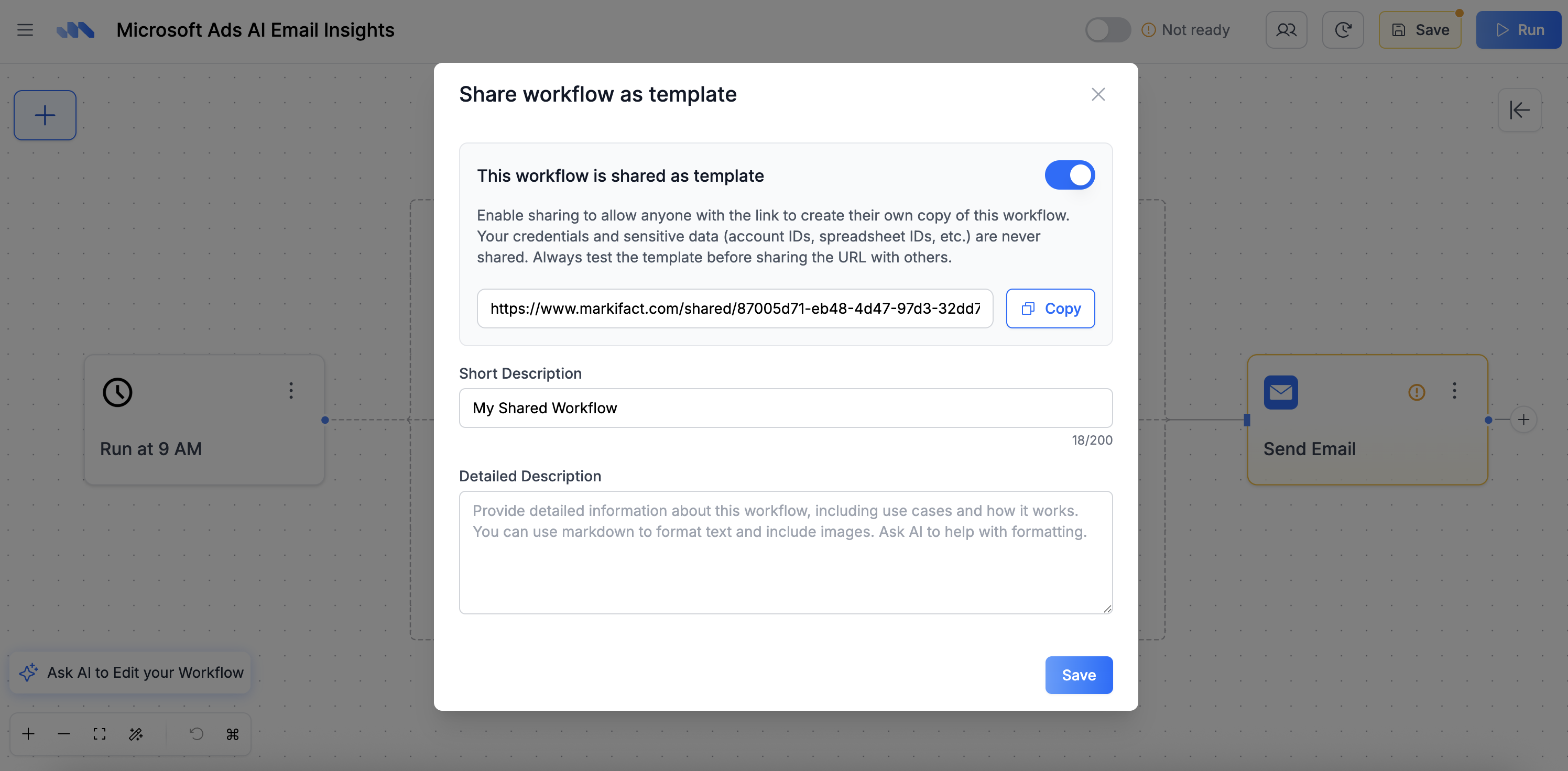
3. Toggle **"This workflow is shared as template"**
4. Add descriptions (optional but recommended)
5. Copy the generated URL to share
 ### Template Descriptions
#### Short Description (Required)
* **Character limit**: 200 characters maximum
* **Purpose**: Brief summary shown on the template preview
* **Best practices**: Focus on what the workflow does and key benefits
**Example**: *"Automate monthly SEO reports by pulling data from Google Search Console and Analytics, then generating client-ready slides with key metrics and insights."*
#### Detailed Description (Optional)
* **Format**: Full Markdown support
* **Purpose**: Landing page-style content when someone clicks your template
* **Include**: Use cases, setup instructions, requirements, examples
**Markdown features available**:
* Headers (`# ## ###`)
* Lists (bulleted and numbered)
* Links and images
* Code blocks
* Emphasis (`**bold**`, `*italic*`)
**Example**:
```markdown theme={"dark"}
# Monthly SEO Performance Reports
This workflow automatically generates comprehensive SEO reports for your clients or internal teams.
## What It Does
- Pulls organic traffic data from Google Analytics
- Fetches ranking and click data from Search Console
- Creates professional slide presentations
- Sends reports via email or Slack
## Requirements
- Google Analytics account
- Google Search Console access
- Google Slides (for report generation)
## Setup Instructions
1. Connect your Google accounts
2. Configure the date range (default: last 30 days)
3. Customize the report template
4. Set up automated scheduling (optional)
```
***
## Security & Privacy
### What's Protected
* **Account credentials** - Never shared with template users
* **Sensitive IDs** - Account IDs, Spreadsheet IDs, email addresses, etc
### What's Shared
* **Workflow structure** - Node configuration and connections
* **Template descriptions** - Your written content and instructions
* **Node settings** - General configuration (without credentials)
> 🔒 **Important**: Always test your template with a fresh account to ensure no sensitive data is accidentally exposed.
***
## Best Practices
### For Public Library Submissions
1. **Clear naming** - Use descriptive, searchable names
2. **Comprehensive testing** - Verify with different data sources
3. **Good documentation** - Include setup instructions and examples
4. **Error handling** - Add proper validation and fallbacks
5. **Modular design** - Make it easy to customize for different needs
### For Shared Workflows
1. **Test before sharing** - Create a new account and test the template
2. **Document requirements** - List all necessary integrations and access
3. **Provide examples** - Show sample inputs/outputs
4. **Include contact info** - Let users know how to get help
***
## Common Use Cases
### Team Collaboration
* **Client templates** - Provide standardized solutions for common client needs
* **Department sharing** - Distribute approved workflows across teams
### Education & Training
* **Course materials** - Include workflow templates in marketing automation courses
* **Workshops** - Provide hands-on examples for training sessions
* **Documentation** - Supplement tutorials with working examples
### Business Development
* **Client proposals** - Show potential clients exactly what they'll receive
* **Proof of concepts** - Demonstrate workflow capabilities quickly
* **Sales tools** - Help prospects understand workflow value
***
## FAQ
Template links remain active as long as:
* Your account is active
* The original workflow still exists
* Template sharing is enabled
If you delete the original workflow or disable sharing, the template link will stop working.
Yes! Changes to your original workflow automatically update the template. However:
* Users who already copied the template won't see updates
* The template URL stays the same
* Consider versioning for major changes
All public library templates are available to any Markifact user. You don't need special permissions to use them, but you'll need the appropriate integrations (Google Ads, Slack, etc.) configured in your account.
Only users you explicitly share the template link with can access your shared workflow templates. Be cautious about sharing links publicly.
Currently, you cannot see analytics on who accesses or copies your shared templates. The links are designed for privacy and security.
### Template Descriptions
#### Short Description (Required)
* **Character limit**: 200 characters maximum
* **Purpose**: Brief summary shown on the template preview
* **Best practices**: Focus on what the workflow does and key benefits
**Example**: *"Automate monthly SEO reports by pulling data from Google Search Console and Analytics, then generating client-ready slides with key metrics and insights."*
#### Detailed Description (Optional)
* **Format**: Full Markdown support
* **Purpose**: Landing page-style content when someone clicks your template
* **Include**: Use cases, setup instructions, requirements, examples
**Markdown features available**:
* Headers (`# ## ###`)
* Lists (bulleted and numbered)
* Links and images
* Code blocks
* Emphasis (`**bold**`, `*italic*`)
**Example**:
```markdown theme={"dark"}
# Monthly SEO Performance Reports
This workflow automatically generates comprehensive SEO reports for your clients or internal teams.
## What It Does
- Pulls organic traffic data from Google Analytics
- Fetches ranking and click data from Search Console
- Creates professional slide presentations
- Sends reports via email or Slack
## Requirements
- Google Analytics account
- Google Search Console access
- Google Slides (for report generation)
## Setup Instructions
1. Connect your Google accounts
2. Configure the date range (default: last 30 days)
3. Customize the report template
4. Set up automated scheduling (optional)
```
***
## Security & Privacy
### What's Protected
* **Account credentials** - Never shared with template users
* **Sensitive IDs** - Account IDs, Spreadsheet IDs, email addresses, etc
### What's Shared
* **Workflow structure** - Node configuration and connections
* **Template descriptions** - Your written content and instructions
* **Node settings** - General configuration (without credentials)
> 🔒 **Important**: Always test your template with a fresh account to ensure no sensitive data is accidentally exposed.
***
## Best Practices
### For Public Library Submissions
1. **Clear naming** - Use descriptive, searchable names
2. **Comprehensive testing** - Verify with different data sources
3. **Good documentation** - Include setup instructions and examples
4. **Error handling** - Add proper validation and fallbacks
5. **Modular design** - Make it easy to customize for different needs
### For Shared Workflows
1. **Test before sharing** - Create a new account and test the template
2. **Document requirements** - List all necessary integrations and access
3. **Provide examples** - Show sample inputs/outputs
4. **Include contact info** - Let users know how to get help
***
## Common Use Cases
### Team Collaboration
* **Client templates** - Provide standardized solutions for common client needs
* **Department sharing** - Distribute approved workflows across teams
### Education & Training
* **Course materials** - Include workflow templates in marketing automation courses
* **Workshops** - Provide hands-on examples for training sessions
* **Documentation** - Supplement tutorials with working examples
### Business Development
* **Client proposals** - Show potential clients exactly what they'll receive
* **Proof of concepts** - Demonstrate workflow capabilities quickly
* **Sales tools** - Help prospects understand workflow value
***
## FAQ
Template links remain active as long as:
* Your account is active
* The original workflow still exists
* Template sharing is enabled
If you delete the original workflow or disable sharing, the template link will stop working.
Yes! Changes to your original workflow automatically update the template. However:
* Users who already copied the template won't see updates
* The template URL stays the same
* Consider versioning for major changes
All public library templates are available to any Markifact user. You don't need special permissions to use them, but you'll need the appropriate integrations (Google Ads, Slack, etc.) configured in your account.
Only users you explicitly share the template link with can access your shared workflow templates. Be cautious about sharing links publicly.
Currently, you cannot see analytics on who accesses or copies your shared templates. The links are designed for privacy and security.