> ## Documentation Index
> Fetch the complete documentation index at: https://docs.markifact.com/llms.txt
> Use this file to discover all available pages before exploring further.
# Conditional Split
> Split your workflow into different paths based on conditions like spending thresholds, performance metrics, or data values.
**Conditional Split** creates branching logic in your workflows by evaluating conditions and routing data down different paths. Essential for automated decision-making, alerts, and dynamic workflow behavior.
***
## When to Use It
Use this node to:
* Send alerts when campaign spending exceeds thresholds
* Check if Ads account is active before proceeding
* Create different reports based on data conditions
* Trigger emergency actions when metrics hit critical levels
***
## How It Works
This node has **two output paths** unlike other nodes:
* **True Path** - Executes when conditions are met
* **False Path** - Executes when conditions are not met
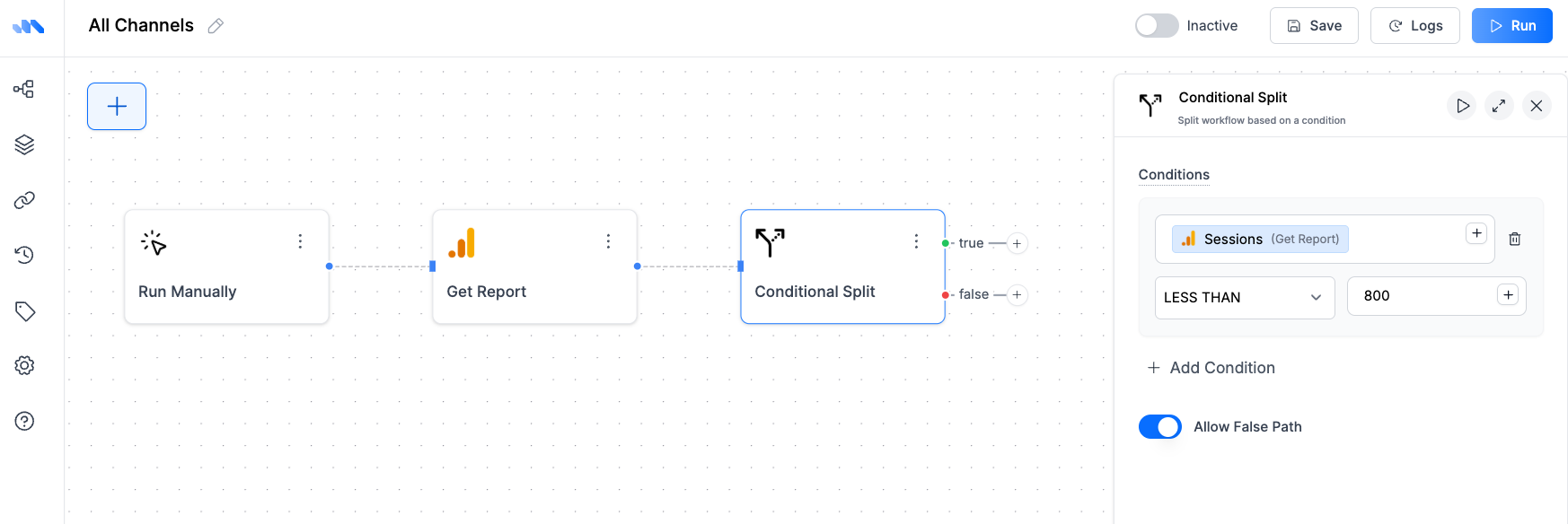 The workflow splits based on your conditions, allowing different actions for different scenarios.
***
## Inputs
| Field | Type | Required | Description |
| -------------------- | ------------------ | -------- | ------------------------------------------------------------- |
| **Conditions** | Conditions Builder | Yes | Set up rules to evaluate (spending > \$1000, CTR \< 2%, etc.) |
| **Allow False Path** | Switch | No | Enable the "false" output path (default: enabled) |
***
## Setting Up Conditions
The conditions builder lets you create rules using data from previous nodes:
### Available Operators
| Operator | Description | Example |
| -------------------- | ---------------------------------- | -------------------------------------------------- |
| **Equals** | Value matches exactly | `Campaign Status equals "Active"` |
| **Not Equals** | Value does not match | `Campaign Type not equals "Display"` |
| **Greater Than** | Numeric value is larger | `Campaign Spend > 1000` |
| **Less Than** | Numeric value is smaller | `CTR < 2.5` |
| **Contains** | Text includes substring | `Campaign Name contains "Black Friday"` |
| **Does Not Contain** | Text excludes substring | `Campaign Name does not contain "Test"` |
| **Starts With** | Text begins with substring | `Product Name starts with "Premium"` |
| **Ends With** | Text ends with substring | `Campaign Name ends with "2024"` |
| **In List** | Value exists in specified list | `Country in ["US", "UK", "CA"]` |
| **Not In List** | Value not in specified list | `Campaign Type not in ["Search", "Display"]` |
| **Is Null** | Field is empty or missing | `Email is null` |
| **Is Not Null** | Field has data | `Phone Number is not null` |
| **Regexp Match** | Matches regular expression pattern | `Email regexp match "^[a-zA-Z0-9._%+-]+@.*\.com$"` |
| **Not Regexp Match** | Does not match regex pattern | `Campaign Name not regexp match "test\|demo"` |
### Combining Multiple Conditions
You can combine conditions with **AND** or **OR** logic:
* **AND**: All conditions must be true for the true path to execute
* **OR**: Any single condition being true triggers the true path
**Example with AND:**
```
Campaign Spend > 500 AND CTR < 1.5
(Both conditions must be true)
```
**Example with OR:**
```
Campaign Name contains "Emergency" OR Cost Per Click > 5.00
(Either condition can trigger the true path)
```
**Complex Example:**
```
(Campaign Spend > 1000 AND CTR < 2%) OR Campaign Name contains "Critical"
```
***
## Output Paths
### True Path
* Executes when **any** condition is met (with OR logic)
* Executes when **all** conditions are met (with AND logic)
* Receives the same data that entered the conditional split
* Perfect for alerts, escalations, and special actions
### False Path
* Executes when conditions are **not met**
* Optional (can be disabled with "Allow False Path")
* Ideal for normal operations and default actions
* Continues standard workflow processing
***
## Credit Cost
Free to use - no credits required.
***
## Tips
**Condition Design:**
* Test conditions with sample data before going live
* Use clear, descriptive condition names
* Consider edge cases (what if data is missing?)
* Set up both paths even if one just continues silently
**Performance Monitoring:**
* Use percentage-based thresholds for scalable conditions
* Set multiple alert levels (warning at 80%, critical at 100%)
* Include time-based conditions for seasonal campaigns
**Error Handling:**
* Always handle the false path appropriately
* Consider what happens when data is missing or invalid
* Use the false path for logging and monitoring
***
## FAQ
No, this node provides exactly two paths: true and false. For multiple conditions with different outcomes, use multiple conditional split nodes in sequence or combine conditions creatively.
When "Allow False Path" is disabled, the workflow only continues when conditions are met. If conditions fail, that branch of the workflow stops completely.
Also, the false handle will disappear from the node, and you won't be able to route data down that path.
Use test data in your workflow editor to verify conditions trigger correctly. Start with simple conditions and add complexity gradually to ensure they work as expected.
Yes, you can reference data from any previous node in your workflow when building conditions. This lets you create complex logic based on multiple data sources.
AND requires all conditions to be true to trigger the true path. OR triggers the true path if any single condition is true. Choose based on whether you need strict requirements (AND) or flexible triggers (OR).
Plan for data validation by using conditions that check for data existence first, or set up default values. Consider what should happen when expected data is missing.
Yes, you can compare current values to previous periods or benchmarks. For example: "Current CTR \< Previous CTR \* 0.8" to detect 20% performance drops.
The workflow splits based on your conditions, allowing different actions for different scenarios.
***
## Inputs
| Field | Type | Required | Description |
| -------------------- | ------------------ | -------- | ------------------------------------------------------------- |
| **Conditions** | Conditions Builder | Yes | Set up rules to evaluate (spending > \$1000, CTR \< 2%, etc.) |
| **Allow False Path** | Switch | No | Enable the "false" output path (default: enabled) |
***
## Setting Up Conditions
The conditions builder lets you create rules using data from previous nodes:
### Available Operators
| Operator | Description | Example |
| -------------------- | ---------------------------------- | -------------------------------------------------- |
| **Equals** | Value matches exactly | `Campaign Status equals "Active"` |
| **Not Equals** | Value does not match | `Campaign Type not equals "Display"` |
| **Greater Than** | Numeric value is larger | `Campaign Spend > 1000` |
| **Less Than** | Numeric value is smaller | `CTR < 2.5` |
| **Contains** | Text includes substring | `Campaign Name contains "Black Friday"` |
| **Does Not Contain** | Text excludes substring | `Campaign Name does not contain "Test"` |
| **Starts With** | Text begins with substring | `Product Name starts with "Premium"` |
| **Ends With** | Text ends with substring | `Campaign Name ends with "2024"` |
| **In List** | Value exists in specified list | `Country in ["US", "UK", "CA"]` |
| **Not In List** | Value not in specified list | `Campaign Type not in ["Search", "Display"]` |
| **Is Null** | Field is empty or missing | `Email is null` |
| **Is Not Null** | Field has data | `Phone Number is not null` |
| **Regexp Match** | Matches regular expression pattern | `Email regexp match "^[a-zA-Z0-9._%+-]+@.*\.com$"` |
| **Not Regexp Match** | Does not match regex pattern | `Campaign Name not regexp match "test\|demo"` |
### Combining Multiple Conditions
You can combine conditions with **AND** or **OR** logic:
* **AND**: All conditions must be true for the true path to execute
* **OR**: Any single condition being true triggers the true path
**Example with AND:**
```
Campaign Spend > 500 AND CTR < 1.5
(Both conditions must be true)
```
**Example with OR:**
```
Campaign Name contains "Emergency" OR Cost Per Click > 5.00
(Either condition can trigger the true path)
```
**Complex Example:**
```
(Campaign Spend > 1000 AND CTR < 2%) OR Campaign Name contains "Critical"
```
***
## Output Paths
### True Path
* Executes when **any** condition is met (with OR logic)
* Executes when **all** conditions are met (with AND logic)
* Receives the same data that entered the conditional split
* Perfect for alerts, escalations, and special actions
### False Path
* Executes when conditions are **not met**
* Optional (can be disabled with "Allow False Path")
* Ideal for normal operations and default actions
* Continues standard workflow processing
***
## Credit Cost
Free to use - no credits required.
***
## Tips
**Condition Design:**
* Test conditions with sample data before going live
* Use clear, descriptive condition names
* Consider edge cases (what if data is missing?)
* Set up both paths even if one just continues silently
**Performance Monitoring:**
* Use percentage-based thresholds for scalable conditions
* Set multiple alert levels (warning at 80%, critical at 100%)
* Include time-based conditions for seasonal campaigns
**Error Handling:**
* Always handle the false path appropriately
* Consider what happens when data is missing or invalid
* Use the false path for logging and monitoring
***
## FAQ
No, this node provides exactly two paths: true and false. For multiple conditions with different outcomes, use multiple conditional split nodes in sequence or combine conditions creatively.
When "Allow False Path" is disabled, the workflow only continues when conditions are met. If conditions fail, that branch of the workflow stops completely.
Also, the false handle will disappear from the node, and you won't be able to route data down that path.
Use test data in your workflow editor to verify conditions trigger correctly. Start with simple conditions and add complexity gradually to ensure they work as expected.
Yes, you can reference data from any previous node in your workflow when building conditions. This lets you create complex logic based on multiple data sources.
AND requires all conditions to be true to trigger the true path. OR triggers the true path if any single condition is true. Choose based on whether you need strict requirements (AND) or flexible triggers (OR).
Plan for data validation by using conditions that check for data existence first, or set up default values. Consider what should happen when expected data is missing.
Yes, you can compare current values to previous periods or benchmarks. For example: "Current CTR \< Previous CTR \* 0.8" to detect 20% performance drops.