> ## Documentation Index
> Fetch the complete documentation index at: https://docs.markifact.com/llms.txt
> Use this file to discover all available pages before exploring further.
# Loop Over List
> Automatically repeat the same actions across multiple items like campaigns, URLs, or data rows for bulk processing.
**Loop Over List** automates repetitive tasks by performing the same actions on multiple items. Think of it like having an assistant who can repeat the same task for every item on your list - perfect for bulk operations that would take hours to do manually.
***
## What is a Loop?
A **loop** is simply doing the same task multiple times with different data. In marketing, you do this manually all the time:
**Manual Process (Without Loop):**
1. Check Account 1 performance → Create report
2. Check Account 2 performance → Create report
3. Check Account 3 performance → Create report
4. *(Repeat for 50+ accounts...)*
**Automated Process (With Loop):**
1. Give the system a list of all accounts
2. Set up the workflow once: Check performance → Create report
3. The loop automatically runs this for every account
***
## When to Use It
Use this node when you need to:
* Process multiple campaigns, accounts, or URLs with the same workflow
* Generate individual reports for different clients
* Update multiple spreadsheets with the same data structure
* Send personalized emails to a list of recipients
* Scrape data from multiple web pages
***
## How It Works
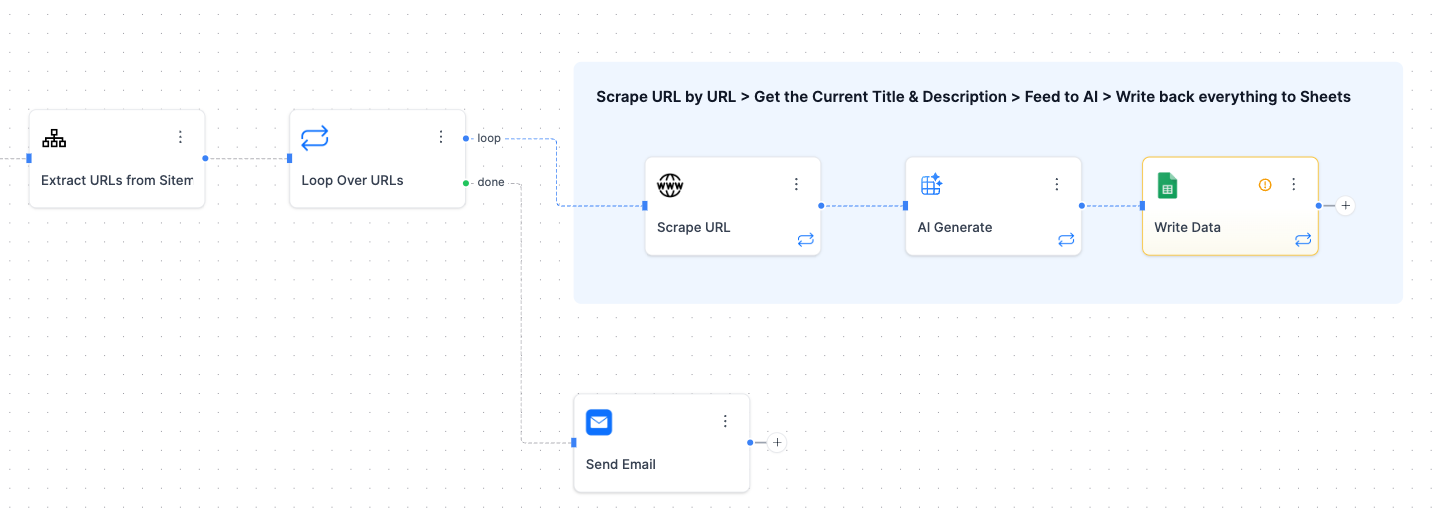
This node has **two special output paths**:
### Loop Path
* **What it does:** Repeats connected nodes for each item in your list
* **Connect to:** The workflow you want to repeat
* **Example:** Connect to data collection → analysis → reporting nodes
### Done Path
* **What it does:** Executes once when all loop items are finished
* **Connect to:** Final actions like sending summary emails
* **Example:** Connect to "Send completion email to manager"
 ***
## Inputs
| Field | Type | Required | Description |
| ----------------- | --------- | -------- | --------------------------------------------------------------- |
| **List of Items** | Text/Data | Yes | The items to loop through (campaigns, URLs, client names, etc.) |
***
## Real-World Examples
### Multi-Client Reporting
```
Input List: ["Client A", "Client B", "Client C"]
Loop Path:
1. Get Google Ads data for current client
2. Get Facebook Ads data for current client
3. Create report in client's spreadsheet
4. Send email to client
*(Repeats for each client)*
Done Path:
- Send summary email to account manager
```
### AI SEO Title & Description Generator
```
Input List: URLs from sitemap extraction
Loop Path:
1. Scrape current URL for existing titles, descriptions, and content
2. Feed page content to AI for SEO analysis
3. Generate optimized page titles and meta descriptions
4. Write AI-generated SEO recommendations back to Google Sheets
*(Repeats for each URL)*
Done Path:
- Send completion notification
```
***
## Examples of Lists You Can Use
**Campaign Lists:**
```
["Campaign A", "Campaign B", "Campaign C"]
```
**URL Lists:**
```
["https://site1.com", "https://site2.com", "https://site3.com"]
```
**Reporting Data:**
```
[
{"date": "2024-01-01", "sessions": 100, "conversions": 5},
{"date": "2024-01-02", "sessions": 150, "conversions": 10},
{"date": "2024-01-03", "sessions": 200, "conversions": 15}
]
```
***
## Working with Your Data Inside the Loop
Think of the loop as taking a big list and giving you one item at a time to work with. Here's how it works in simple terms:
### What Happens to Your List
When you connect a list of items to the Loop node, it automatically breaks them down so you can work with each item individually.
**Example: Processing Multiple Clients**
```
Your Original List: Client A, Client B, Client C
What the Loop Does:
- Round 1: Works with just "Client A"
- Round 2: Works with just "Client B"
- Round 3: Works with just "Client C"
```
**Example: Processing Website URLs**
```
Your Original List: 50 website URLs from your spreadsheet
What the Loop Does:
- Round 1: Works with just the first URL
- Round 2: Works with just the second URL
- (Continues until all 50 URLs are processed)
```
### Getting Individual Items from Your Loop
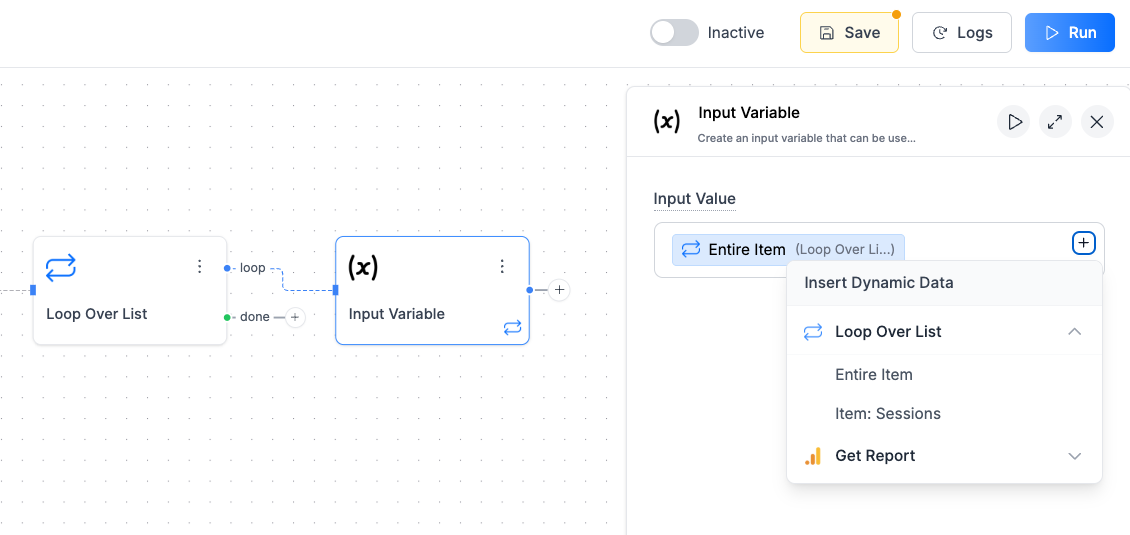
After you connect your list and run the loop once, you'll see new options appear that let you grab individual items:
**"Entire Item"** - This gives you the complete individual item
* Perfect for simple lists like URLs, campaign names, or account IDs
* Use this when you need the whole item as-is
**"Item: \[Your Column Name]"** - This gives you specific pieces of data
* Shows up when your list comes from a spreadsheet with columns
* Example: If your spreadsheet has "Account ID" and "Client Name" columns, you'll see "Item: Account ID" and "Item: Client Name"
* Use these when you need specific pieces of information
***
## Inputs
| Field | Type | Required | Description |
| ----------------- | --------- | -------- | --------------------------------------------------------------- |
| **List of Items** | Text/Data | Yes | The items to loop through (campaigns, URLs, client names, etc.) |
***
## Real-World Examples
### Multi-Client Reporting
```
Input List: ["Client A", "Client B", "Client C"]
Loop Path:
1. Get Google Ads data for current client
2. Get Facebook Ads data for current client
3. Create report in client's spreadsheet
4. Send email to client
*(Repeats for each client)*
Done Path:
- Send summary email to account manager
```
### AI SEO Title & Description Generator
```
Input List: URLs from sitemap extraction
Loop Path:
1. Scrape current URL for existing titles, descriptions, and content
2. Feed page content to AI for SEO analysis
3. Generate optimized page titles and meta descriptions
4. Write AI-generated SEO recommendations back to Google Sheets
*(Repeats for each URL)*
Done Path:
- Send completion notification
```
***
## Examples of Lists You Can Use
**Campaign Lists:**
```
["Campaign A", "Campaign B", "Campaign C"]
```
**URL Lists:**
```
["https://site1.com", "https://site2.com", "https://site3.com"]
```
**Reporting Data:**
```
[
{"date": "2024-01-01", "sessions": 100, "conversions": 5},
{"date": "2024-01-02", "sessions": 150, "conversions": 10},
{"date": "2024-01-03", "sessions": 200, "conversions": 15}
]
```
***
## Working with Your Data Inside the Loop
Think of the loop as taking a big list and giving you one item at a time to work with. Here's how it works in simple terms:
### What Happens to Your List
When you connect a list of items to the Loop node, it automatically breaks them down so you can work with each item individually.
**Example: Processing Multiple Clients**
```
Your Original List: Client A, Client B, Client C
What the Loop Does:
- Round 1: Works with just "Client A"
- Round 2: Works with just "Client B"
- Round 3: Works with just "Client C"
```
**Example: Processing Website URLs**
```
Your Original List: 50 website URLs from your spreadsheet
What the Loop Does:
- Round 1: Works with just the first URL
- Round 2: Works with just the second URL
- (Continues until all 50 URLs are processed)
```
### Getting Individual Items from Your Loop
After you connect your list and run the loop once, you'll see new options appear that let you grab individual items:
**"Entire Item"** - This gives you the complete individual item
* Perfect for simple lists like URLs, campaign names, or account IDs
* Use this when you need the whole item as-is
**"Item: \[Your Column Name]"** - This gives you specific pieces of data
* Shows up when your list comes from a spreadsheet with columns
* Example: If your spreadsheet has "Account ID" and "Client Name" columns, you'll see "Item: Account ID" and "Item: Client Name"
* Use these when you need specific pieces of information
 ### Setting Up Your Connections
The key rule: Always connect the individual item outputs from the Loop node to your next steps, not your original full list.
**Do This:**
* Connect "Entire Item" from Loop node to your Google Ads node
* Connect "Item: Account ID" from Loop node to get specific account data
**Don't Do This:**
* Connect your original "Account List" from Google Sheets directly to Google Ads
* This would try to process all accounts at once instead of one by one
### Quick Setup Steps
1. **Connect your list** to the Loop node
2. **Run the workflow once** (it's okay if it doesn't complete perfectly)
3. **Look for new outputs** on the Loop node - you'll now see "Entire Item" and other options
4. **Connect these new outputs** to the next steps in your workflow
***
## Tips for Marketers
**Start with Small Lists:**
* Test with 3-5 items first to make sure everything works
* Once you're confident, scale up to your full list
* This saves time if something needs fixing
**Watch for Stopping Points:**
* If one item in your list fails (like a broken URL), the entire loop stops
* The remaining items won't be processed
* Always test your workflow with sample data before running large lists
**Monitor Your Progress:**
* You can see which item is currently being processed
* For long lists, consider running during quieter times
***
## FAQ
Instead of manually repeating the same steps for each campaign, client, or URL, the loop automatically does it for you. You set up the workflow once, and it runs for every item in your list.
**Important:** If any item in your loop fails, the entire loop stops. This means if you're processing 100 accounts and Account 50 fails, the remaining 50 accounts won't be processed. Always test your workflow thoroughly with sample data before running large loops.
Yes, you can monitor which item is currently being processed. For long lists, consider adding progress notifications or logging to track completion.
There's no strict limit, but consider performance and API limits. For very large lists (500+ items), break them into smaller batches or run during off-peak hours.
Each loop iteration works independently with the current item. To accumulate data across iterations, write results to a shared location like a spreadsheet.
Loop output repeats for each item in your list. Done output runs once when all items are finished. Use loop for per-item tasks, done for final summary actions.
When you give the loop a list (like URLs from your spreadsheet), it automatically breaks it down so you can work with one item at a time. After running the loop once, you'll see new connection options like "Entire Item" for simple lists, or "Item: Sessions" for spreadsheet columns. Always connect these individual outputs to your next steps, not your original full list.
You need to run the loop at least once to see all available connection options. The loop figures out what type of data you're working with and shows you the appropriate ways to connect to individual items. After running it once, you'll see options like "Entire Item" or specific column names from your spreadsheet.
No, nested loops are not supported. For complex scenarios, consider breaking your process into separate workflows or using other flow control methods.
### Setting Up Your Connections
The key rule: Always connect the individual item outputs from the Loop node to your next steps, not your original full list.
**Do This:**
* Connect "Entire Item" from Loop node to your Google Ads node
* Connect "Item: Account ID" from Loop node to get specific account data
**Don't Do This:**
* Connect your original "Account List" from Google Sheets directly to Google Ads
* This would try to process all accounts at once instead of one by one
### Quick Setup Steps
1. **Connect your list** to the Loop node
2. **Run the workflow once** (it's okay if it doesn't complete perfectly)
3. **Look for new outputs** on the Loop node - you'll now see "Entire Item" and other options
4. **Connect these new outputs** to the next steps in your workflow
***
## Tips for Marketers
**Start with Small Lists:**
* Test with 3-5 items first to make sure everything works
* Once you're confident, scale up to your full list
* This saves time if something needs fixing
**Watch for Stopping Points:**
* If one item in your list fails (like a broken URL), the entire loop stops
* The remaining items won't be processed
* Always test your workflow with sample data before running large lists
**Monitor Your Progress:**
* You can see which item is currently being processed
* For long lists, consider running during quieter times
***
## FAQ
Instead of manually repeating the same steps for each campaign, client, or URL, the loop automatically does it for you. You set up the workflow once, and it runs for every item in your list.
**Important:** If any item in your loop fails, the entire loop stops. This means if you're processing 100 accounts and Account 50 fails, the remaining 50 accounts won't be processed. Always test your workflow thoroughly with sample data before running large loops.
Yes, you can monitor which item is currently being processed. For long lists, consider adding progress notifications or logging to track completion.
There's no strict limit, but consider performance and API limits. For very large lists (500+ items), break them into smaller batches or run during off-peak hours.
Each loop iteration works independently with the current item. To accumulate data across iterations, write results to a shared location like a spreadsheet.
Loop output repeats for each item in your list. Done output runs once when all items are finished. Use loop for per-item tasks, done for final summary actions.
When you give the loop a list (like URLs from your spreadsheet), it automatically breaks it down so you can work with one item at a time. After running the loop once, you'll see new connection options like "Entire Item" for simple lists, or "Item: Sessions" for spreadsheet columns. Always connect these individual outputs to your next steps, not your original full list.
You need to run the loop at least once to see all available connection options. The loop figures out what type of data you're working with and shows you the appropriate ways to connect to individual items. After running it once, you'll see options like "Entire Item" or specific column names from your spreadsheet.
No, nested loops are not supported. For complex scenarios, consider breaking your process into separate workflows or using other flow control methods.