> ## Documentation Index
> Fetch the complete documentation index at: https://docs.markifact.com/llms.txt
> Use this file to discover all available pages before exploring further.
# Select Properties
> Select GA4 properties once and reuse them across multiple downstream nodes.
The **Select Properties** node lets you define which GA4 properties to use in downstream analytics nodes like **Get Report**. You can select them manually, fetch all available, or use filters.
This node simplifies workflows with multiple GA4 steps by centralizing account selection.
***
## When to Use It
Use this node when:
* You want to avoid selecting the same GA4 properties in every report node.
* You’re building larger workflows and want to manage property selection dynamically.
* You need to reuse a filtered group of accounts based on naming or ID.
* Building an AI agent that needs to list properties before running reports.
***
## Inputs
| Field | Type | Required | Description |
| ------------------ | --------------- | -------------------- | --------------------------------------------------------------------------- |
| **Selection Mode** | Select dropdown | Yes | Choose how to define your properties: manual, all, or filtered |
| **Properties** | Multi-select | Yes (manual) | Manually select up to **5** properties to use in later nodes |
| **Filters** | Text filter | Yes (if filter mode) | Filter properties by name or ID using text conditions |
| **Limit** | Number | No | Max number of properties to return (1–10,000) in **filter** or **all** mode |
***
## Selection Modes
* **Manual Selection**: Pick specific properties one by one (max 5).
* **Select All Available**: Automatically includes all GA4 properties tied to the authenticated account.
* **Filter by Name/ID**: Define rules (e.g., "Name contains 'store'") to select properties dynamically.
The **Properties**, **Filters**, and **Limit** fields will appear or hide automatically based on your selection mode.
***
## Output
The node returns the selected **property IDs** under a `data` key. You can reference this in any downstream node like **Get Report**.
***
## Example Use Case
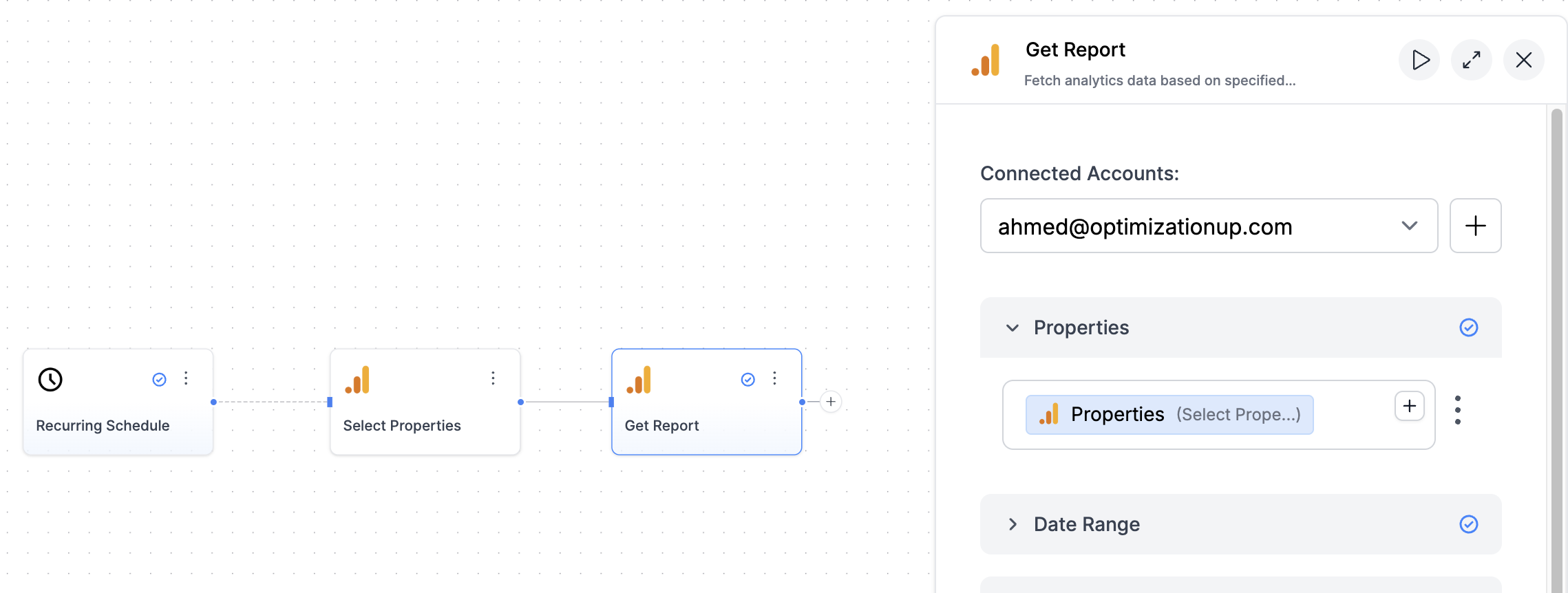
Let’s say you run daily reports for 10 GA4 properties:
```txt theme={"dark"}
[Recurring Schedule] → [Select Properties] → [Get Report A]
→ [Get Report B]
→ [Analyze Data]
```
Now you only have to define the property list once. Each report node can reference it via:
```txt theme={"dark"}
Insert Dynamic Data → Select Properties → Properties
```
 ## Credit Cost
* **Cost per run**: Free (does not consume credits)
***
## FAQs
{" "}
Yes. That’s exactly the point. Once you configure this node, other GA4 nodes like
**Get Report** can use its output via dynamic inputs.{" "}
{" "}
In any downstream GA4 node, click the dynamic data button (+) next to the **Properties**
input, then choose: **Select Properties → Properties**{" "}
{" "}
Fields like **Properties**, **Filters**, and **Limit** are shown conditionally
based on your **Selection Mode**. Changing modes resets incompatible fields to
avoid conflicts.{" "}
{" "}
* In **manual** mode: max 5 properties - In **all** or **filter** mode: up to 10,000
(with an optional `limit`){" "}
{" "}
Yes. In filter mode, use one or more conditions like: - Name **contains** “store”
* ID **equals** “12345678”{" "}
{" "}
Just leave the **Limit** field blank. All matching properties will be selected
(up to the internal API limit).{" "}
## Credit Cost
* **Cost per run**: Free (does not consume credits)
***
## FAQs
{" "}
Yes. That’s exactly the point. Once you configure this node, other GA4 nodes like
**Get Report** can use its output via dynamic inputs.{" "}
{" "}
In any downstream GA4 node, click the dynamic data button (+) next to the **Properties**
input, then choose: **Select Properties → Properties**{" "}
{" "}
Fields like **Properties**, **Filters**, and **Limit** are shown conditionally
based on your **Selection Mode**. Changing modes resets incompatible fields to
avoid conflicts.{" "}
{" "}
* In **manual** mode: max 5 properties - In **all** or **filter** mode: up to 10,000
(with an optional `limit`){" "}
{" "}
Yes. In filter mode, use one or more conditions like: - Name **contains** “store”
* ID **equals** “12345678”{" "}
{" "}
Just leave the **Limit** field blank. All matching properties will be selected
(up to the internal API limit).{" "}