> ## Documentation Index
> Fetch the complete documentation index at: https://docs.markifact.com/llms.txt
> Use this file to discover all available pages before exploring further.
# Get Chart
> Find and retrieve charts from your Google Sheets spreadsheets using their alt text identifiers.
**Get Chart** locates and retrieves specific charts from your Google Sheets by their alt text.
**Most commonly used with the [Add Sheets Chart](/nodes/slides/slides_add_sheets_chart) node** to automatically insert charts into Google Slides presentations. Essential for workflows that need to reference, copy, or work with existing charts and visualizations from your spreadsheets.
***
## Inputs
| Field | Type | Required | Description |
| ---------------------- | ------ | -------- | ----------------------------------------------------- |
| **Spreadsheet URL/ID** | Text | Yes | Google Sheets document link or ID |
| **Working Sheet** | Select | Yes | Which sheet tab contains the chart |
| **Alt Text** | Text | Yes | The alt text identifier of the chart you want to find |
***
## How It Works
This node searches your specified Google Sheets tab for a chart with matching alt text and retrieves it for use in your workflow. The chart's alt text acts as a unique identifier, making it easy to reference specific visualizations.
**🔗 Common Workflow Pattern:**
Get Chart → [Add Sheets Chart](/nodes/slides/slides_add_sheets_chart) = Automated chart insertion into presentations
### Alt Text Setup
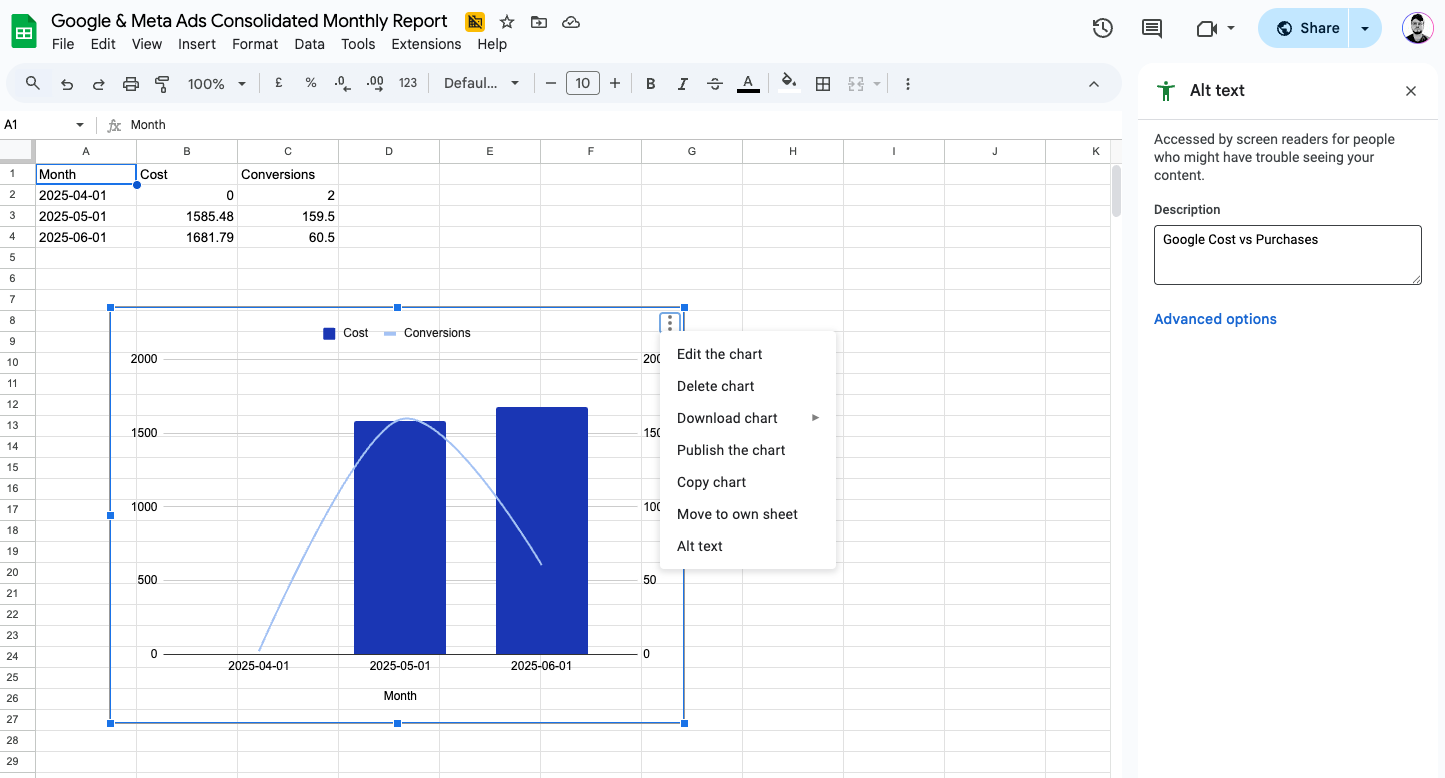
Before using this node, you need to set alt text for your charts in Google Sheets:
1. **Click on your chart** in Google Sheets
2. **Click the 3-dots menu** (⋮) in the chart's toolbar
3. **Select "Alt text"** from the dropdown
4. **Enter a descriptive name** (e.g., "Monthly Sales Chart", "Q4 Performance")
5. **Save the alt text**
 **Alt Text Best Practices:**
* Use descriptive, unique names
* Keep names consistent across similar charts
* Use clear identification (date, metric, purpose)
***
## Configuration Examples
### Complete Chart-to-Slides Workflow
**Scenario:** Automatically insert Google Sheets chart into Google Slides presentation
**Step 1 - Get Chart:**
* **Spreadsheet URL/ID:** Your analytics spreadsheet
* **Working Sheet:** "Sales Dashboard"
* **Alt Text:** "Monthly Sales Chart"
**Step 2 - Add to Slides:**
Connect this node's output to [Add Sheets Chart](/nodes/slides/slides_add_sheets_chart) node to automatically insert the chart into your presentation.
**Result:** Chart automatically retrieved and inserted into slides.
### Retrieve Sales Performance Chart
**Scenario:** Get a specific sales chart for use in presentations
**Configuration:**
* **Spreadsheet URL/ID:** Your analytics spreadsheet
* **Working Sheet:** "Sales Dashboard"
* **Alt Text:** "Monthly Sales Chart"
**Result:** Chart retrieved and available for workflow use.
***
## Best Practices
### Alt Text Naming Convention
* **Use descriptive names:** "Campaign Performance Q3" not "Chart1"
* **Include key identifiers:** metrics, time periods, data source
* **Avoid special characters:** stick to letters, numbers, spaces
* **Keep names unique:** don't duplicate alt text in the same sheet
### Chart Preparation
* **Set alt text immediately** after creating charts
* **Document chart purposes** and their alt text names
* **Test chart retrieval** before building complex workflows
* **Update alt text** when chart data or purpose changes
### Workflow Design
* **Verify alt text spelling** matches exactly
* **Handle missing charts gracefully** in your workflows
* **Use consistent sheet organization** for easier chart management
* **Test with different charts** to ensure reliability
### Error Prevention
* **Double-check alt text** before running workflows
* **Ensure charts exist** on the specified sheet
* **Verify sheet names** match your spreadsheet
* **Test on copies** before modifying original sheets
***
## Credit Cost
1 credit per successful run.
***
## FAQ
**Click on your chart, then click the 3-dots menu (⋮) and select 'Alt text'.** Enter a descriptive name like "Monthly Sales Chart" and save. This alt text becomes the identifier for finding the chart in your workflows.
**The node will fail to find the chart and return an error.** Always verify the alt text exists and is spelled exactly as entered in Google Sheets. Check for typos, extra spaces, or case sensitivity issues.
**No, each Get Chart node retrieves one chart at a time.** To get multiple charts, use multiple Get Chart nodes in your workflow, each with different alt text values for the specific charts you need.
**The node retrieves the chart as it currently appears in Google Sheets.** If your chart data has been updated in the spreadsheet, the retrieved chart will reflect those changes automatically.
**Most common use: Connect to [Add Sheets Chart](/nodes/slides/slides_add_sheets_chart)** to automatically insert charts into Google Slides presentations. This creates a powerful automation where you can update data in Sheets and have it automatically flow to your presentations. Retrieved charts can also be used with other workflow nodes that accept chart/image inputs.
**All Google Sheets chart types are supported** - bar charts, line graphs, pie charts, scatter plots, etc. The node retrieves whatever chart type exists with the specified alt text.
**Yes, alt text only needs to be unique within each sheet tab.** You can have "Sales Chart" on both "Q3 Data" and "Q4 Data" sheets - just make sure to specify the correct working sheet when retrieving.
**Stick to letters, numbers, and spaces for best results.** While some special characters might work, they can cause issues in workflows. Use descriptive names like "Campaign ROI 2024" instead of "Campaign ROI (2024)!".
**Alt Text Best Practices:**
* Use descriptive, unique names
* Keep names consistent across similar charts
* Use clear identification (date, metric, purpose)
***
## Configuration Examples
### Complete Chart-to-Slides Workflow
**Scenario:** Automatically insert Google Sheets chart into Google Slides presentation
**Step 1 - Get Chart:**
* **Spreadsheet URL/ID:** Your analytics spreadsheet
* **Working Sheet:** "Sales Dashboard"
* **Alt Text:** "Monthly Sales Chart"
**Step 2 - Add to Slides:**
Connect this node's output to [Add Sheets Chart](/nodes/slides/slides_add_sheets_chart) node to automatically insert the chart into your presentation.
**Result:** Chart automatically retrieved and inserted into slides.
### Retrieve Sales Performance Chart
**Scenario:** Get a specific sales chart for use in presentations
**Configuration:**
* **Spreadsheet URL/ID:** Your analytics spreadsheet
* **Working Sheet:** "Sales Dashboard"
* **Alt Text:** "Monthly Sales Chart"
**Result:** Chart retrieved and available for workflow use.
***
## Best Practices
### Alt Text Naming Convention
* **Use descriptive names:** "Campaign Performance Q3" not "Chart1"
* **Include key identifiers:** metrics, time periods, data source
* **Avoid special characters:** stick to letters, numbers, spaces
* **Keep names unique:** don't duplicate alt text in the same sheet
### Chart Preparation
* **Set alt text immediately** after creating charts
* **Document chart purposes** and their alt text names
* **Test chart retrieval** before building complex workflows
* **Update alt text** when chart data or purpose changes
### Workflow Design
* **Verify alt text spelling** matches exactly
* **Handle missing charts gracefully** in your workflows
* **Use consistent sheet organization** for easier chart management
* **Test with different charts** to ensure reliability
### Error Prevention
* **Double-check alt text** before running workflows
* **Ensure charts exist** on the specified sheet
* **Verify sheet names** match your spreadsheet
* **Test on copies** before modifying original sheets
***
## Credit Cost
1 credit per successful run.
***
## FAQ
**Click on your chart, then click the 3-dots menu (⋮) and select 'Alt text'.** Enter a descriptive name like "Monthly Sales Chart" and save. This alt text becomes the identifier for finding the chart in your workflows.
**The node will fail to find the chart and return an error.** Always verify the alt text exists and is spelled exactly as entered in Google Sheets. Check for typos, extra spaces, or case sensitivity issues.
**No, each Get Chart node retrieves one chart at a time.** To get multiple charts, use multiple Get Chart nodes in your workflow, each with different alt text values for the specific charts you need.
**The node retrieves the chart as it currently appears in Google Sheets.** If your chart data has been updated in the spreadsheet, the retrieved chart will reflect those changes automatically.
**Most common use: Connect to [Add Sheets Chart](/nodes/slides/slides_add_sheets_chart)** to automatically insert charts into Google Slides presentations. This creates a powerful automation where you can update data in Sheets and have it automatically flow to your presentations. Retrieved charts can also be used with other workflow nodes that accept chart/image inputs.
**All Google Sheets chart types are supported** - bar charts, line graphs, pie charts, scatter plots, etc. The node retrieves whatever chart type exists with the specified alt text.
**Yes, alt text only needs to be unique within each sheet tab.** You can have "Sales Chart" on both "Q3 Data" and "Q4 Data" sheets - just make sure to specify the correct working sheet when retrieving.
**Stick to letters, numbers, and spaces for best results.** While some special characters might work, they can cause issues in workflows. Use descriptive names like "Campaign ROI 2024" instead of "Campaign ROI (2024)!".