> ## Documentation Index
> Fetch the complete documentation index at: https://docs.markifact.com/llms.txt
> Use this file to discover all available pages before exploring further.
# Replace Text
> Replace text in Google Slides presentations with dynamic data from your marketing workflows.
**Replace Text** updates text in your Google Slides presentations automatically. Perfect for creating personalized reports, updating campaign data, or generating client presentations with fresh metrics.
**Markdown Formatting Supported!** When using **Alt Text mode**, your replacement text can include basic markdown formatting:
* `**bold**` for **bold** text
* `*italic*` for *italic* text
* `[link text](url)` for clickable hyperlinks
*Note: Markdown formatting is only supported when using Alt Text search method, not Regular Text mode.*
***
## Inputs
| Field | Type | Required | Description |
| ----------------------- | --------- | -------- | -------------------------------------------------------------------------------------------------- |
| **Presentation URL/ID** | Text | Yes | Google Slides presentation link or ID |
| **Search Method** | Select | Yes | How to find text: Regular text or Alt text |
| **Replacement Method** | Select | Yes | Manual (few replacements) or Structured Data (Bulk) |
| **Text Replacements** | Key-Value | Yes | What to find and what to replace it with. Supports markdown: `**bold**`, `*italic*`, `[text](url)` |
| **Structured Data** | Table | No | Marketing data in any simple table format (for bulk updates) |
| **Slide Number** | Number | No | Specific slide to update (leave empty for all slides) |
***
## Search Methods: Two Ways to Find Text
### Regular Text Mode
Finds and replaces actual visible text in your slides.
* **Use for:** One-time updates, simple changes
* **Example:** Replace "Last Month" with "December 2024"
### Alt Text Mode
Uses hidden "alt text" labels to identify elements.
* **Use for:** Recurring reports, reusable templates
* **Example:** Label an element "monthly\_revenue" and update it repeatedly
**What is Alt Text?** Alt text is a hidden label you can add to any text box or element in Google Slides. It's like giving each element a permanent name tag.
***
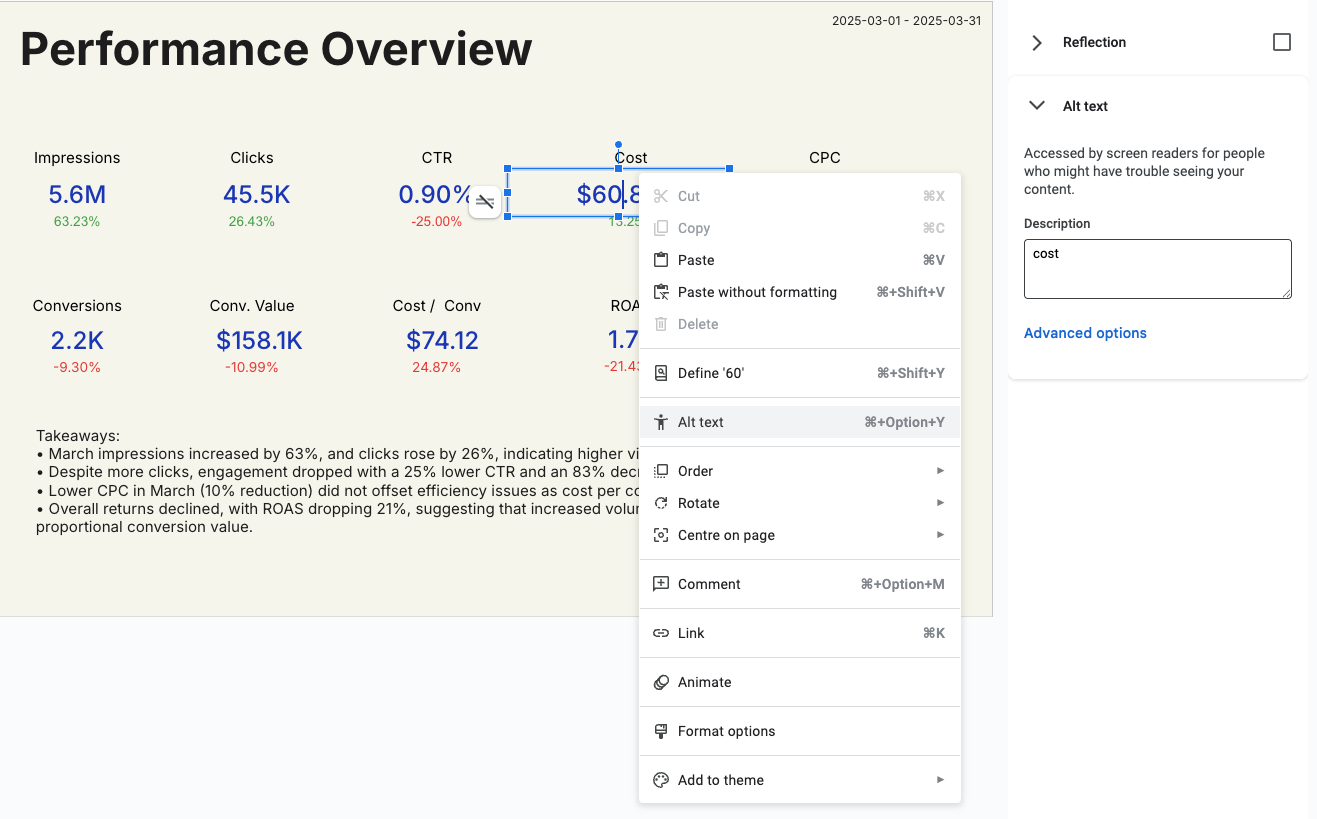
## How to Add Alt Text in Google Slides
1. **Right-click** on any text box or element
2. Select **"Alt text"** from the menu
3. **If you don't see Alt text:** Click **"Format options"** first, then look for Alt text at the bottom
4. **Add a descriptive name** like "campaign\_spend" or "conversion\_rate"
 ***
## When to Use Each Search Method
| **Regular Text** | **Alt Text** |
| ------------------------------------ | ------------------------------------ |
| One-time updates | Recurring reports |
| Simple text changes | Template-based workflows |
| Text you won't change again | Dynamic data that updates regularly |
| **Example:** Update client name once | **Example:** Monthly revenue updates |
**Key Difference:** Regular text disappears after replacement. Alt text stays, so you can update the same element multiple times.
***
## Replacement Methods: Manual vs Structured Data (Bulk)
### Manual Replacement
Add individual text replacements one by one.
**Best for:**
* 1-5 replacements
* Simple updates
* Quick one-off changes
**Example:**
* Find: "campaign\_name" → Replace: "Holiday Sale"
* Find: "total\_spend" → Replace: "\$12,450"
### Structured Data (Bulk)
Use data from previous workflow steps to make many replacements at once.
**Best for:**
* 10+ replacements
* Data from analytics reports
* Automated workflows
**Example:** Connect Google Ads data to automatically update spend, clicks, conversions, etc.
***
## Examples
### Manual Replacement Example
**Scenario:** Update a client presentation with new campaign data
**Setup:**
* Set alt text "client\_name" on title
* Set alt text "campaign\_budget" on budget number
* Set alt text "performance\_metric" on results
**Replacements:**
* `client_name` → "Nike"
* `campaign_budget` → "\$25,000"
* `performance_metric` → "152% ROAS"
### Structured Data (Bulk) Example
**Scenario:** Monthly report with Google Ads data
**Your data can come in any of these simple formats:**
#### Option 1: Simple Table Format (Easiest)
Just provide your data as key-value pairs - the system automatically knows what to find and replace:
| Metric | Value |
| --------------------- | -------- |
| cost | \$15,420 |
| clicks | 12,350 |
| conversions | 145 |
| conversion\_rate | 3.2% |
| cost\_per\_conversion | \$106.34 |
**How it works:** The system uses each table header (cost, clicks, etc.) to find matching alt text in your slides and replaces it with the corresponding value.
#### Option 2: Traditional Find/Replace Format
For more control, specify exactly what to find and what to replace it with:
| What to Find | Replace With | Target Slide |
| ---------------- | --------------- | ------------ |
| monthly\_spend | \$15,420 | (all slides) |
| click\_count | 12,350 | 2 |
| conversion\_data | 145 conversions | 3 |
**Result:** All metrics update automatically from your marketing data, no matter which format you use.
***
## Structured Data: Three Flexible Formats
The system accepts your data in multiple formats - choose what works best for your workflow:
### Format 1: Simple Key-Value Table (Recommended for Marketers)
**Best for:** Most marketing use cases - clean and simple
**Your data:** Any table where column names match your slide's alt text
```
cost: $15,420
impressions: 62,000
ctr: 2.4%
```
**What happens:** System automatically finds alt text "cost", "impressions", "ctr" in your slides and updates them.
### Format 2: Single Table with Multiple Metrics
**Best for:** When you have all your metrics in one organized table
**Your data:** One comprehensive table
```
campaign_spend: $25,000
campaign_clicks: 8,500
campaign_conversions: 180
campaign_roas: 4.2x
```
### Format 3: Detailed Find/Replace Control
**Best for:** Advanced users who need precise control
**Your data:** Specify exactly what to find and replace
```
find: "last_month_spend", replace: "$15,420"
find: "performance_metric", replace: "152% ROAS", slide: 3
```
**Key Benefits:**
* ✅ **Simple:** Use any table format from your reports
* ✅ **Flexible:** Works with Google Ads, Analytics, Sheets, and any data source
* ✅ **Smart:** Automatically matches your data to slide elements
* ✅ **No Technical Setup:** Just make sure your alt text names match your data columns
***
## Connecting Your Marketing Data
The flexible data format works seamlessly with all marketing data sources:
### From Google Ads
Connect a **Google Ads Report** node → **Replace Text** node
* Use the data returned directly from Google Ads Get Report
* Make sure your report returns 1 row of data
* Ensure your slide alt text matches the column names (e.g., "cost", "clicks", "impressions")
* Your metrics automatically update in slides
### From Google Analytics
Connect a **GA4 Report** node → **Replace Text** node
* Use the data returned directly from GA4 Get Report
* Configure your report to return 1 row with your key metrics
* Match your slide alt text to GA4 metric names (e.g., "sessions", "users", "conversions")
* Sessions, users, conversion data flows directly to your presentation
### From Google Sheets
Connect a **Sheets Read** node → **Replace Text** node
* Any spreadsheet data updates your slides instantly
* Perfect for custom calculations and KPIs
### From Any Platform
Connect **Facebook Ads**, **LinkedIn Ads**, **TikTok Ads**, or any data node
* All platforms output data in compatible formats
* Mix and match data from multiple sources
**Pro Tip:** Most marketing report nodes (Google Ads Get Report, GA4 Get Report, etc.) return data that can be used directly in Structured Data. Just ensure:
1. Your report returns **1 row** of data
2. Your slide **alt text names** match the **column names** from your report
3. Example: If Google Ads returns "cost" and "clicks", make sure you have alt text "cost" and "clicks" in your slides
***
## Credit Cost
1 credit per successful run.
***
## FAQ
Alt text is a hidden label you can add to any text box or element in Google
Slides. It's like giving each element a permanent name tag. You can use it to
identify elements for repeated updates. It's meant for accessibility, but we
use it to make dynamic presentations easier to manage.
**Regular Text** finds and replaces visible text in your slides. Once replaced, that text is gone.
**Alt Text** uses hidden labels you add to elements. The label stays, so you can update the same element repeatedly.
Use Regular Text for one-time changes. Use Alt Text for recurring reports and templates.
**Manual**: 1-5 simple replacements, quick updates
**Structured Data (Bulk)**: 10+ replacements, connecting data from analytics reports, automated workflows
1. Create your presentation design 2. Add alt text to all dynamic elements
(right-click → Alt text) 3. Use descriptive names like "monthly\_revenue",
"campaign\_name" 4. Save as template and reuse with different data
Yes, use the Slide Number field to target specific slides. Leave empty to
update all slides in the presentation.
If regular text isn't found, nothing happens. If alt text isn't found, the
replacement is skipped. Check your spelling and ensure the text/alt text
exists in your presentation.
The system accepts your data in multiple simple formats - no technical setup required:
**Simple Key-Value Format (Most Popular):**
Any table where the column names match your slide's alt text:
* cost → \$15,420
* impressions → 62,000
* ctr → 2.4%
**Traditional Format (For Advanced Users):**
Specify exactly what to find and replace:
* What to find: "monthly\_spend" → Replace with: "\$15,420"
* What to find: "conversion\_rate" → Replace with: "3.2%" → Target slide: 2
**Works with any data source:** Google Ads Get Report, GA4 Get Report, Sheets, Facebook Ads, or any node that outputs table data.
**Direct Node Connection:** You can use data directly from nodes like Google Ads Get Report or GA4 Get Report. Just ensure your report returns 1 row and your slide alt text matches the column names.
**Pro Tip:** Use AI nodes like [Generate Structured Data](/nodes/ai/ai_generate_structured_data) to automatically format your data from any source into the perfect format for your slides.
When using **Alt Text mode**, Replace Text supports markdown formatting in your replacement values:
**Bold Text:**
```
**this will be bold**
```
**Italic Text:**
```
*this will be italic*
```
**Clickable Hyperlinks:**
```
[Click here to view report](https://example.com/report)
```
**Combined Example:**
Replace `campaign_summary` with:
```
**Campaign Performance:** *Excellent* - [View Full Report](https://analytics.google.com/report)
```
This creates: **Campaign Performance:** *Excellent* - with a clickable link to your report.
**Important:** Markdown formatting only works with Alt Text search method, not Regular Text mode.
**Pro Tip:** Hyperlinks are great for adding clickable CTAs or linking to dashboards directly from your slides!
This error happens when your data format doesn't match what the system expects. Here's how to fix it:
**Error:** "When providing a list with multiple items, all items must have 'find' and 'replace' keys"
**Solution:** You're mixing data formats. Choose one approach:
**Option 1 - Simple Key-Value (Recommended):**
Use a single table with your metrics:
```
cost: $15,420
clicks: 12,350
conversions: 145
```
**Option 2 - Multiple Find/Replace Items:**
If you need multiple specific replacements, format each one properly:
```
find: "cost", replace: "$15,420"
find: "clicks", replace: "12,350"
find: "conversions", replace: "145"
```
**Don't mix formats:** Don't combine simple key-value data with find/replace format in the same list.
**Quick Fix:** If you're getting this error, check your data source and make sure it's outputting either:
* One simple table with key-value pairs, OR
* Multiple items where each has both "find" and "replace" fields
***
## When to Use Each Search Method
| **Regular Text** | **Alt Text** |
| ------------------------------------ | ------------------------------------ |
| One-time updates | Recurring reports |
| Simple text changes | Template-based workflows |
| Text you won't change again | Dynamic data that updates regularly |
| **Example:** Update client name once | **Example:** Monthly revenue updates |
**Key Difference:** Regular text disappears after replacement. Alt text stays, so you can update the same element multiple times.
***
## Replacement Methods: Manual vs Structured Data (Bulk)
### Manual Replacement
Add individual text replacements one by one.
**Best for:**
* 1-5 replacements
* Simple updates
* Quick one-off changes
**Example:**
* Find: "campaign\_name" → Replace: "Holiday Sale"
* Find: "total\_spend" → Replace: "\$12,450"
### Structured Data (Bulk)
Use data from previous workflow steps to make many replacements at once.
**Best for:**
* 10+ replacements
* Data from analytics reports
* Automated workflows
**Example:** Connect Google Ads data to automatically update spend, clicks, conversions, etc.
***
## Examples
### Manual Replacement Example
**Scenario:** Update a client presentation with new campaign data
**Setup:**
* Set alt text "client\_name" on title
* Set alt text "campaign\_budget" on budget number
* Set alt text "performance\_metric" on results
**Replacements:**
* `client_name` → "Nike"
* `campaign_budget` → "\$25,000"
* `performance_metric` → "152% ROAS"
### Structured Data (Bulk) Example
**Scenario:** Monthly report with Google Ads data
**Your data can come in any of these simple formats:**
#### Option 1: Simple Table Format (Easiest)
Just provide your data as key-value pairs - the system automatically knows what to find and replace:
| Metric | Value |
| --------------------- | -------- |
| cost | \$15,420 |
| clicks | 12,350 |
| conversions | 145 |
| conversion\_rate | 3.2% |
| cost\_per\_conversion | \$106.34 |
**How it works:** The system uses each table header (cost, clicks, etc.) to find matching alt text in your slides and replaces it with the corresponding value.
#### Option 2: Traditional Find/Replace Format
For more control, specify exactly what to find and what to replace it with:
| What to Find | Replace With | Target Slide |
| ---------------- | --------------- | ------------ |
| monthly\_spend | \$15,420 | (all slides) |
| click\_count | 12,350 | 2 |
| conversion\_data | 145 conversions | 3 |
**Result:** All metrics update automatically from your marketing data, no matter which format you use.
***
## Structured Data: Three Flexible Formats
The system accepts your data in multiple formats - choose what works best for your workflow:
### Format 1: Simple Key-Value Table (Recommended for Marketers)
**Best for:** Most marketing use cases - clean and simple
**Your data:** Any table where column names match your slide's alt text
```
cost: $15,420
impressions: 62,000
ctr: 2.4%
```
**What happens:** System automatically finds alt text "cost", "impressions", "ctr" in your slides and updates them.
### Format 2: Single Table with Multiple Metrics
**Best for:** When you have all your metrics in one organized table
**Your data:** One comprehensive table
```
campaign_spend: $25,000
campaign_clicks: 8,500
campaign_conversions: 180
campaign_roas: 4.2x
```
### Format 3: Detailed Find/Replace Control
**Best for:** Advanced users who need precise control
**Your data:** Specify exactly what to find and replace
```
find: "last_month_spend", replace: "$15,420"
find: "performance_metric", replace: "152% ROAS", slide: 3
```
**Key Benefits:**
* ✅ **Simple:** Use any table format from your reports
* ✅ **Flexible:** Works with Google Ads, Analytics, Sheets, and any data source
* ✅ **Smart:** Automatically matches your data to slide elements
* ✅ **No Technical Setup:** Just make sure your alt text names match your data columns
***
## Connecting Your Marketing Data
The flexible data format works seamlessly with all marketing data sources:
### From Google Ads
Connect a **Google Ads Report** node → **Replace Text** node
* Use the data returned directly from Google Ads Get Report
* Make sure your report returns 1 row of data
* Ensure your slide alt text matches the column names (e.g., "cost", "clicks", "impressions")
* Your metrics automatically update in slides
### From Google Analytics
Connect a **GA4 Report** node → **Replace Text** node
* Use the data returned directly from GA4 Get Report
* Configure your report to return 1 row with your key metrics
* Match your slide alt text to GA4 metric names (e.g., "sessions", "users", "conversions")
* Sessions, users, conversion data flows directly to your presentation
### From Google Sheets
Connect a **Sheets Read** node → **Replace Text** node
* Any spreadsheet data updates your slides instantly
* Perfect for custom calculations and KPIs
### From Any Platform
Connect **Facebook Ads**, **LinkedIn Ads**, **TikTok Ads**, or any data node
* All platforms output data in compatible formats
* Mix and match data from multiple sources
**Pro Tip:** Most marketing report nodes (Google Ads Get Report, GA4 Get Report, etc.) return data that can be used directly in Structured Data. Just ensure:
1. Your report returns **1 row** of data
2. Your slide **alt text names** match the **column names** from your report
3. Example: If Google Ads returns "cost" and "clicks", make sure you have alt text "cost" and "clicks" in your slides
***
## Credit Cost
1 credit per successful run.
***
## FAQ
Alt text is a hidden label you can add to any text box or element in Google
Slides. It's like giving each element a permanent name tag. You can use it to
identify elements for repeated updates. It's meant for accessibility, but we
use it to make dynamic presentations easier to manage.
**Regular Text** finds and replaces visible text in your slides. Once replaced, that text is gone.
**Alt Text** uses hidden labels you add to elements. The label stays, so you can update the same element repeatedly.
Use Regular Text for one-time changes. Use Alt Text for recurring reports and templates.
**Manual**: 1-5 simple replacements, quick updates
**Structured Data (Bulk)**: 10+ replacements, connecting data from analytics reports, automated workflows
1. Create your presentation design 2. Add alt text to all dynamic elements
(right-click → Alt text) 3. Use descriptive names like "monthly\_revenue",
"campaign\_name" 4. Save as template and reuse with different data
Yes, use the Slide Number field to target specific slides. Leave empty to
update all slides in the presentation.
If regular text isn't found, nothing happens. If alt text isn't found, the
replacement is skipped. Check your spelling and ensure the text/alt text
exists in your presentation.
The system accepts your data in multiple simple formats - no technical setup required:
**Simple Key-Value Format (Most Popular):**
Any table where the column names match your slide's alt text:
* cost → \$15,420
* impressions → 62,000
* ctr → 2.4%
**Traditional Format (For Advanced Users):**
Specify exactly what to find and replace:
* What to find: "monthly\_spend" → Replace with: "\$15,420"
* What to find: "conversion\_rate" → Replace with: "3.2%" → Target slide: 2
**Works with any data source:** Google Ads Get Report, GA4 Get Report, Sheets, Facebook Ads, or any node that outputs table data.
**Direct Node Connection:** You can use data directly from nodes like Google Ads Get Report or GA4 Get Report. Just ensure your report returns 1 row and your slide alt text matches the column names.
**Pro Tip:** Use AI nodes like [Generate Structured Data](/nodes/ai/ai_generate_structured_data) to automatically format your data from any source into the perfect format for your slides.
When using **Alt Text mode**, Replace Text supports markdown formatting in your replacement values:
**Bold Text:**
```
**this will be bold**
```
**Italic Text:**
```
*this will be italic*
```
**Clickable Hyperlinks:**
```
[Click here to view report](https://example.com/report)
```
**Combined Example:**
Replace `campaign_summary` with:
```
**Campaign Performance:** *Excellent* - [View Full Report](https://analytics.google.com/report)
```
This creates: **Campaign Performance:** *Excellent* - with a clickable link to your report.
**Important:** Markdown formatting only works with Alt Text search method, not Regular Text mode.
**Pro Tip:** Hyperlinks are great for adding clickable CTAs or linking to dashboards directly from your slides!
This error happens when your data format doesn't match what the system expects. Here's how to fix it:
**Error:** "When providing a list with multiple items, all items must have 'find' and 'replace' keys"
**Solution:** You're mixing data formats. Choose one approach:
**Option 1 - Simple Key-Value (Recommended):**
Use a single table with your metrics:
```
cost: $15,420
clicks: 12,350
conversions: 145
```
**Option 2 - Multiple Find/Replace Items:**
If you need multiple specific replacements, format each one properly:
```
find: "cost", replace: "$15,420"
find: "clicks", replace: "12,350"
find: "conversions", replace: "145"
```
**Don't mix formats:** Don't combine simple key-value data with find/replace format in the same list.
**Quick Fix:** If you're getting this error, check your data source and make sure it's outputting either:
* One simple table with key-value pairs, OR
* Multiple items where each has both "find" and "replace" fields