> ## Documentation Index
> Fetch the complete documentation index at: https://docs.markifact.com/llms.txt
> Use this file to discover all available pages before exploring further.
# Quickstart
> Build your first automated marketing workflow in under 10 minutes using Markifact.
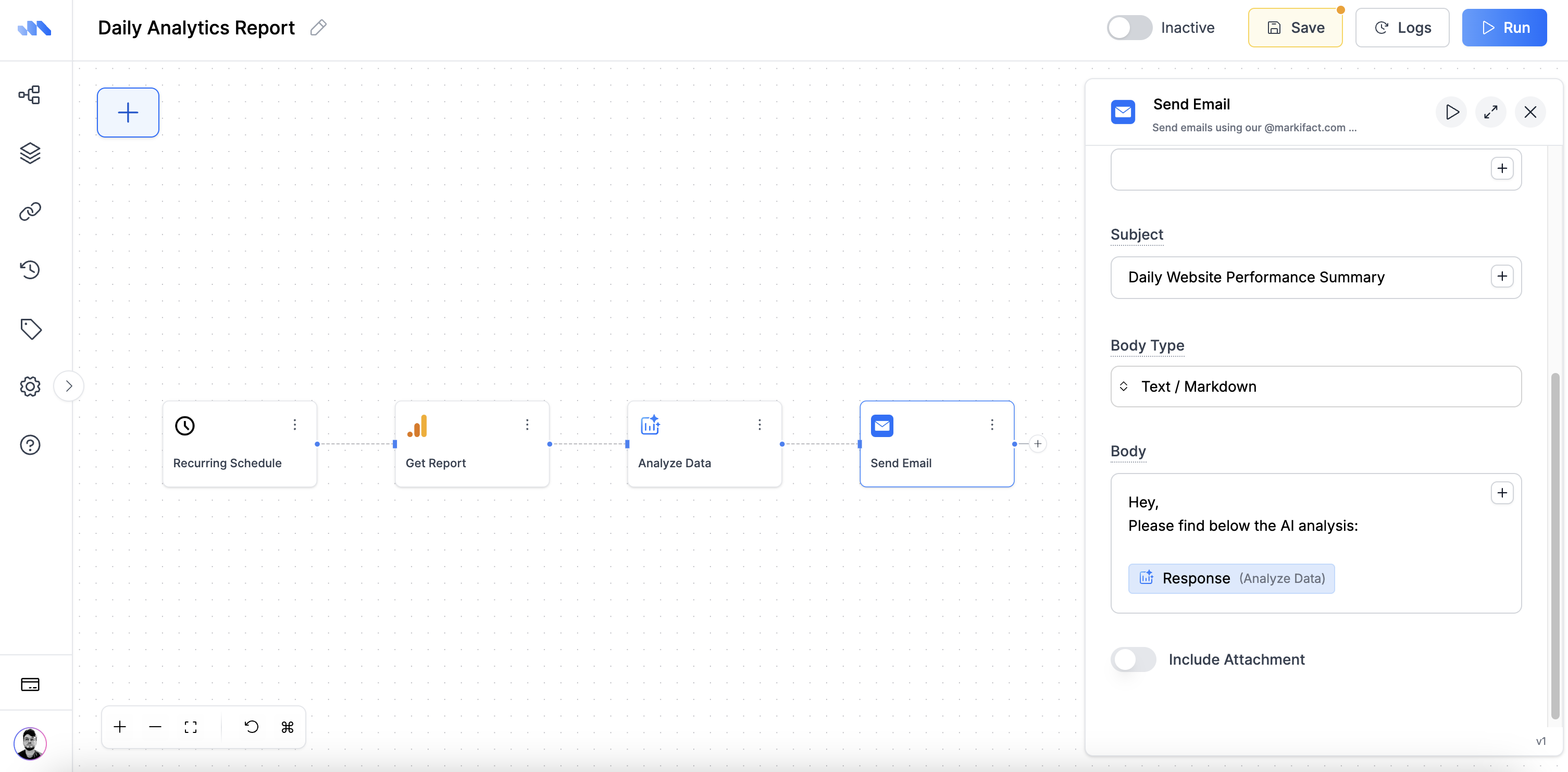
In this quickstart, you’ll build a simple but powerful 4-node workflow:
> Run every day → Pull Google Analytics data → Analyze with AI → Email the insights
No code. Just drag, connect, and configure.
***
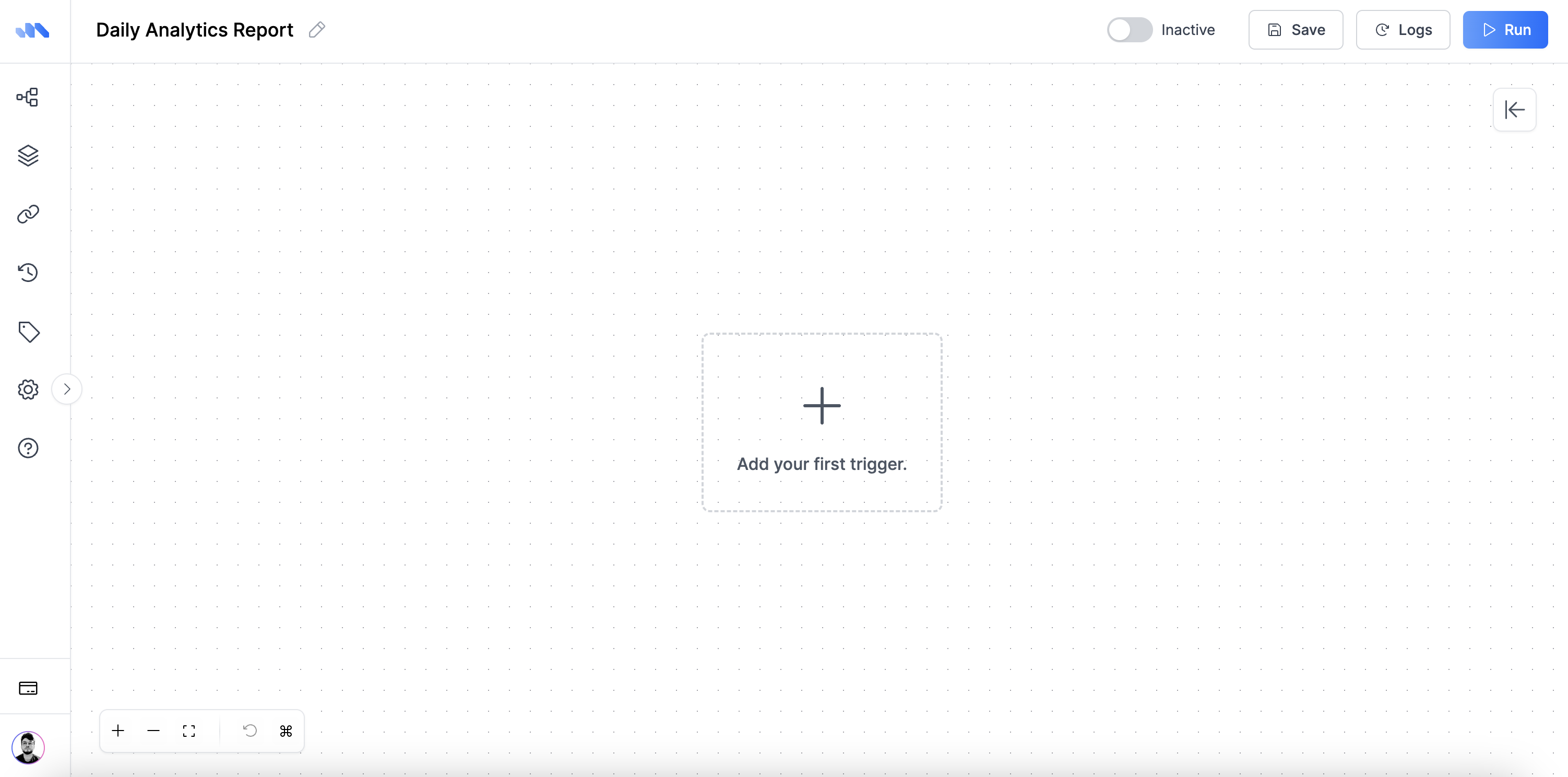
## Step 1: Create a New Workflow
1. Go to your **Workflows** tab.
2. Click **+ New Workflow**.
3. Give it a name like `Daily Analytics Report`.
 ***
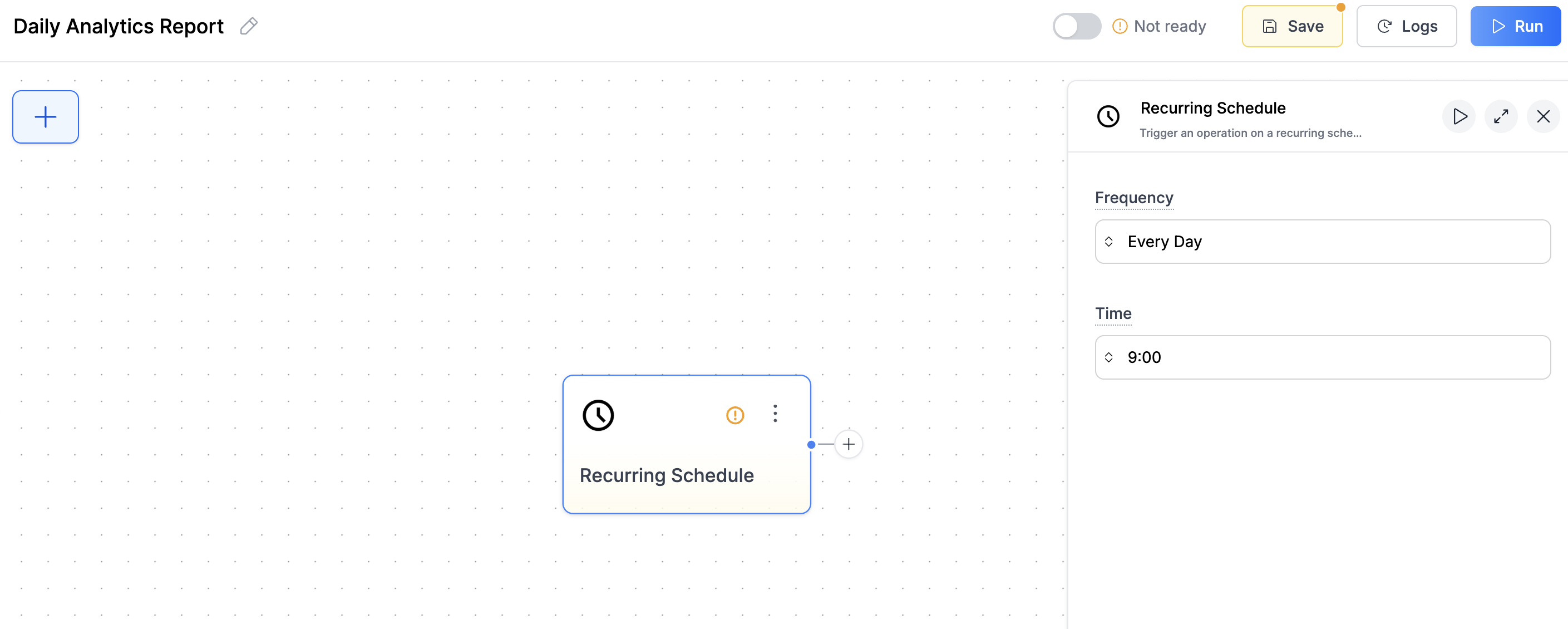
## Step 2: Add a Scheduler Trigger
1. Click **Add Node**, then choose **Scheduler**.
2. Set it to run **daily at 9:00 AM** (or any time you prefer).
This will start the workflow every day at your chosen time.
***
## Step 2: Add a Scheduler Trigger
1. Click **Add Node**, then choose **Scheduler**.
2. Set it to run **daily at 9:00 AM** (or any time you prefer).
This will start the workflow every day at your chosen time.
 ***
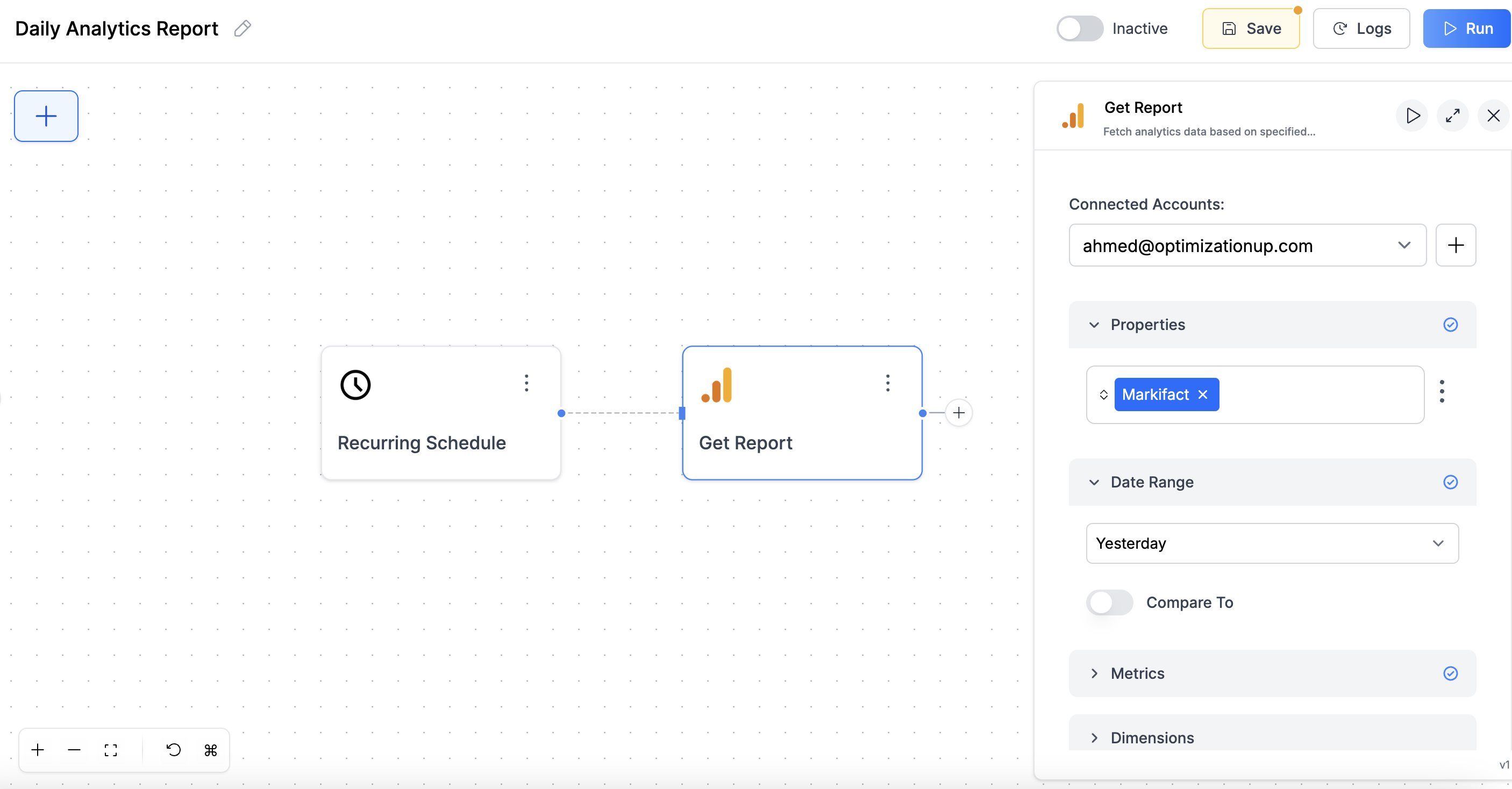
## Step 3: Pull Google Analytics Data
1. Click **+** to add the next node.
2. Search for **Google Analytics → Get Report**.
3. Select your connected Google account.
4. Choose the property and metrics (like sessions, bounce rate, users).
5. Set the date range to **"Yesterday"**.
***
## Step 3: Pull Google Analytics Data
1. Click **+** to add the next node.
2. Search for **Google Analytics → Get Report**.
3. Select your connected Google account.
4. Choose the property and metrics (like sessions, bounce rate, users).
5. Set the date range to **"Yesterday"**.
 ***
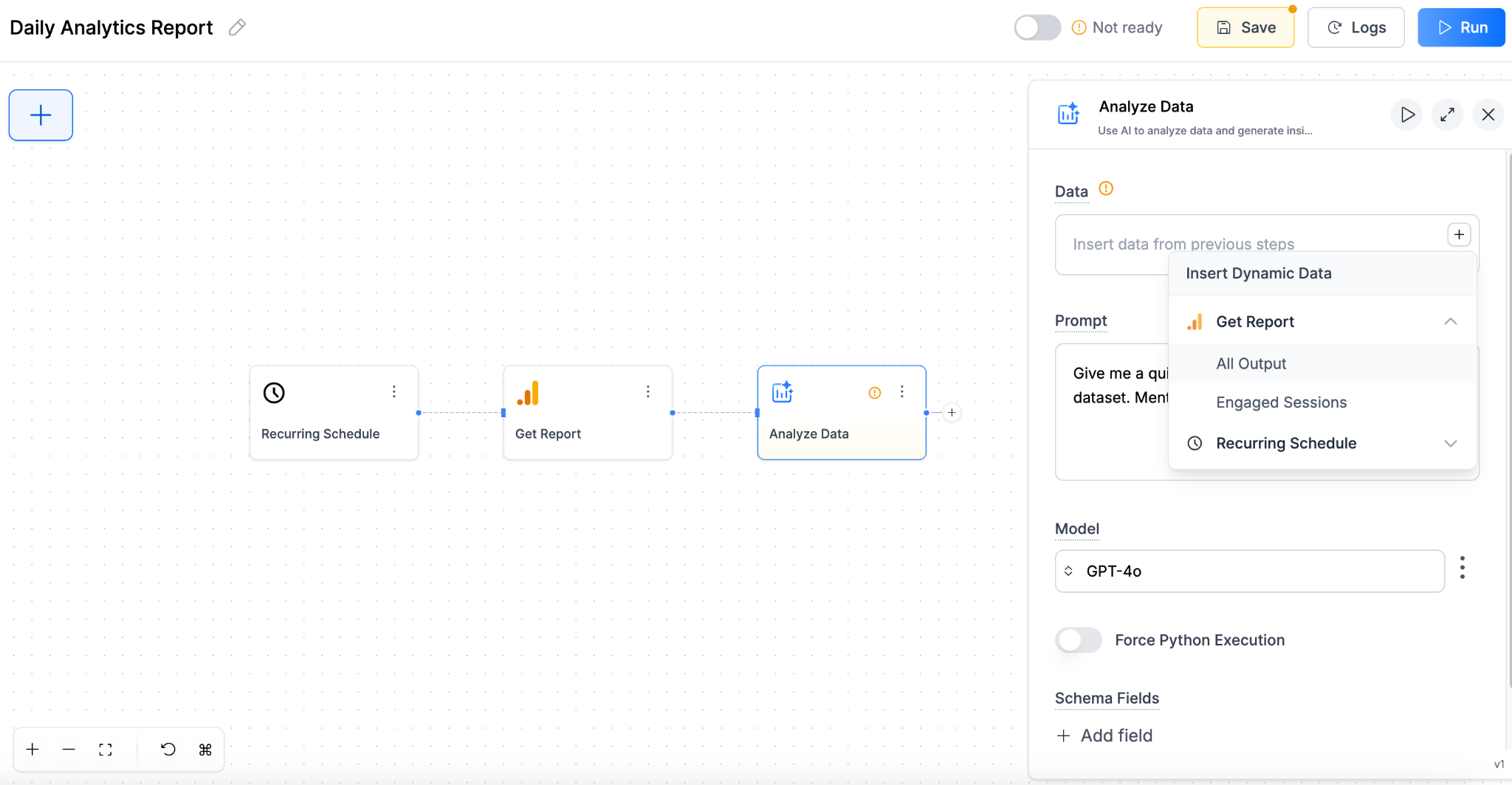
## Step 4: Analyze the Data with AI
1. Add the next node: **AI → Analyze Data**.
2. In the **Data** section, select the output from the previous **Get Report** node. Here's what it looks like:
***
## Step 4: Analyze the Data with AI
1. Add the next node: **AI → Analyze Data**.
2. In the **Data** section, select the output from the previous **Get Report** node. Here's what it looks like:
 3. Use a prompt like:\
`"Give me a short summary of the key metrics and any anomalies or trends worth noting."`
4. Set output format to **Markdown**.
5. Save the node.
***
## Step 5: Send an Email
1. Add the final node: **Email → Send Email**.
2. In the **Body**, insert the AI output from the previous step using the dynamic variable selector.
3. Set the subject to something like `Daily Website Performance Summary`.
4. Choose the recipient email (you or your team).
3. Use a prompt like:\
`"Give me a short summary of the key metrics and any anomalies or trends worth noting."`
4. Set output format to **Markdown**.
5. Save the node.
***
## Step 5: Send an Email
1. Add the final node: **Email → Send Email**.
2. In the **Body**, insert the AI output from the previous step using the dynamic variable selector.
3. Set the subject to something like `Daily Website Performance Summary`.
4. Choose the recipient email (you or your team).
 ***
## Step 6: Activate Your Workflow
Click **Activate** switch in the top right. Your first workflow is now live.
You can run it manually to test by clicking the **Run** button.
Each morning, you’ll get a clean, AI-generated summary of your site’s performance in your inbox—no manual work needed.
***
Want to build more? Explore [Workflow Templates →](https://www.markifact.com/templates)
***
## Step 6: Activate Your Workflow
Click **Activate** switch in the top right. Your first workflow is now live.
You can run it manually to test by clicking the **Run** button.
Each morning, you’ll get a clean, AI-generated summary of your site’s performance in your inbox—no manual work needed.
***
Want to build more? Explore [Workflow Templates →](https://www.markifact.com/templates)