

About Private Apps
Private apps are secure, store-specific applications that you create and control. They:- Are installed only on your specific store
- Give you full control over permissions
- Can be disconnected at any time
- Keep your data access private and secure
Why Private Apps? We initially built Shopify OAuth integration for seamless one-click connection. However, Shopify requires OAuth apps to use their billing system, which doesn’t align with our existing subscription model. Private apps give you the same functionality with full control over your store’s data access.
Already Have a Custom App?
If you created a custom app before January 1, 2026, it will continue to work. You don’t need to make any changes — your existing connection remains fully functional.
Creating a Private App
Here’s how the connection process works:- Create a private app in Shopify’s Developer Dashboard — this app is exclusive to your store
- Create a version and open its configuration page
- Request read all orders access from the version page
- Configure permissions (scopes) for what data the app can access
- Install the app on your store using a private install link
- Copy your credentials (Client ID and Client Secret) from the dashboard
- Connect in Markifact — we securely store your credentials and verify the connection
1
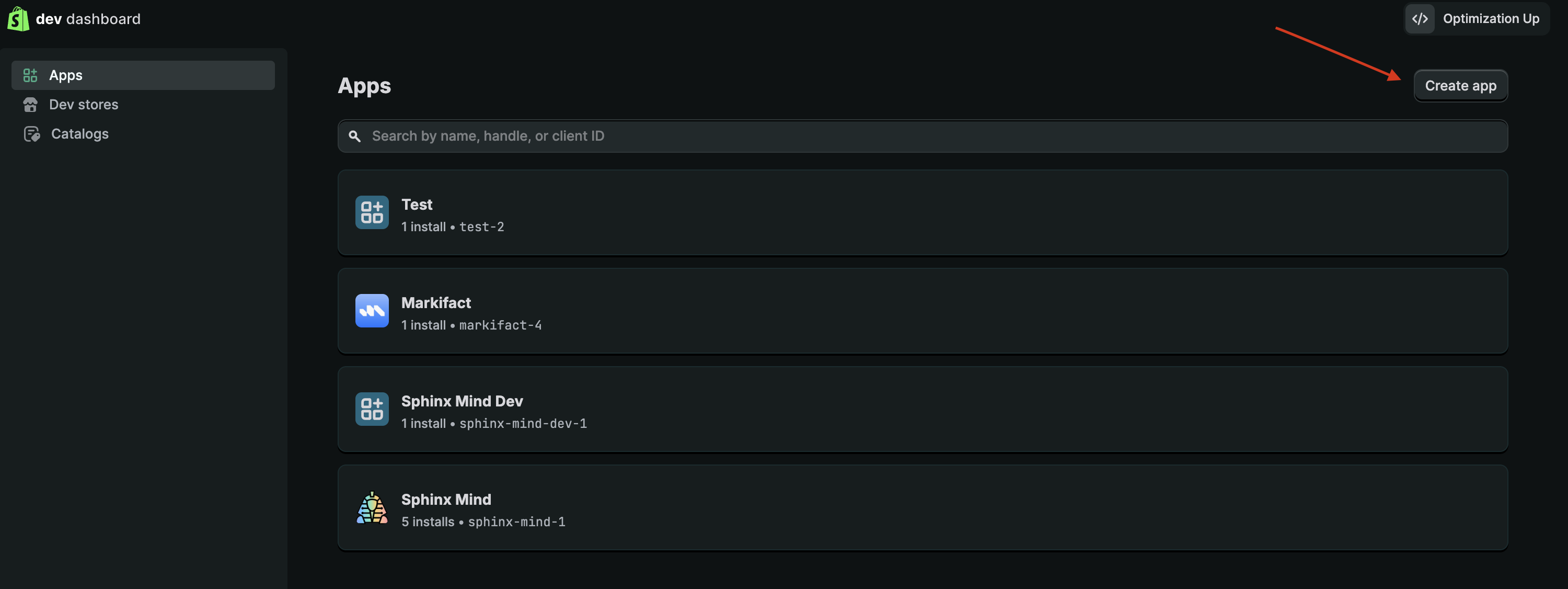
Open the Developer Dashboard
- Login in Shopify admin then go to dev.shopify.com/dashboard
-
Click “Create app” in the top-right corner
2
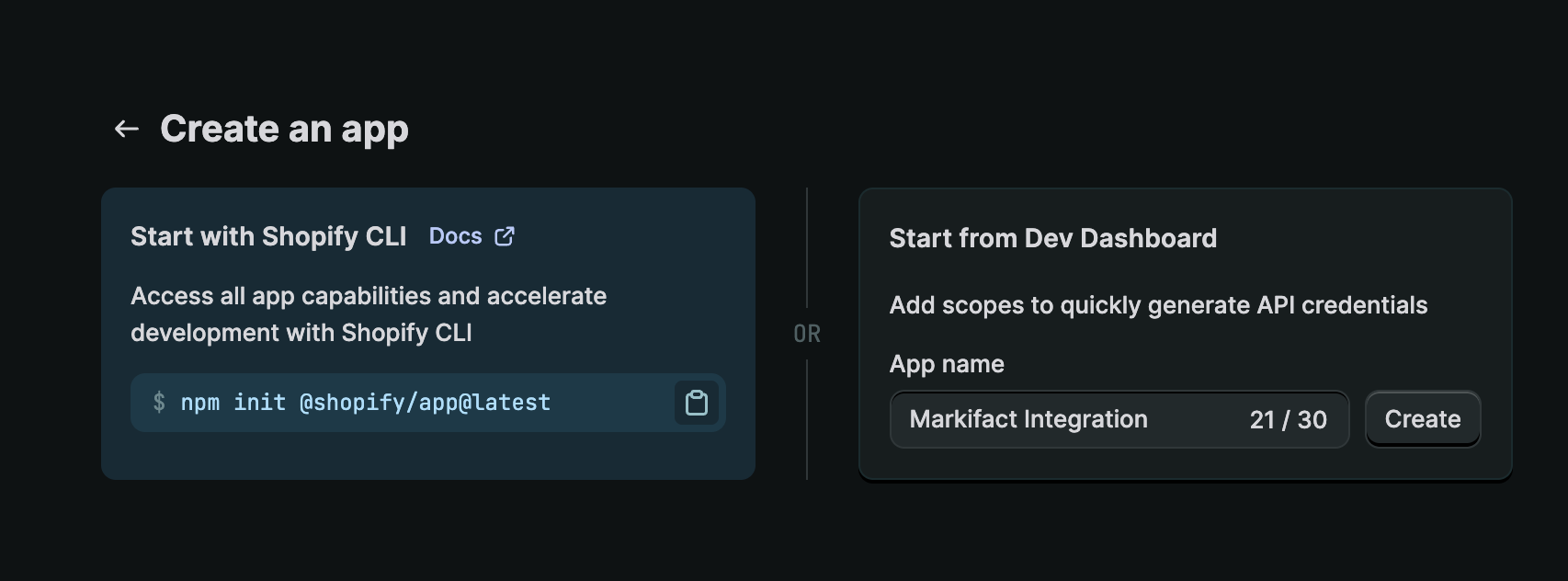
Name Your App
- Under “Start from Dev Dashboard”, enter a name for your app (e.g., “Markifact Integration”)
- App names can be up to 30 characters
-
Click “Create”
3
Open the Version Page and Request Read All Orders
Shopify requires permission before you can include the
read_all_orders scope in an app version. This scope lets Markifact read orders older than the last 60 days, which is required for historical reporting.- After creating the app, Shopify will prompt you to create a version. Click it to open the version configuration page.
- If you are returning to an existing app, click “Versions” in the left sidebar, then create a new version or open the draft version you want to update.
- On the version configuration page, go to the “Access” section and click “Request access” next to the message about scopes that require Shopify permission
- In “Read all orders scope”, click “Request access”
- Enter a short reason, such as:
- Click “Request access”
-
After Shopify approves the request, go back to the same version configuration page
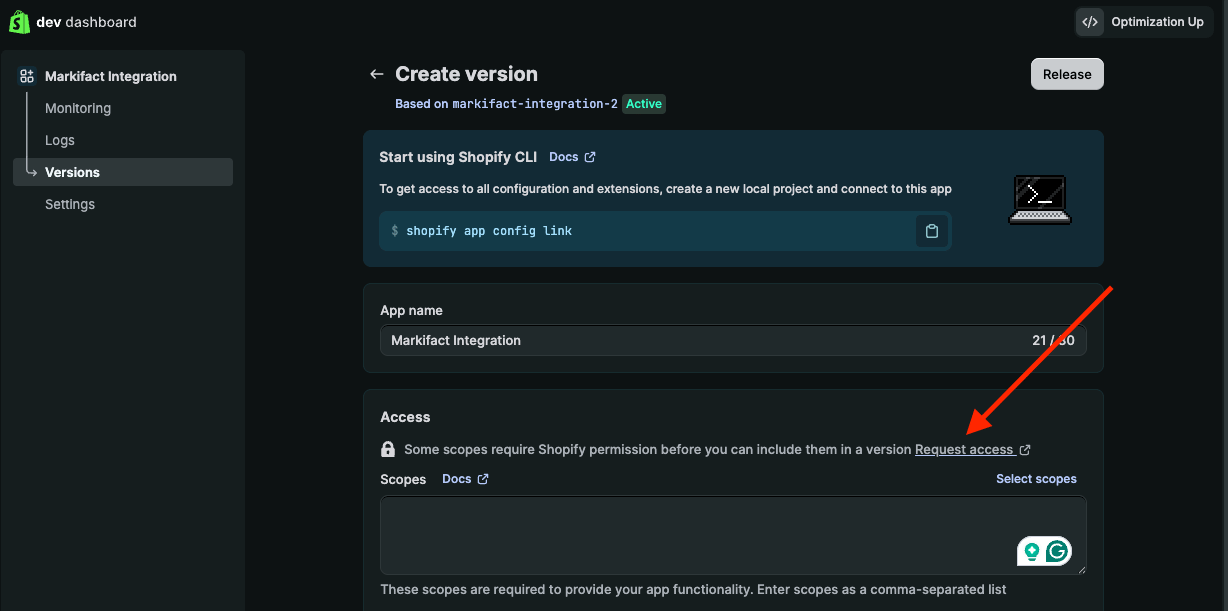
Shopify usually approves this request immediately from the form. Once approved, you can add
read_all_orders with the other required scopes.4
Configure API Scopes
On the same version configuration page, stay in the “Access” section and add the required API scopes (permissions).Alternatively, click “Select Scopes”, check the boxes next to each required scope, and click “Done”.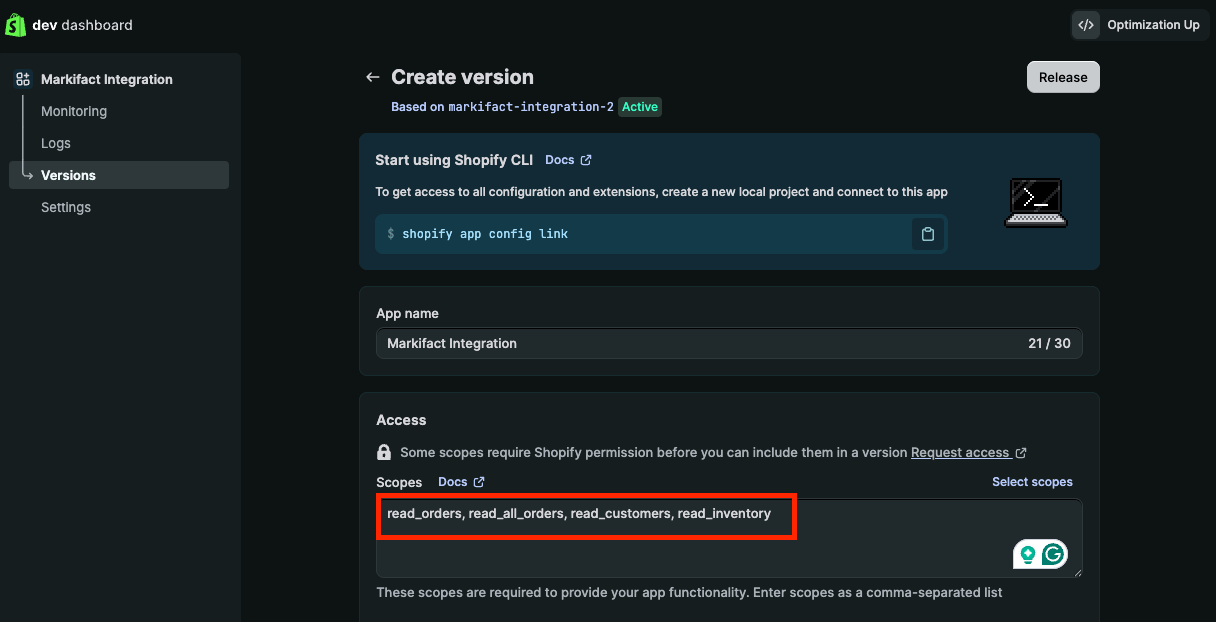
To add scopes:Copy and paste the following scopes into the text box:
If Shopify shows
read_all_orders as an invalid scope after your request is approved, refresh the version page and try adding the scopes again.5
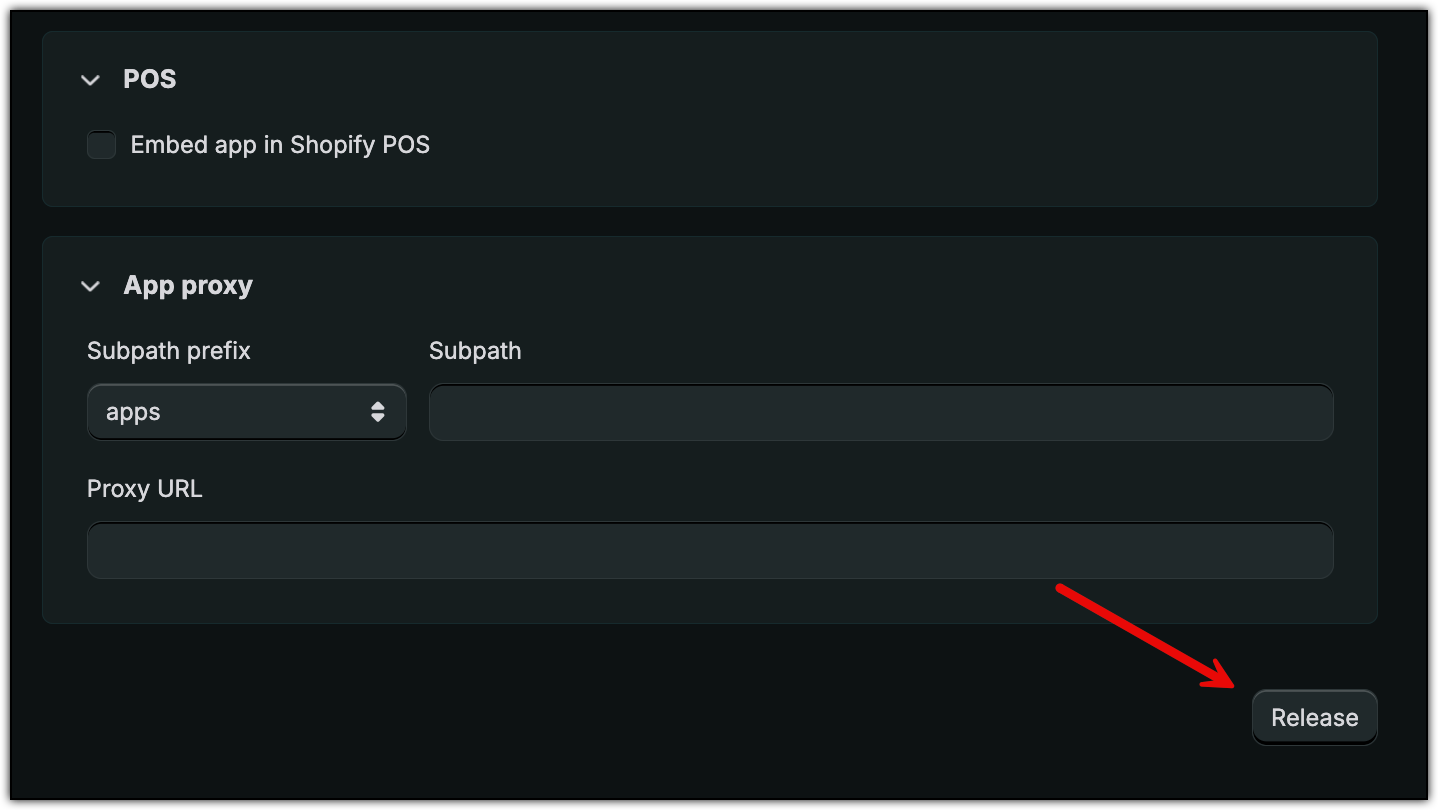
Release the App
- Click the “Release” button in the top-right corner
- Optionally, enter a version name and message
- Click “Release” to confirm
6
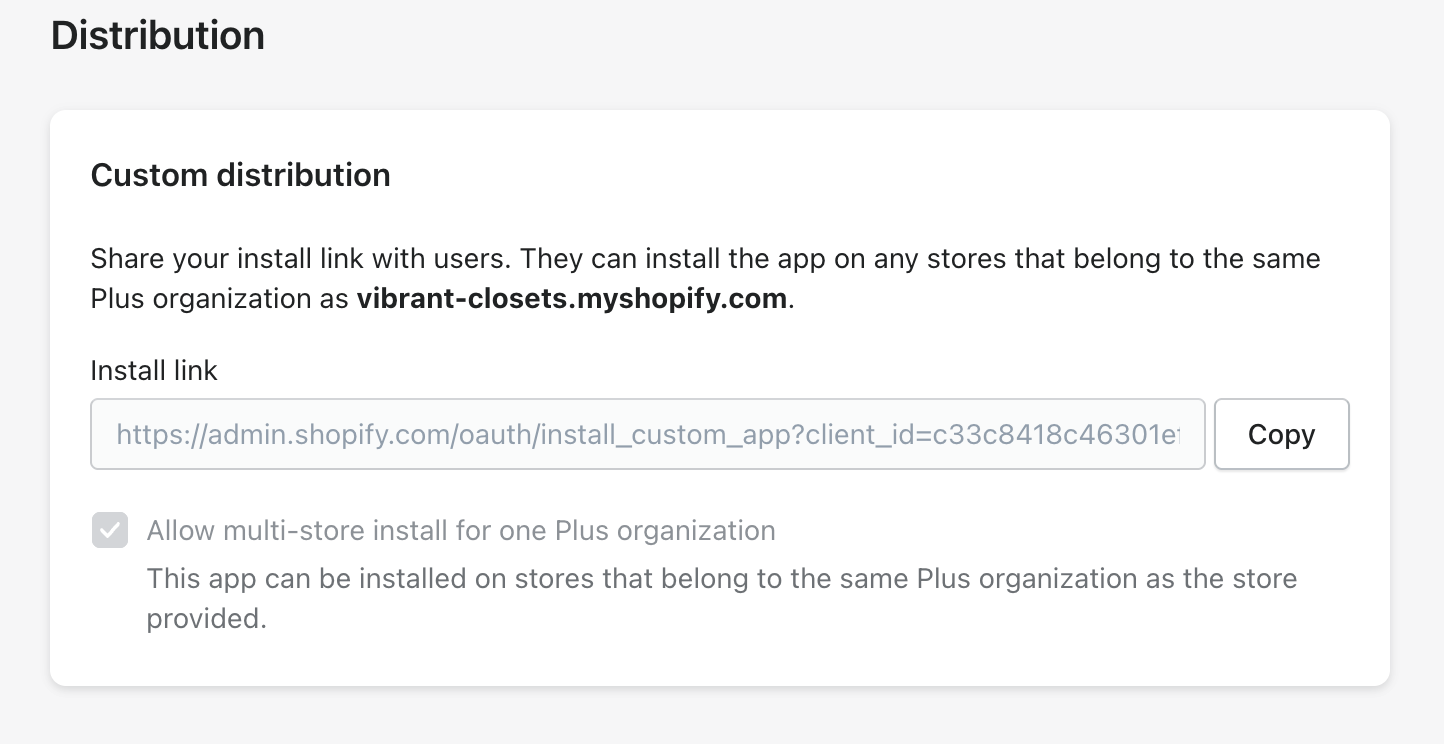
Set Up Distribution
Before installing, you need to configure the app for private distribution to your store.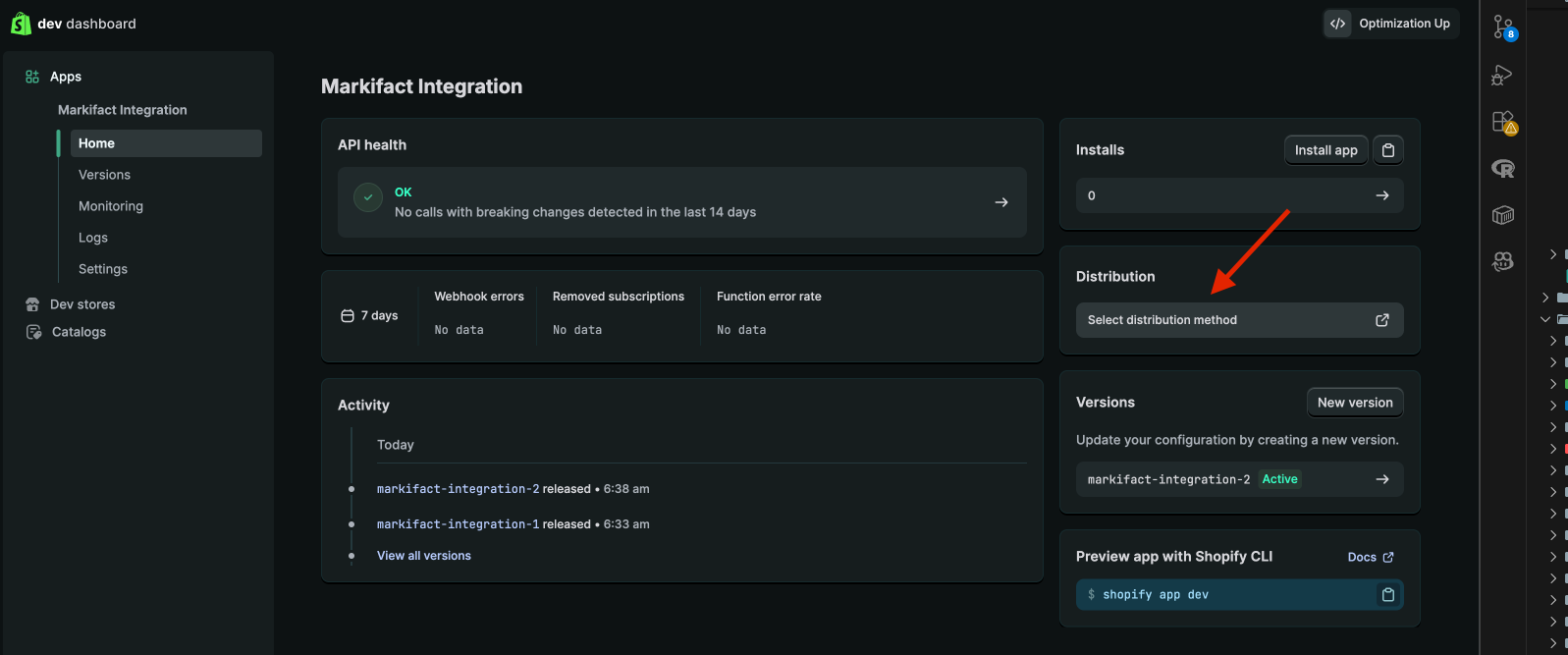
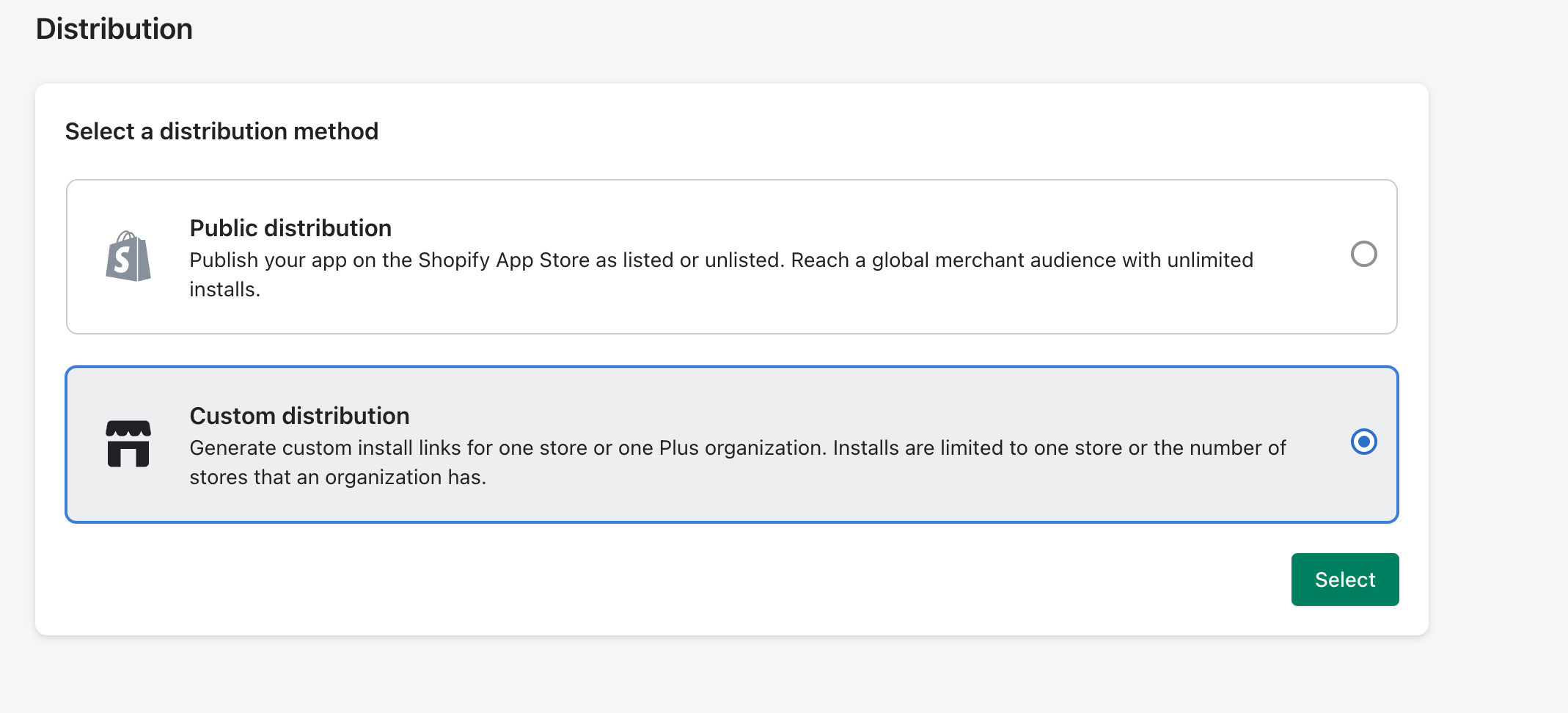
- In the Developer Dashboard, click “Distribution” in the sidebar (or click “Select distribution method”)
Can’t find Distribution? No problem. Click “Install app” and install it on your store. You can skip the distribution step entirely and continue to the next step.
-
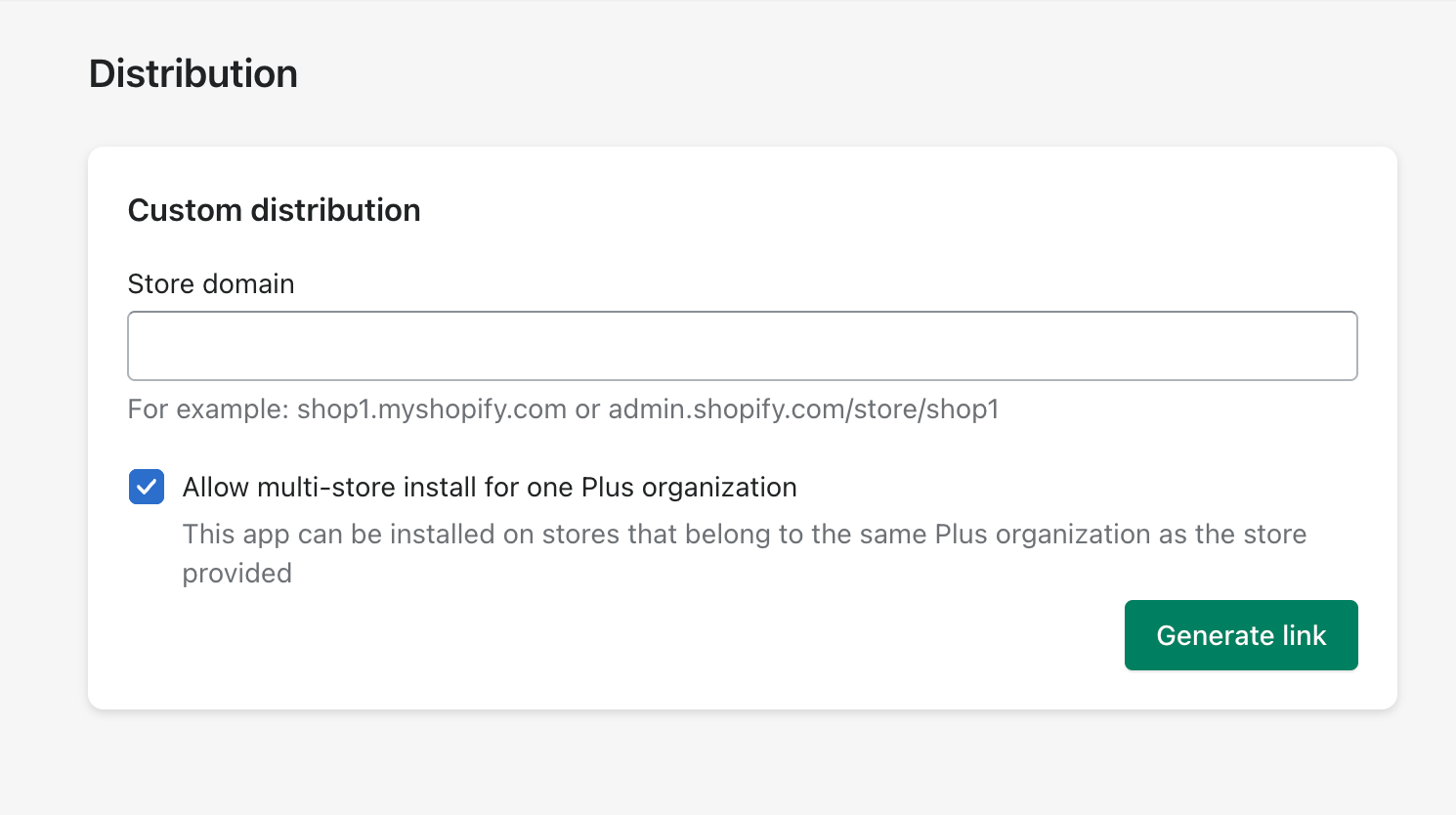
Enter your Store domain (e.g.,
your-store.myshopify.com) - If you have multiple stores under a Shopify Plus organization, check “Allow multi-store install for one Plus organization”
-
Click “Generate link” and confirm
-
Copy the Install link — you’ll use this to install the app on your store
7
Install the App
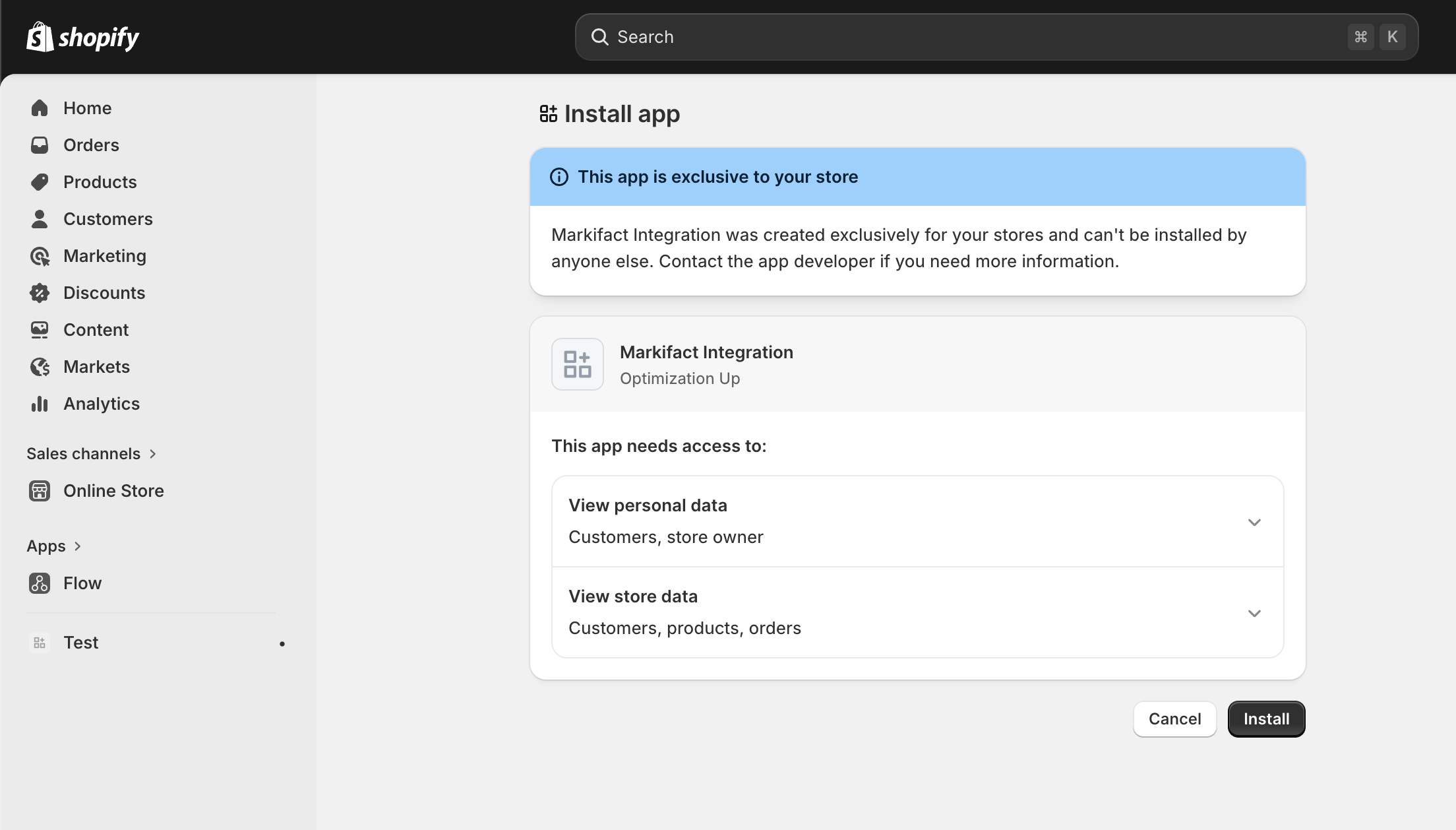
- Open the Install link you copied in the previous step
- Select your store if prompted
- Review the permissions — you’ll see the app is exclusive to your store
-
Click “Install”
8
Get Your Credentials
After installation, you need to retrieve your Client ID and Client Secret from the Developer Dashboard.
- Go back to dev.shopify.com and select your app
- Click “Settings” in the left sidebar
- Under “Credentials”, click the copy icon next to Client ID
-
Click the copy icon next to Secret to copy your Client Secret
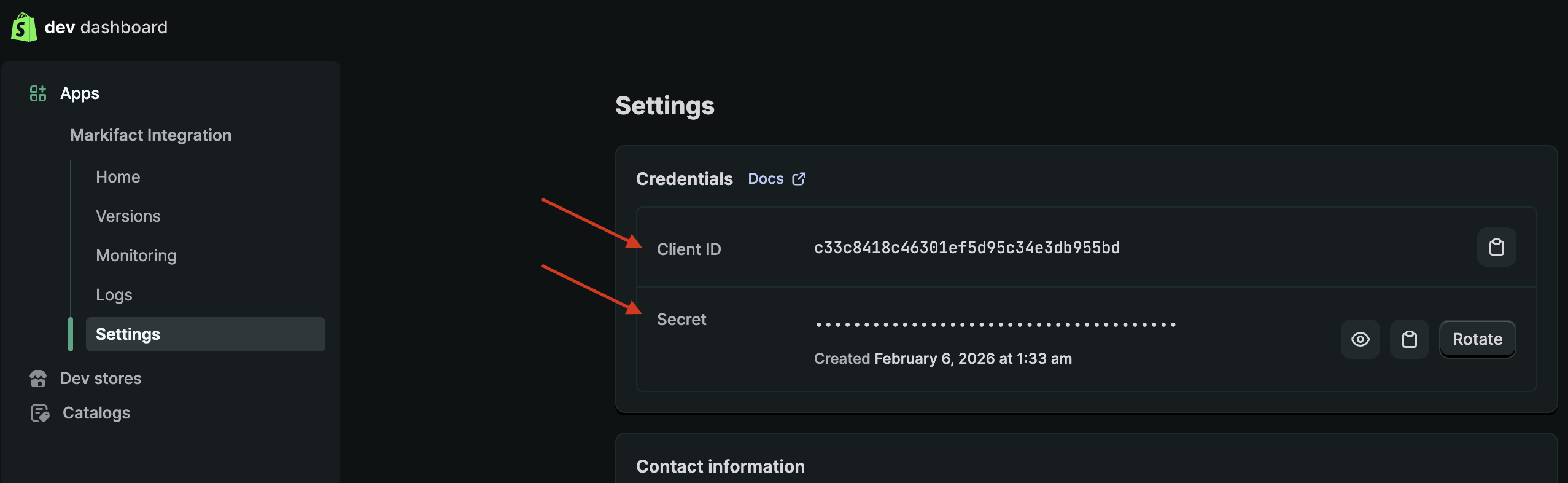
Important: Keep these credentials secure. Anyone with your Client ID and Secret can access your store data.
9
Connect to Markifact
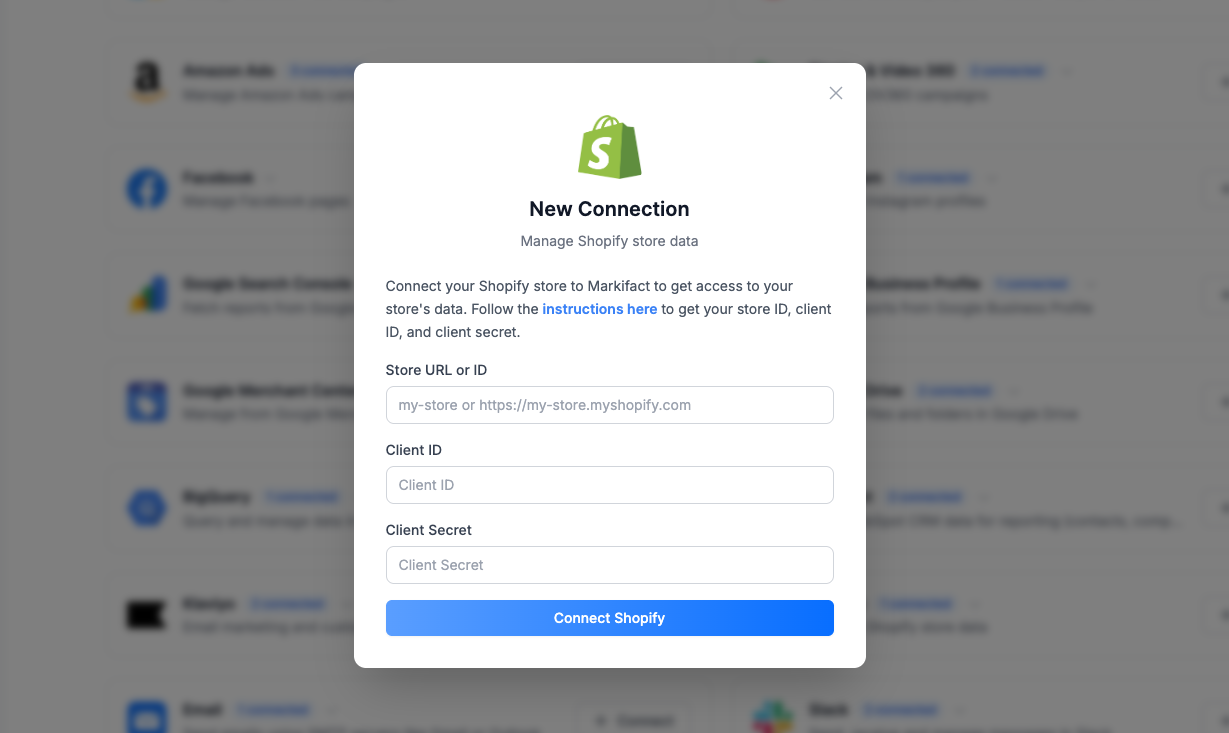
- In Markifact, go to the Connections page
- Click “Connect Shopify”
-
Enter your Store URL or ID (e.g.,
your-storeoryour-store.myshopify.com) - Paste your Client ID
- Paste your Client Secret
-
Click “Connect Shopify”
Disconnecting Your Store
You can disconnect your Shopify store at any time: From Markifact:- Go to Connections
- Find your Shopify connection
- Click “Disconnect”
- Go to Settings → Apps and sales channels
- Find your Markifact integration app
- Click “Delete app”
Troubleshooting
Invalid credentials
Invalid credentials
Ensure you copied the Client ID and Client Secret correctly from the Developer Dashboard under Settings → Credentials. If you rotated your secret, make sure to update it in Markifact as well.
Missing permissions error
Missing permissions error
Verify that all required scopes are added to your app:
read_ordersread_all_ordersread_customersread_inventory
Store not found
Store not found
Check that your store URL is correct. It should be in the format
your-store.myshopify.com (without https:// or trailing slashes).API rate limits
API rate limits
Shopify has API rate limits. If you’re running many reports simultaneously, you may hit these limits. Try spacing out your requests or reducing the frequency of automated workflows.
Summary
Related
Get Report
Fetch orders, customers, and inventory data from your store