

Custom app connections are available on the Team plan. See White-label Connections for the overview. Custom Slack apps connected before this change keep working on any plan.
Quick Connect vs Custom App
Setting Up Your Custom Slack App
Already have a Slack app? Skip Step 1 and go directly to Step 2 to configure your existing app.
1
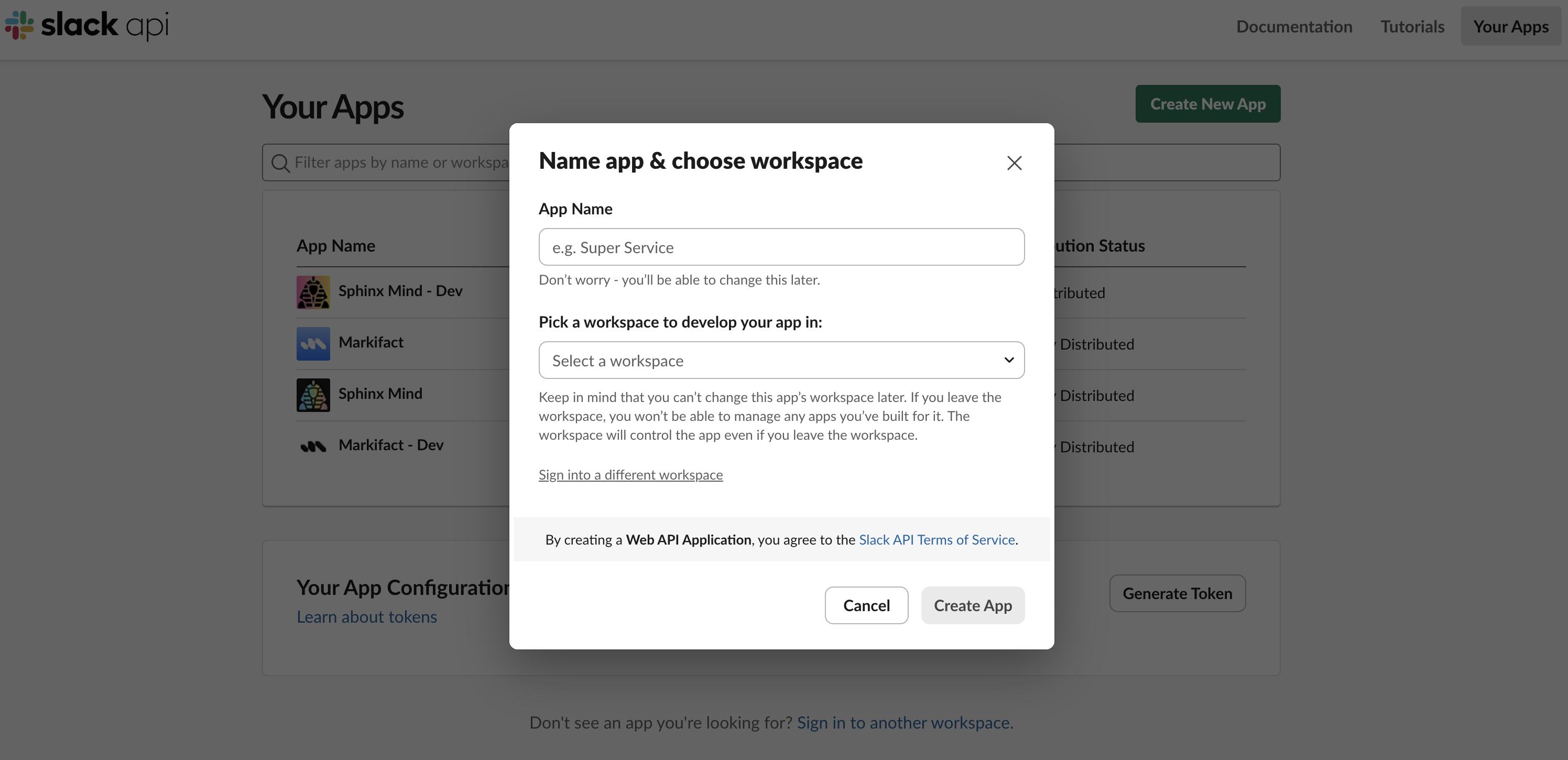
Create a New Slack App
- Go to Slack API Apps
- Click “Create New App”
- Select “From scratch”
- Enter your app name (e.g., “My Company Bot”)
- Select the workspace where you want to install the app
-
Click “Create App”
2
Configure Event Subscriptions
Event Subscriptions allow your bot to receive messages and mentions from Slack.
- In your app settings, go to “Event Subscriptions” in the left sidebar
- Toggle “Enable Events” to On
- In the “Request URL” field, enter:
-
Wait for Slack to verify the URL (you’ll see a green checkmark)
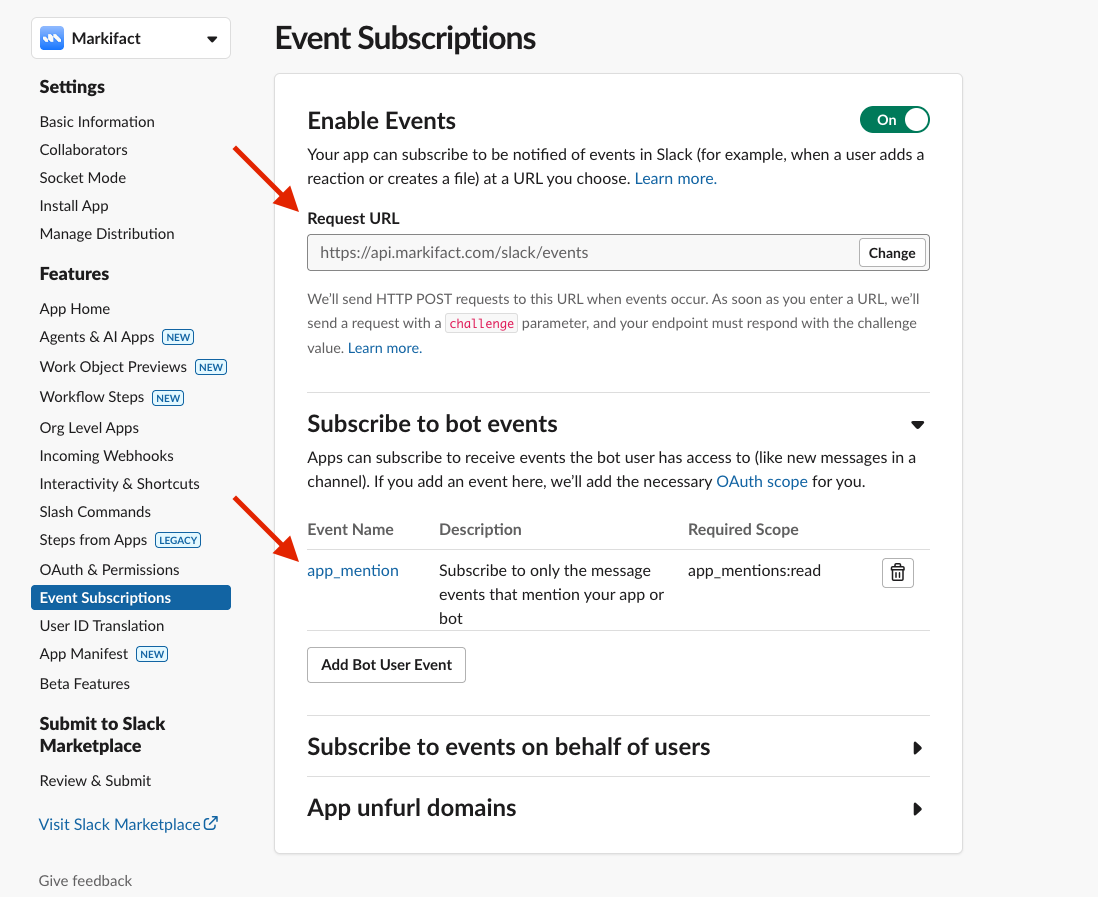
app_mention- When users mention your bot
3
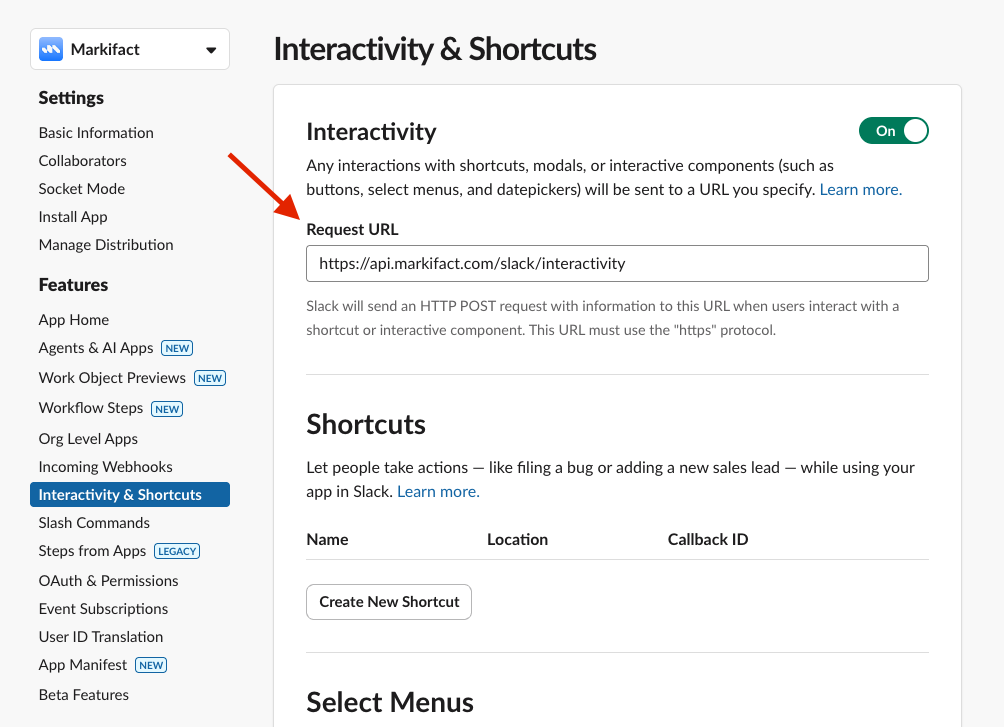
Configure Interactivity
Interactivity enables buttons, menus, and other interactive elements in Slack messages.
- Go to “Interactivity & Shortcuts” in the left sidebar
- Toggle “Interactivity” to On
- In the “Request URL” field, enter:
-
Click “Save Changes”
4
Configure OAuth Scopes
Scopes define what permissions your bot has in Slack.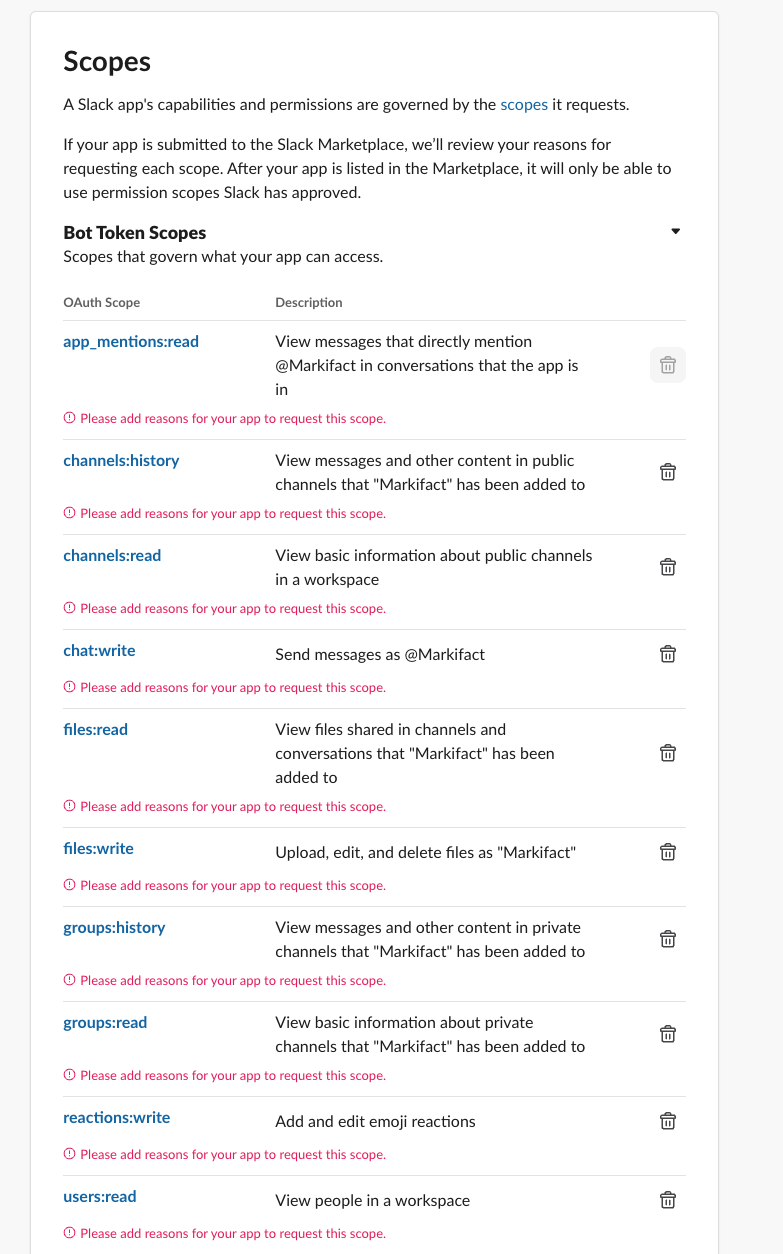
- Go to “OAuth & Permissions” in the left sidebar
- Scroll down to “Scopes”
- Under “Bot Token Scopes”, click “Add an OAuth Scope”
- Add all of the following scopes:
5
Install App to Workspace
- Go to “Install App” in the left sidebar
- Click “Install to Workspace”
- Review the permissions and click “Allow”
-
Copy the “Bot User OAuth Token” (starts with
xoxb-)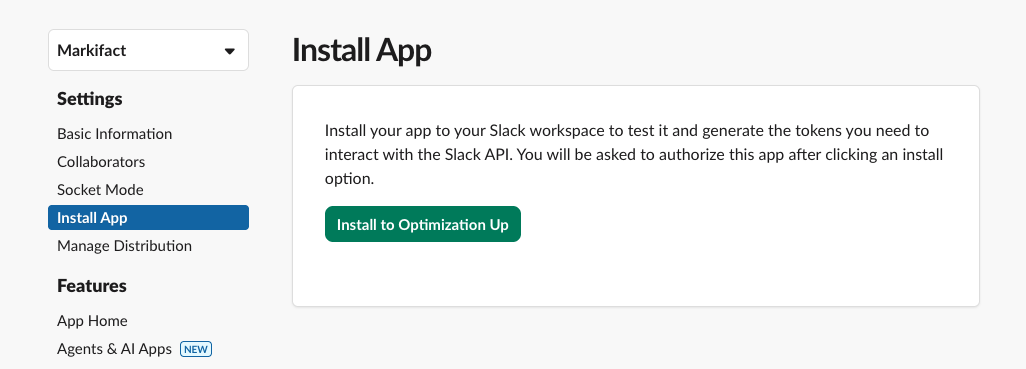
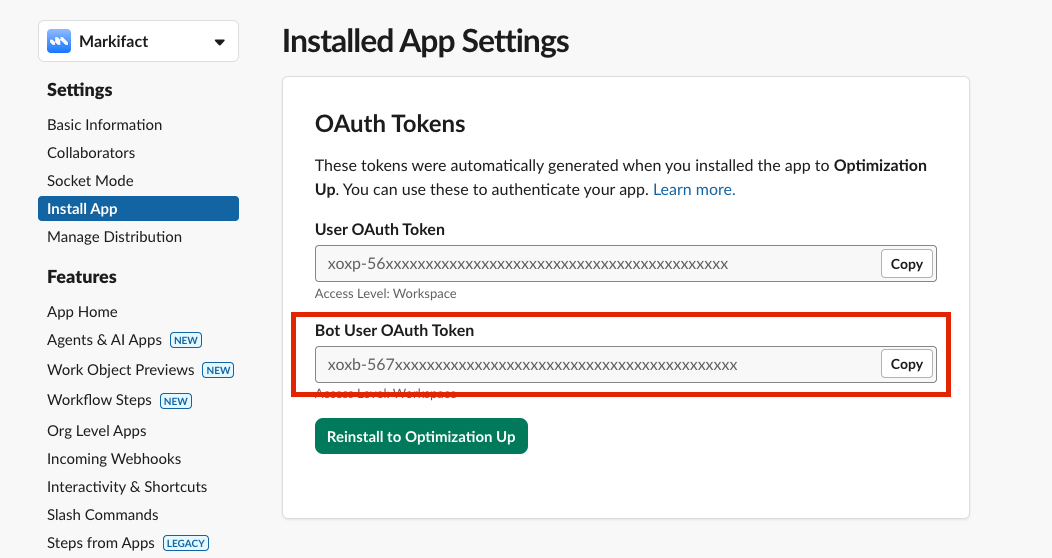
Important: Keep this token secure. Anyone with this token can send messages as your bot.
6
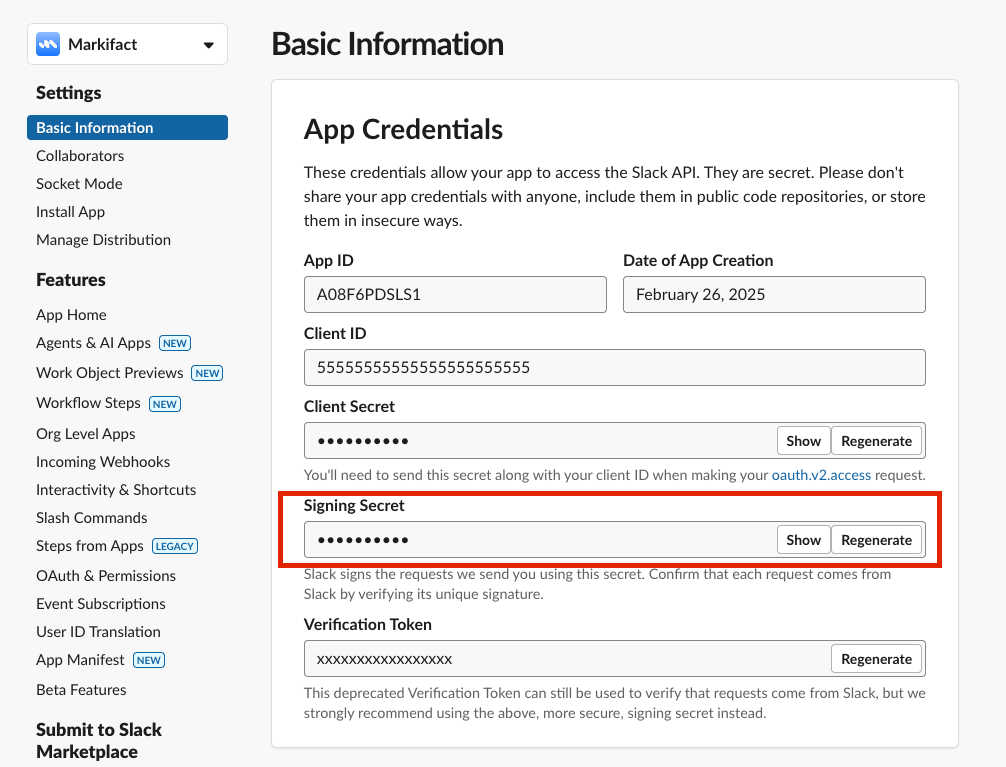
Get Your Signing Secret
The signing secret verifies that requests to Markifact are actually from Slack.
- Go to “Basic Information” in the left sidebar
- Scroll down to “App Credentials”
-
Find and copy your “Signing Secret”
7
Connect to Markifact
Now you have everything needed to connect your custom app to Markifact.
- In Markifact, go to Connections page
- Click “Connect Slack”
- Select the “Custom App (White-label)” tab
- Enter a Connection Name (for example “Acme Corp Marketing Bot”); this is how the connection appears in Markifact
-
Enter your Bot Token (the
xoxb-token from Step 5) - Enter your Signing Secret (from Step 6)
-
Click “Verify & Connect”
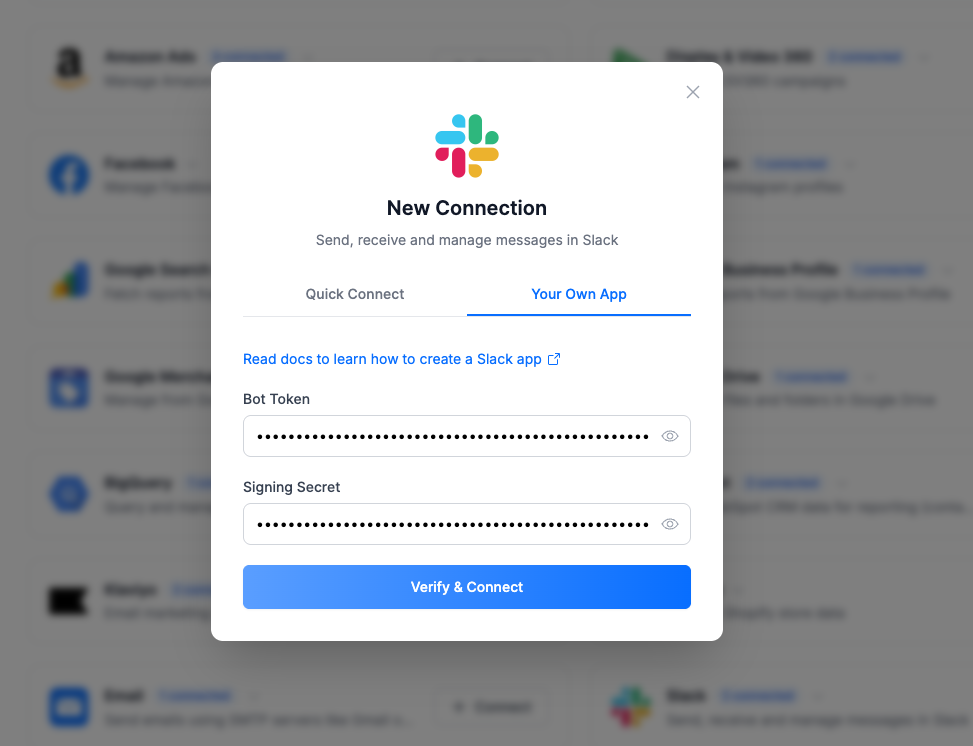
Verification Success = Ready to Go! Once Markifact verifies your credentials, your custom Slack app is fully connected. You can use it with both Workflows and the AI Agent — all Slack features are supported.
Selecting Your Connection
When configuring Slack nodes or the AI Agent, you’ll see your custom app connection in the dropdown under the Connection Name you entered, with a Custom app badge on the Connections page. Make sure to select the correct connection if you have multiple Slack connections.Verifying Your Setup
After connecting, test your setup:- Create a simple workflow with the Slack “New Message” trigger
- Add your bot to a channel by typing
@YourBotNamein the channel - Mention your bot in a message
- Check that your workflow triggers successfully
Troubleshooting
URL verification failed
URL verification failed
Make sure you entered the exact URLs:
- Events:
https://api.markifact.com/slack/events - Interactivity:
https://api.markifact.com/slack/interactivity
Bot token is invalid
Bot token is invalid
Ensure you copied the Bot User OAuth Token (starts with
xoxb-), not the User OAuth Token. You can find it under “Install App” after installing the app to your workspace.Signing secret verification failed
Signing secret verification failed
The signing secret is found under “Basic Information” > “App Credentials”. Make sure you copy the entire secret without any extra spaces.
Bot doesn't respond to messages
Bot doesn't respond to messages
Check that:
- Signing Secret is correct — A wrong signing secret is the most common cause. Markifact uses the signing secret to verify that incoming requests are actually from Slack. If it’s incorrect, all events are silently rejected. Double-check you copied the correct secret from “Basic Information” > “App Credentials”.
- Event Subscriptions are enabled with the correct URL
- You’ve subscribed to the required bot events (
app_mention) - The bot has been added to the channel
- Your workflow is active and properly configured
- Correct connection selected: if using the AI Agent, ensure your agent channel is active and using your custom app’s connection (the one with the name you entered and the Custom app badge). If the connection is named after your workspace with no badge, you’re using Quick Connect, not your custom app.
Missing permissions error
Missing permissions error
Review the OAuth scopes and ensure all required scopes are added. After adding new scopes, you need to reinstall the app to your workspace for changes to take effect.
Could not retrieve app information: missing_scope
Could not retrieve app information: missing_scope
This error appears when connecting your custom app and indicates that a required OAuth scope is missing — typically
users:read.To fix:- Go to your Slack App Settings
- Navigate to “OAuth & Permissions”
- Under “Bot Token Scopes”, ensure
users:readis added - After adding the scope, reinstall your app by going to “Install App” and clicking “Reinstall to Workspace”
- Copy the new Bot User OAuth Token and update it in Markifact
Summary
Related
New Message Trigger
Trigger workflows when your bot is mentioned
Send Message
Send messages and files to Slack channels