

Supported AI Providers
We currently support four AI providers:- OpenAI
- Google Gemini
- Anthropic
- DeepSeek
How to Add Your API Keys
1
Go to the Connections Page
Navigate to the Connections page from the sidebar in your Markifact dashboard.
2
Find Your AI Provider
Scroll to find OpenAI, Google Gemini, Anthropic, or DeepSeek in the list of available connections.
3
Click Connect
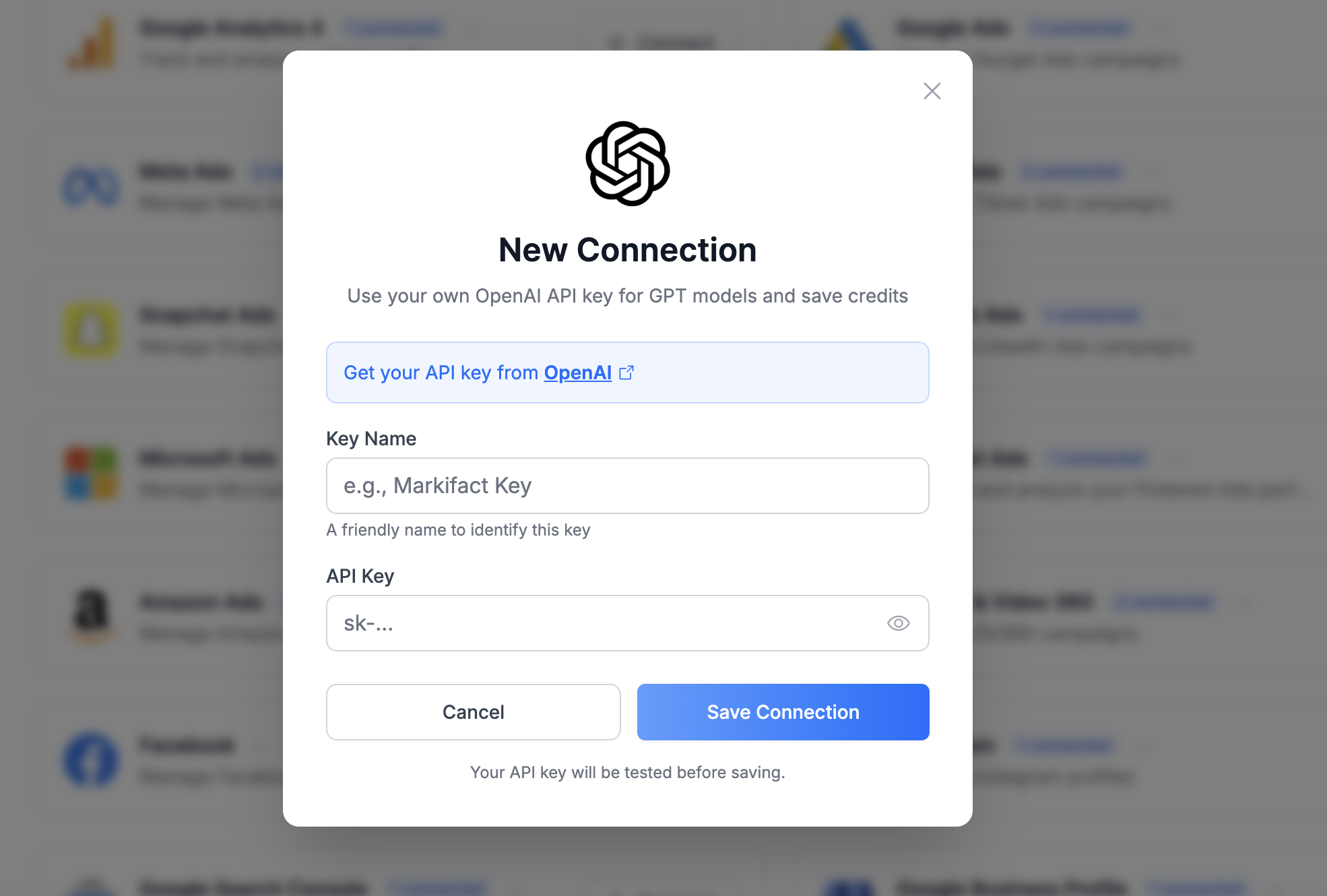
Click the ”+ Connect” button next to your chosen provider. A connection dialog will open.
4
Enter a Key Name
Give your API key a friendly name to identify it later (e.g., “My OpenAI Key” or “Production Key”).
5
Paste Your API Key
Enter your API key from the provider’s dashboard. You can click the eye icon to verify your key.
6
Save Connection
Click Save Connection. Your API key will be tested before saving to ensure it’s valid.
Where to Get API Keys
OpenAI API Key
OpenAI API Key
- Go to platform.openai.com/api-keys
- Sign in or create an account
- Click Create new secret key
- Copy the key and paste it into Markifact
⚠️ Make sure you have billing set up on your OpenAI account to use the API.
Google Gemini API Key
Google Gemini API Key
- Go to aistudio.google.com/app/apikey
- Sign in with your Google account
- Click Create API Key
- Copy the key and paste it into Markifact
Anthropic API Key
Anthropic API Key
- Go to console.anthropic.com/settings/keys
- Sign in or create an account
- Click Create Key
- Copy the key and paste it into Markifact
⚠️ Make sure you have billing set up on your Anthropic account to use the API.
DeepSeek API Key
DeepSeek API Key
- Go to platform.deepseek.com/api_keys
- Sign in or create a DeepSeek Platform account
- Create a new API key
- Copy the key and paste it into Markifact
⚠️ Make sure your DeepSeek account has sufficient API balance. DeepSeek API access is billed separately from the DeepSeek chat application.
How It Works
When you configure your own API key:- AI requests go through your account — Markifact sends AI requests using your API key, and usage is billed directly by the provider to your account.
- You control the models — Use models supported by Markifact and available to your provider account, including the latest supported releases.
- Your data, your terms — Requests are subject to your agreement with the AI provider, not Markifact’s.
Credit Savings
Using your own API keys significantly reduces Markifact credit costs:AI Nodes (0 Credits)
When using your own API keys, all standard AI nodes consume 0 credits:- AI Ask — 0 credits
- AI Structure — 0 credits
- AI Analyze Data — 0 credits
- AI Analyze Image — 0 credits
- AI Generate Image — 0 credits
- AI Edit Image — 0 credits
AI Agents (1 Credit Flat)
Agent nodes have a flat credit cost regardless of complexity:
This flat rate applies no matter how many tools the agent uses or how long it takes to complete the task.
DeepSeek BYOK is currently available for DeepSeek V4.1 Flash and DeepSeek V4 Pro in AI Agents. V4.1 Flash supports text and image input; V4 Pro is text-only. Both use DeepSeek’s default thinking mode. Saved workflows using the older V4 Flash model now run on V4.1 Flash.
Comparison Example
💡 Tip: If you run AI-heavy workflows frequently, using your own API keys can result in substantial credit savings.
Switching Between Your Keys and Markifact
When you add your own API key for a provider, all AI nodes will automatically use your key instead of Markifact’s built-in AI. To switch back to using Markifact’s AI:- Go to the Connections page
- Find the API key connection you want to remove
- Delete the connection
💡 If you have multiple API keys for the same provider, Markifact will use the most recently added key.
FAQ
Do I still need Markifact credits if I use my own keys?
Do I still need Markifact credits if I use my own keys?
Yes, but significantly fewer. You still need credits for:
- Workflow runs (1 credit per run)
- AI Agent and Task Agent nodes (1 credit flat each)
- Other non-AI nodes (Sheets, Slides, Google Ads, etc.)
Is my API key secure?
Is my API key secure?
Yes. Your API key is encrypted and stored securely. For security, API keys are never returned to the frontend after saving—they cannot be viewed or edited, only deleted. We never log the content of your AI requests.
Can I use multiple API keys from the same provider?
Can I use multiple API keys from the same provider?
Yes. You can add multiple API keys for the same provider. Markifact will automatically use the most recently added key for that provider.
What happens if my API key expires or is revoked?
What happens if my API key expires or is revoked?
Workflows using that key will fail on AI nodes. You’ll need to delete the old connection and add a new one with a valid API key. Other nodes in the workflow will continue to work.
Are there any rate limits?
Are there any rate limits?
Rate limits are determined by your AI provider account, not Markifact. If you hit rate limits, you’ll see errors from the provider. Consider upgrading your plan with the provider or spreading requests across time.
Which models can I use?
Which models can I use?
You can use any model supported by your provider and available in Markifact’s AI nodes. DeepSeek keys currently work with DeepSeek V4.1 Flash and DeepSeek V4 Pro in AI Agents. We regularly update our model list to include the latest releases.
Related
Credits & Usage
Learn more about how credits work and view full pricing tables.
Connections
Manage all your external connections including API keys.